Leave Without Pay (LWP)
- Leave Without Pay (LWP) is a type of leave where an employee is permitted to be absent from work without receiving salary for the leave period.
- This leave type is typically used when paid leave balances are exhausted or when unpaid leave is required as per company policy.
Create Leave Without Pay Policy
- To create a new Leave Without Pay (LWP) policy, click on the + Add button on the Leave Code Policy List page.
Leave Code Policy Creation Page
After clicking + Add, the Basic Leave Details page will open as shown below:
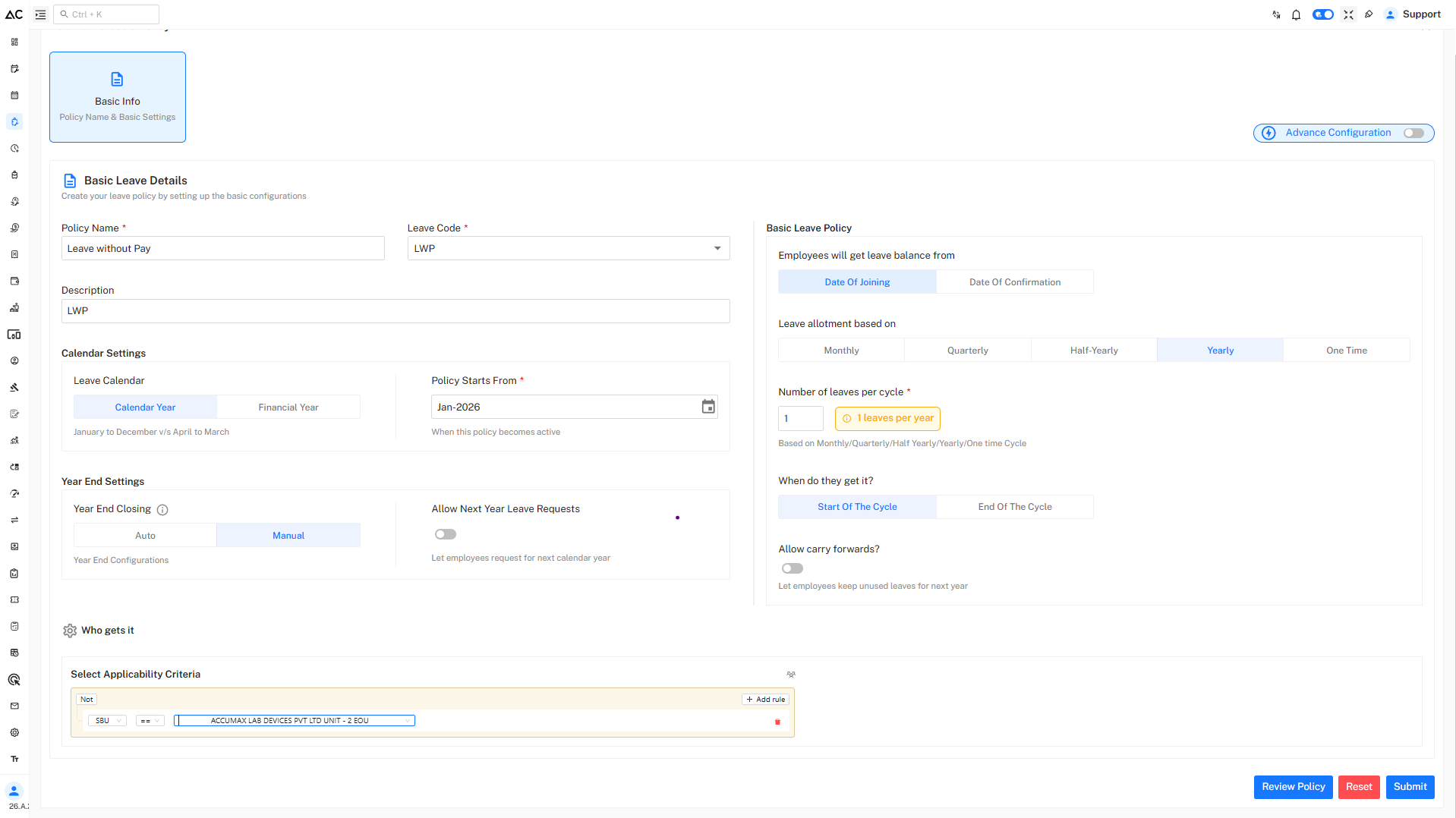
Basic Leave Details
Configure the following fields:
- Policy Name : Enter the name of the leave policy.
- Leave Code : Select or enter a unique code for Leave Without Pay.
- Description : rovide a brief description of the leave type.
Calendar Settings
Under Calendar Settings, configure the following options:
-
Leave Calendar :
-
Calendar Year – January to December
- The leave year starts on 1st January and ends on 31st December.
- All leave allotments, usage, carry forward, and year-end processing are calculated within this period.
- This option is commonly used by organizations that follow the standard calendar year for HR and reporting.
-
Financial Year – April to March
- The leave year starts on 1st April and ends on 31st March of the next year. Leave balances and carry forward are managed within this financial cycle.
- This option is widely used by organizations that align leave policies with the financial year.
-
-
Policy Starts From :
- Select the date from which the leave policy becomes active.
Year End Settings
Configure year-end behavior for the leave policy:
-
Year End Closing
Choose between:-
Auto : Balance is auto-updated on the first date of the new year.
-
Manual : Balance is updated after freezing the last month's attendance.
-
-
Allow Next Year Leave Requests
-
Disabled : Employees can apply only for this year’s leave.
-
Enabled : Employees can apply for leave for next year.
-
Basic Leave Policy Configuration
Leave Balance Entitlement
- Choose when employees will receive their leave balance:
-
Date of Joining :
- Leave balance starts from the employee’s first working day in the organization. Employees can apply for leave from the day they join.
-
Date of Confirmation :
- Leave balance starts only after the employee is confirmed (post-probation). Leave cannot be availed before confirmation.
-
Leave Allotment Based On
Select how leaves are credited:
-
Monthly: You get some leave every month. For example, 1 leave on the first day of each month.
-
Quarterly: You get leave every three months. For example, 3 leaves in January, April, July, and October.
-
Half-Yearly: You get leave twice a year. For example, 6 leaves in January and 6 leaves in July.
-
Yearly: You get all your leave once a year. For example, 12 leaves on January 1.
-
One Time: You get leave only one time in the year. For example, 3 condolence leaves given at the start of the year and no more after that.
Number of Leaves per Cycle :
- Specify the number of leaves allowed for the selected cycle.
- This helps in tracking and limiting the usage of Leave Without Pay.
When Do They Get It?
Choose when the leave balance is credited:
-
Start of the Cycle: Leave is credited at the beginning of the cycle.
-
End of the Cycle: Leave is credited after the attendence is frozen (at the end).
Carry Forward
-
Allow carry forward? : Disabled
Unused casual leaves will not be carried forward to the next year. -
Allow carry forward? : Enabled
Unused leave will be carried forward to the next year.
Who Gets This Leave
Under Who gets it, define the applicability rules for this leave type.
- Click Add rule
- Select applicable criteria such as:
- SBU
- Department
- Unit
- Location
- Use Any in or Not conditions to include or exclude employee groups.
Review and Submit
- Click Review Policy to verify all configurations.
- Click Submit to save the Leave Without Pay policy.
A confirmation message will appear after successful creation.
-15fa24131d9763b67d42c359c54820c7.png)
Policy Listing
Once created, the Leave Without Pay policy will appear in the Leave Code Policy List, displaying:
- Leave code
- Allotment details
- Effective date
- Status
- Action options: View, Assign, Edit, Copy, History
Summary
- LWP is an unpaid leave type
- Salary is deducted for LWP days
- Used when paid leave is unavailable or not applicable
- Helps maintain accurate attendance and payroll records