Overtime policy - Advance Configuration
1. Basic Info
Case 1: Basic Policy
- Simple configuration
- Same rules apply for all days
Explanation:
Used when the organization does not need different rules for weekdays, week offs, or holidays.
Case 2: Advanced Configuration Enabled
Explanation:
Used when different rules are required for different day types.
Switching to Advanced Configuration
Steps to Enable Advanced Overtime Policy
-
Go to Add Overtime Policy
-
In the Basic Info section, locate:
- "Advance Configuration" toggle (top-right)
-
Turn the toggle ON
-
A confirmation popup appears:
"Configure Advance Overtime Policy"
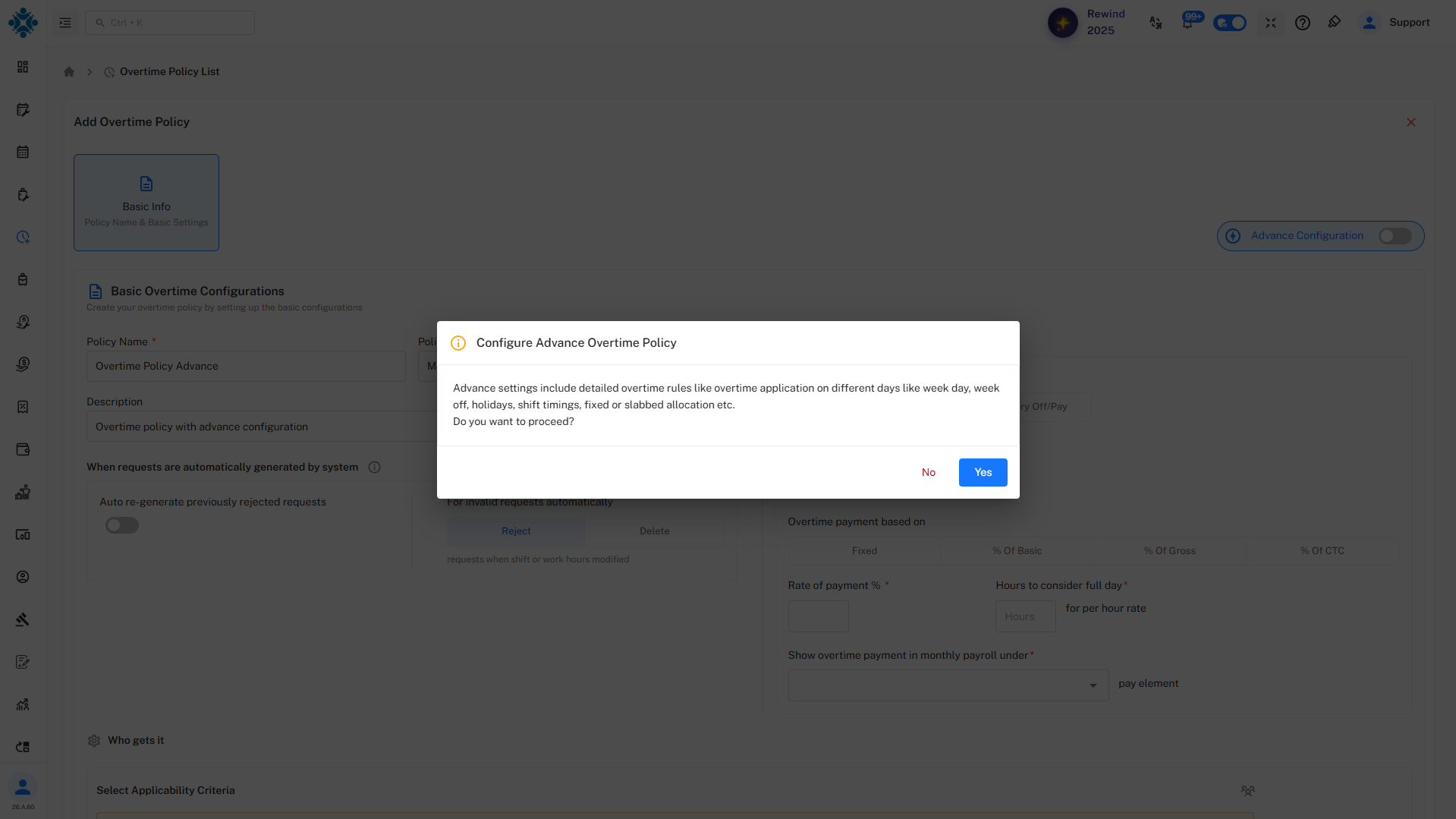
- Click "Yes" to proceed
What Happens After Enabling?
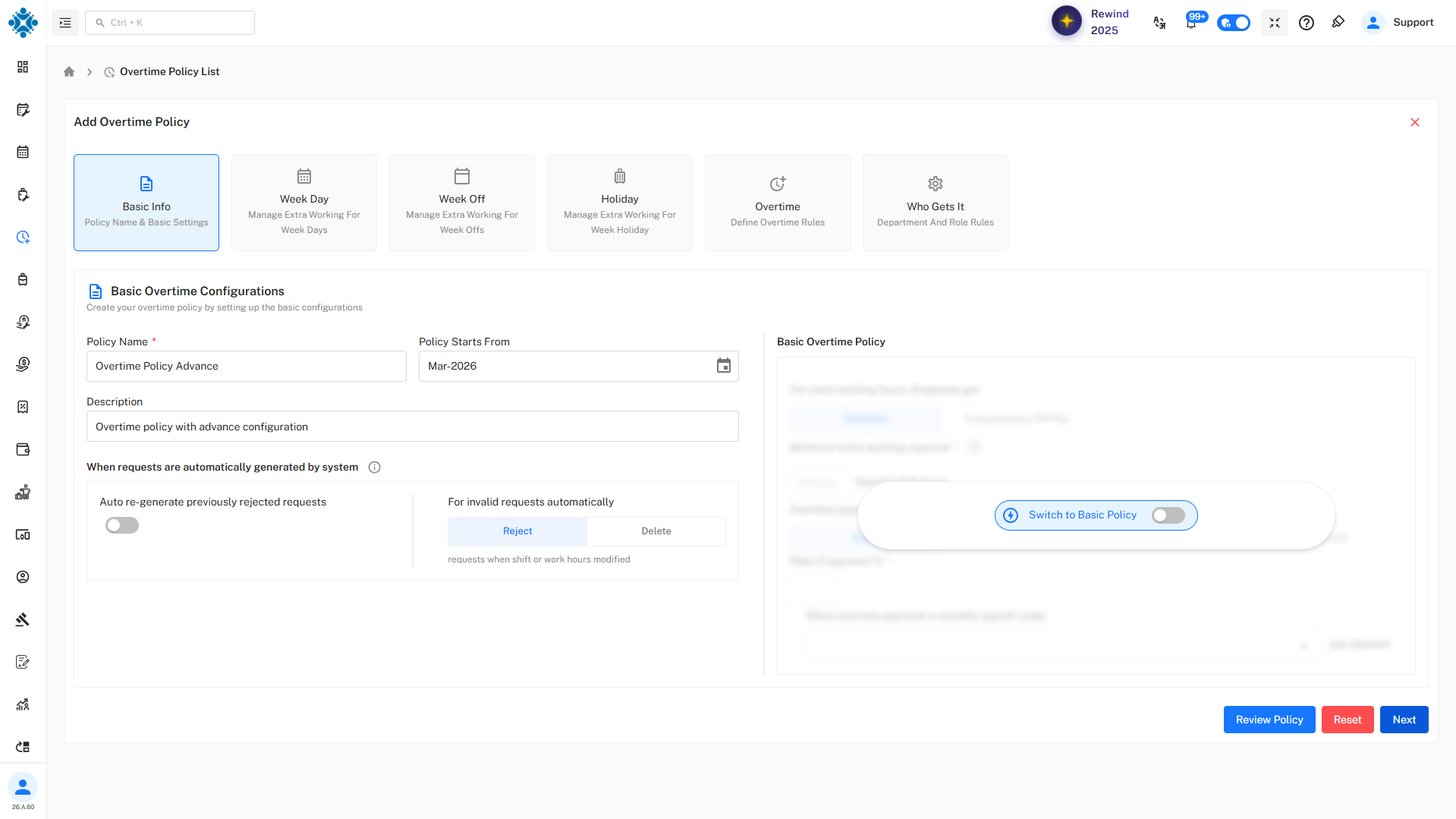
- Additional tabs become available:
- Week Day
- Week Off
- Holiday
- Overtime
- Compensatory Off
- Who Gets It
2. Week Day
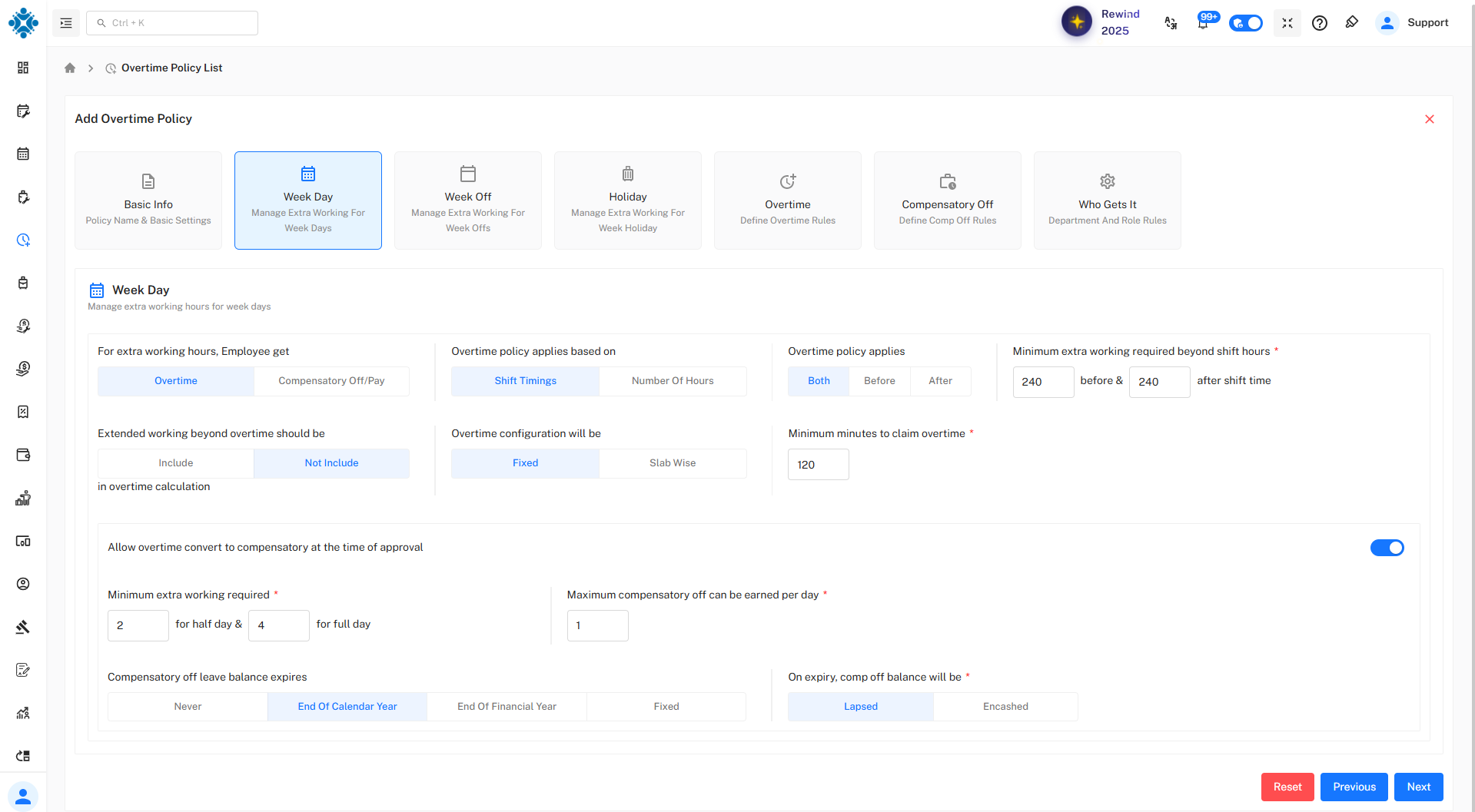
Case 1: Overtime Selected
- Employee receives overtime pay
Explanation:
Extra working hours are compensated directly with money.
-
Overtime policy applies based on
Selected: Shift Timings
- Overtime is calculated based on shift start & end time
- Example: Shift: 9 AM – 6 PM
- Work before 9 AM or after 6 PM → considered OT
-
Overtime policy applies
Selected: Both (Before & After)
- OT is counted: Before shift start and After shift end
- Meaning: Flexible OT from both sides
-
Minimum extra working required beyond shift hours
- Value:
- 240 minutes before
- 240 minutes after
- Meaning:
- Employee must work:
- At least 4 hours before shift, OR 4 hours after shift
- Important: This is a threshold condition
- If less than 240 minutes → OT will NOT be considered
- Value:
-
Extended working beyond overtime should be
- Selected: Not Include
- Extra hours beyond defined OT will NOT be counted
- Example: If OT rule allows 4 hrs, and employee works 6 hrs
→ Only defined OT is counted, extra ignored
- Selected: Not Include
-
Overtime configuration will be
- Selected: Fixed
- OT calculation is fixed (not slab-based)
- Other Option: Slab Wise - Different rates for different hours
- Selected: Fixed
-
Minimum minutes to claim overtime
- Value: 120 minutes
- Meaning: Employee must work at least 2 hours extra
- Below that → no OT claim allowed
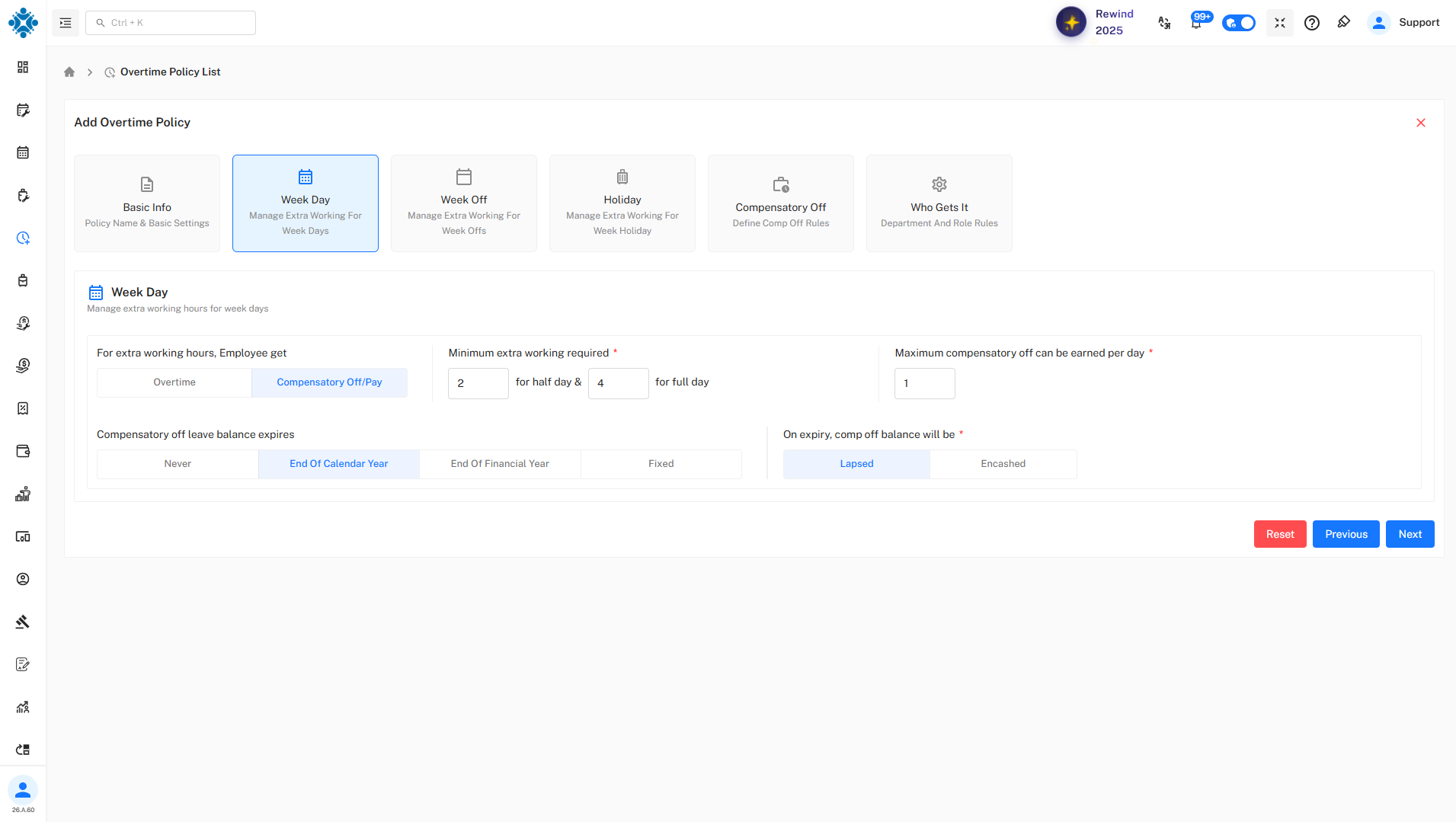
Case 2: Compensatory Off / Pay Selected
- Employee receives:
- Compensatory Off (leave) OR
- Payment
Additional Settings:
- Minimum hours for half/full day
- Maximum comp-off per day
- Expiry rules - The compensatory leave balance will expire at the end of calendar year and it will lapse
Explanation:
Provides flexibility to compensate employees with leave instead of pay.
3. Week Off
Case 1: Copy Same as Weekday = ON
- Uses same configuration as weekday
Explanation:
Simplifies setup by applying identical rules.
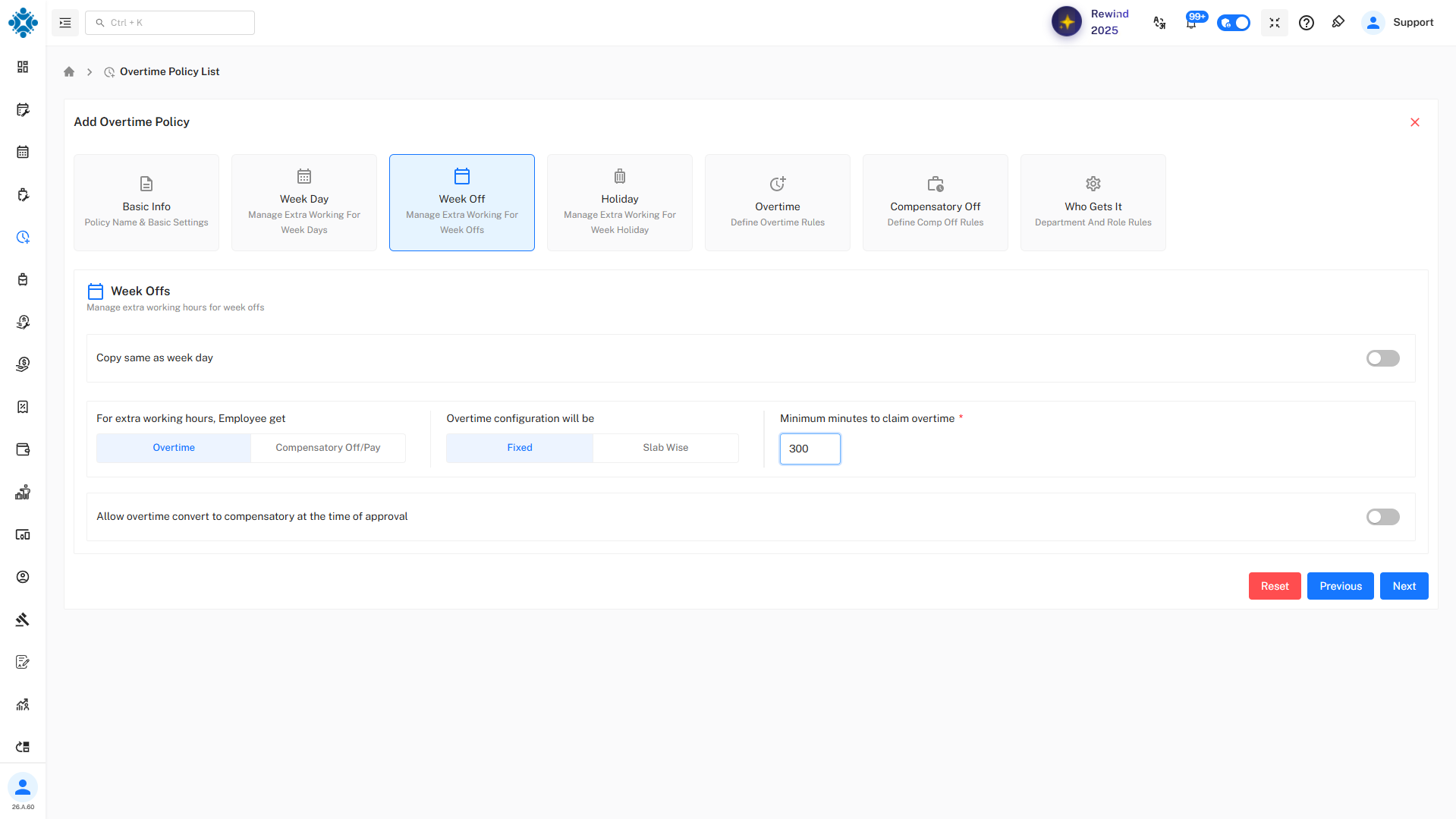
Case 2: Copy Same as Weekday = OFF
- Separate configuration:
- Overtime / Comp Off
- Fixed / Slab
- Minimum minutes (e.g., 300)
Explanation:
Allows stricter or different rules for weekly offs.
Additional Option
Convert Overtime to Comp Off
- ON: Conversion allowed
- OFF: Not allowed
4. Holiday
Case 1: Copy Same as Week Off = ON
- Uses week-off rules
Explanation:
Simplifies policy management.
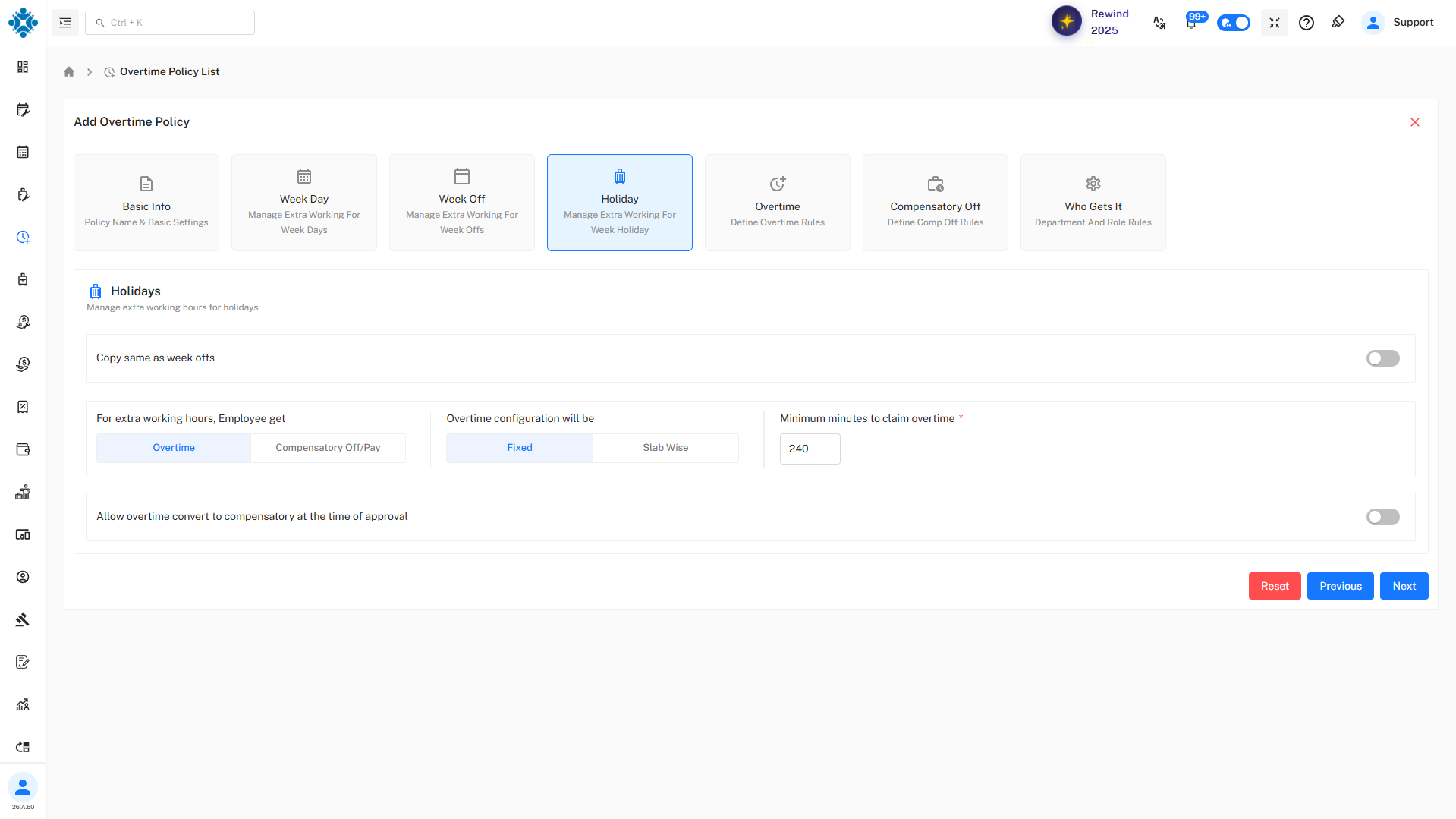
Case 2: Copy Same as Week Off = OFF
- Separate configuration:
- Minimum minutes (e.g., 240)
- Compensation type
Explanation:
Allows more flexible or different rules for holidays.
5. Overtime
Case 1: Same Policy for All Days = ON
- One rule for all day types
Explanation:
Simplifies overtime calculation.
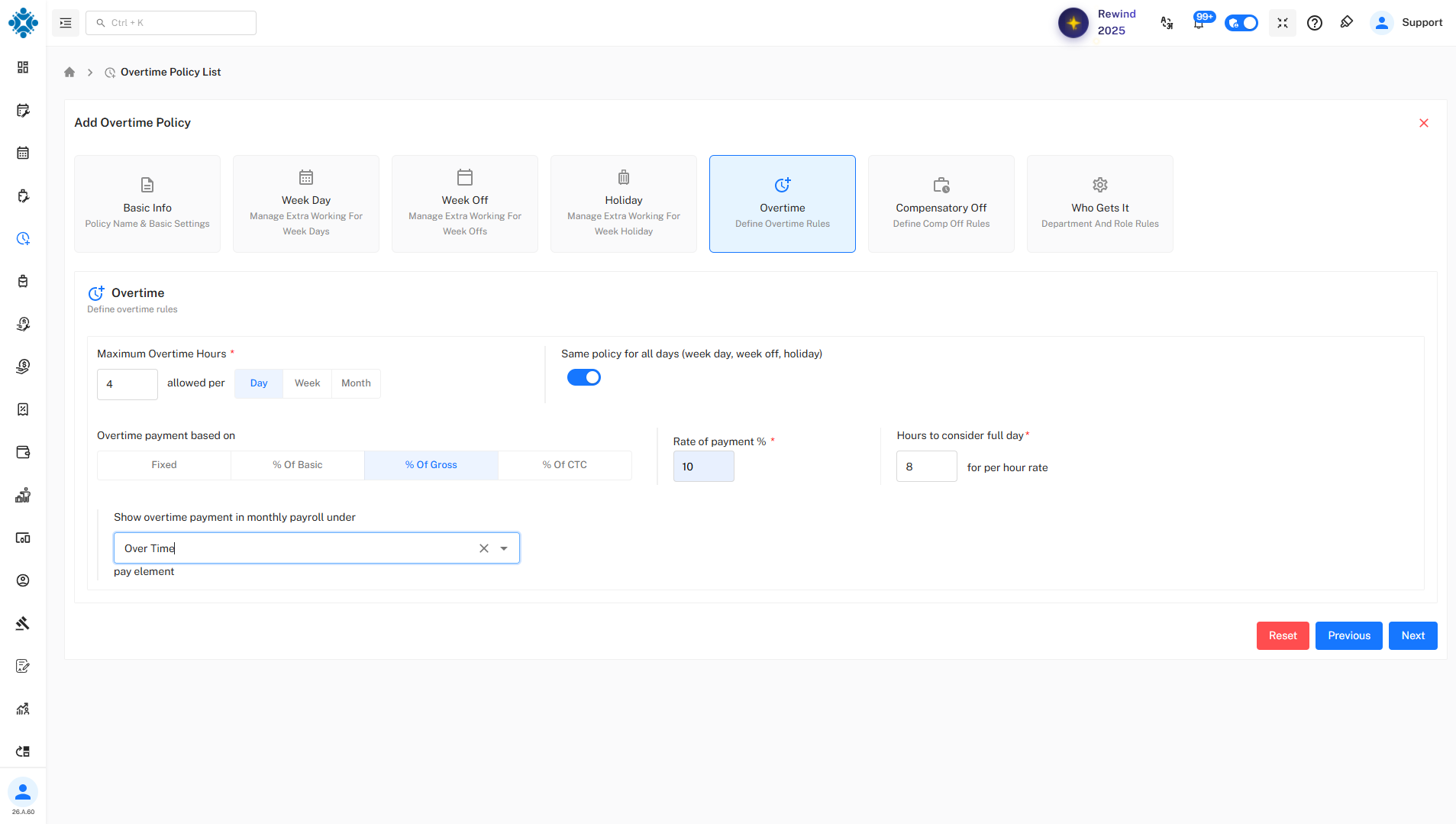
Case 2: Same Policy for All Days = OFF
- Different rules per tab
Explanation:
Provides detailed control for each day type.
Payment Options
- Fixed: Fixed amount
- % of Basic: Based on basic salary
- % of Gross: Based on total salary
- % of CTC: Based on company cost
Payment Formula Options
- % of Gross / 26
- % of Gross / 30
- % of Gross * 12 / 365
Explanation:
Defines how daily salary is calculated.
6. Compensatory Off
Case 1: Compensatory Off (Leave)
- Employee gets leave
Options:
- Calendar / Financial year
- Monthly / Quarterly / Yearly limits
- Min/Max leaves per transaction
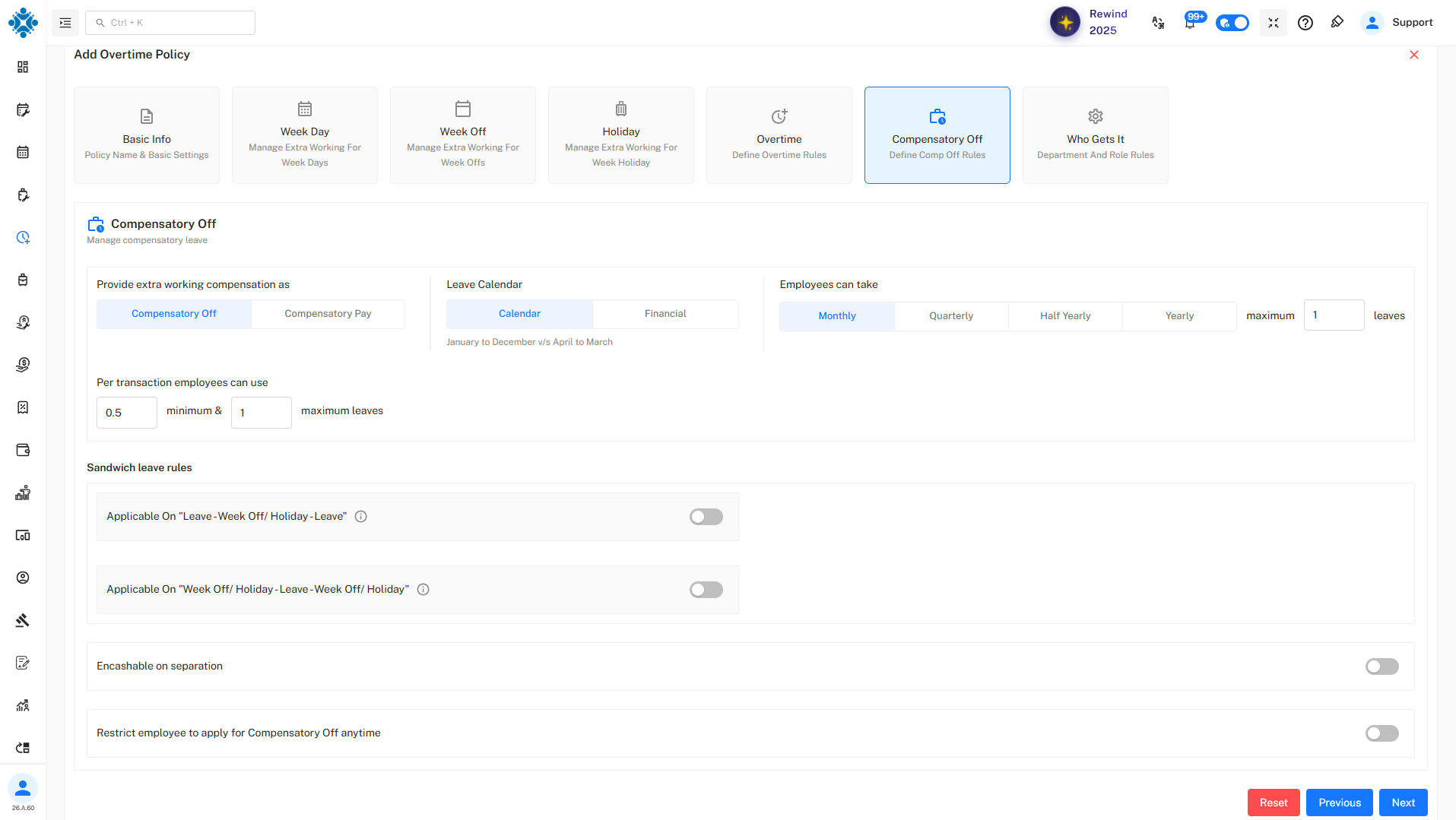
Explanation:
Used when employees are compensated with time off.
Case 2: Compensatory Pay
- Employee gets money
Options:
- Fixed or % based
- Rate (e.g., 300)
- Payroll mapping
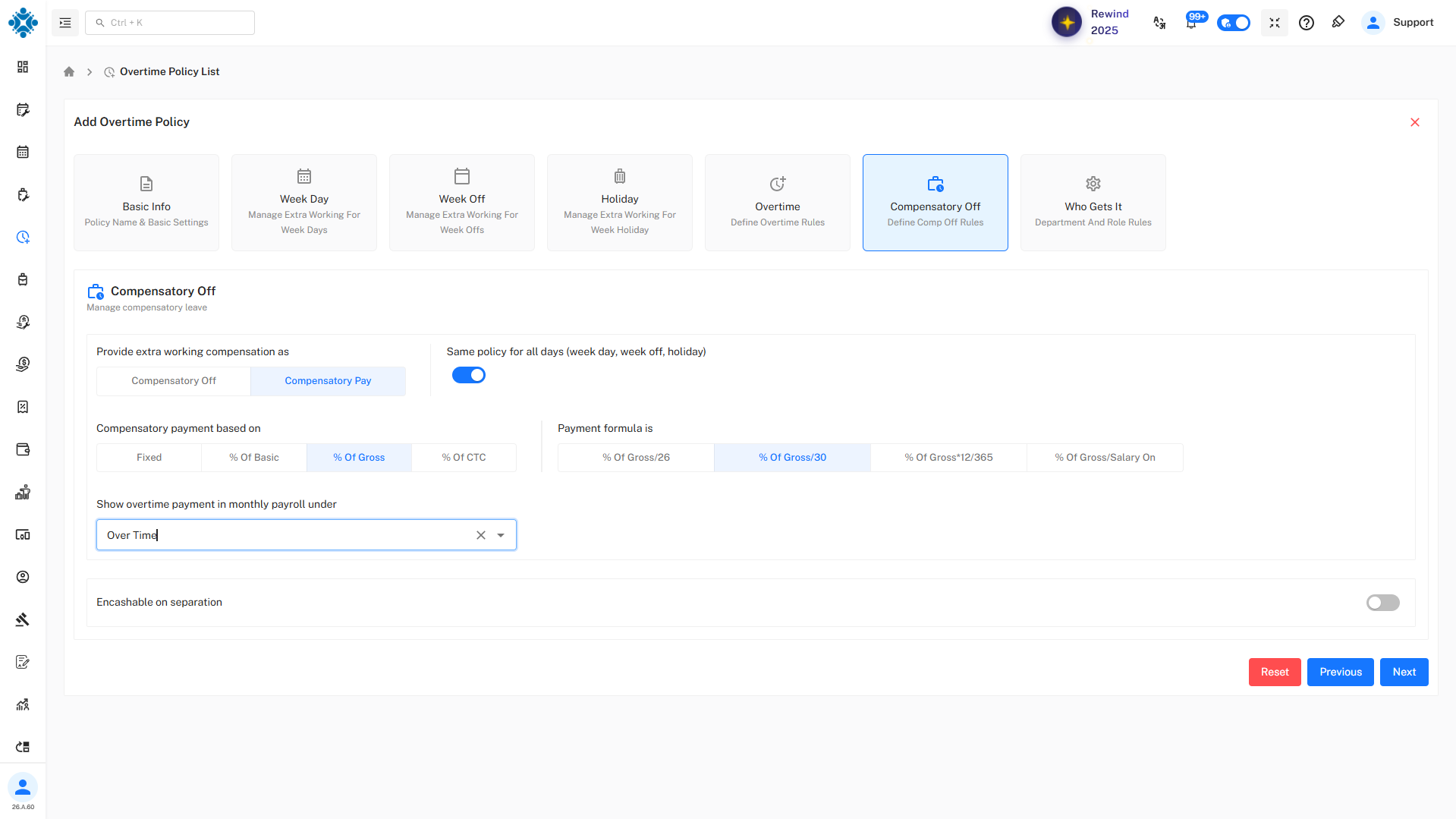
Explanation:
Used when compensation is monetary instead of leave.
Additional Settings
Encashable on Separation
- ON → Paid during exit
- OFF → Not paid
Sandwich Rule
- ON → Leave between holidays/week-offs counted
- OFF → Not counted
Restrict Application
- ON → Limited usage
- OFF → Flexible usage
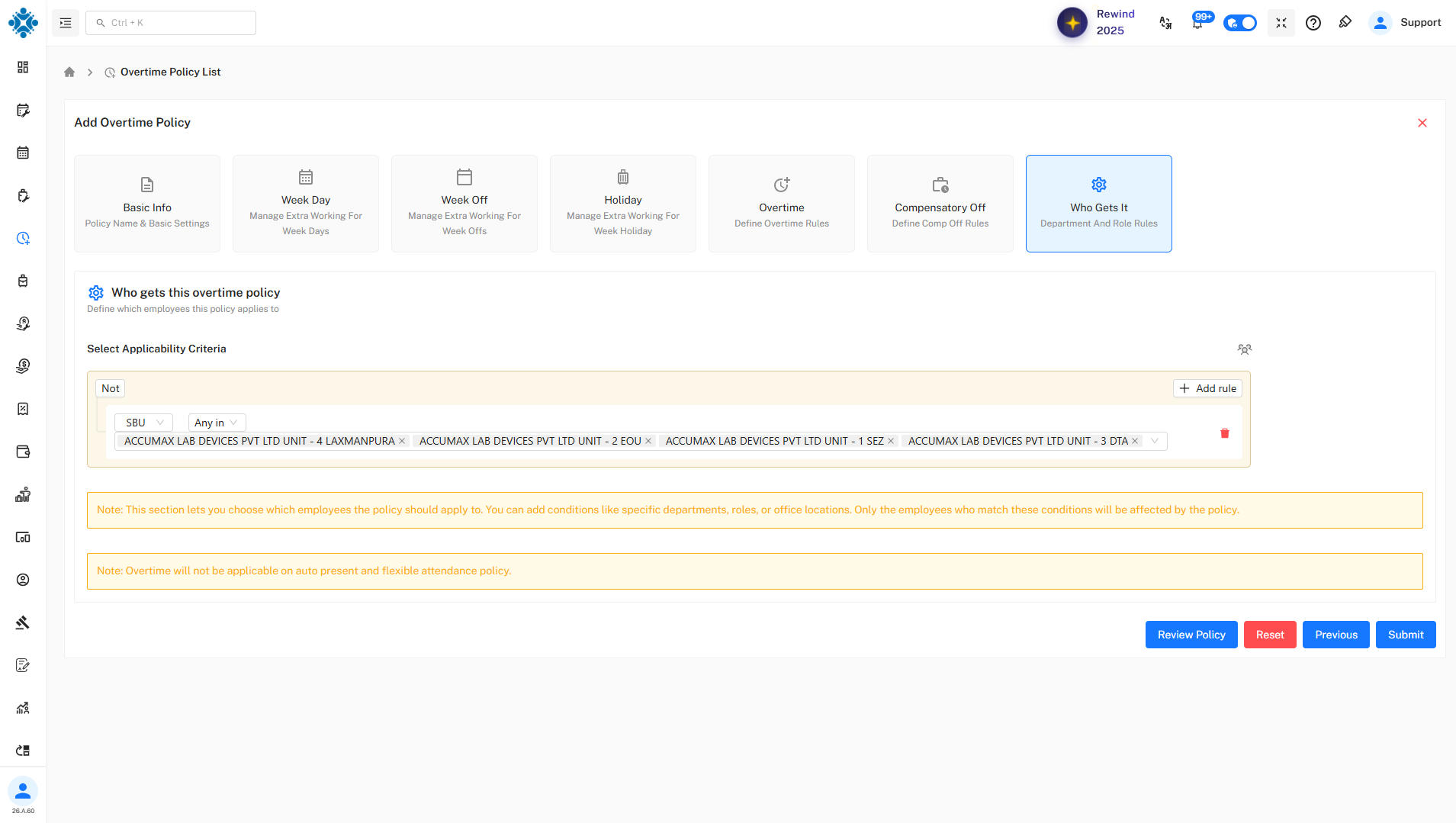
7. Who Gets It
Case 1: Include Mode
- Policy applies to selected employees
Explanation:
Only selected employees are eligible.
Case 2: Exclude Mode (Not)
- Policy applies to all except selected
Explanation:
Useful for excluding specific groups.
Important Notes
- Not applicable for:
- Auto-present attendance
- Flexible attendance
Explanation:
Ensures policy is applied only where valid.
Summary
| Tab | Case 1 | Case 2 |
|---|---|---|
| Basic Info | Simple | Advanced |
| Week Day | Overtime | Comp Off / Pay |
| Week Off | Same as weekday | Separate rules |
| Holiday | Same as week off | Separate rules |
| Overtime | Same for all days | Different per day |
| Comp Off | Leave | Pay |
| Who Gets It | Include | Exclude |
This configuration supports:
- Flexible overtime calculation
- Different rules per day type
- Multiple compensation methods
- Controlled employee applicability