Loan Request and Approval Management
Last Updated: October 27,2025 Document Version: 1.0 **Prepared for:**Emgage HRMS Implementation Team
Streamlined Loan Handling
The Loan Management module provides administrators and HR personnel with tools to process, approve, and track employee loan requests efficiently. Each stage — from request submission to disbursement — is transparent and easy to manage.
Overview
Key Advantages
The system ensures an organized workflow for managing employee loans, offering:
- Centralized Request Handling: All loan requests and approvals in one place.
- Transparency: Clear visibility into each loan’s type, amount, and status.
- Role-Based Actions: Admins can approve, reject, or review pending loans.
- Automated Status Updates: Real-time reflection of approval or rejection decisions.
- Audit-Ready Records: Every action is logged for compliance and accountability.
Step 1: Viewing Pending Loan Approvals
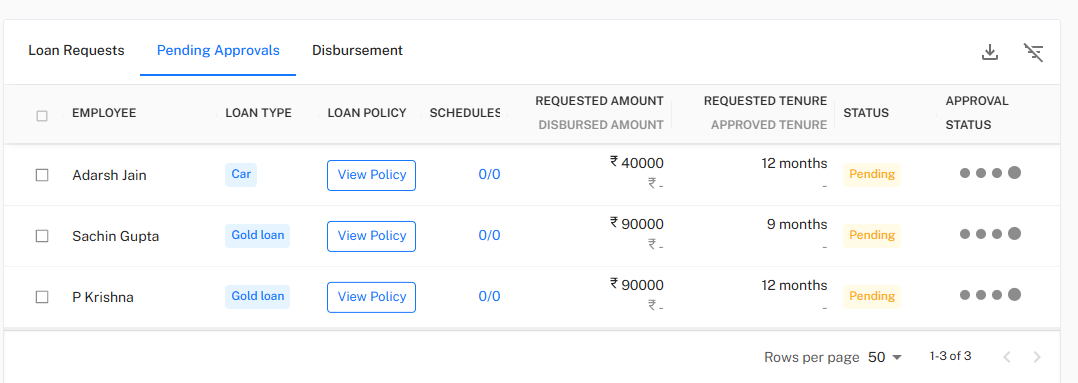
This page displays all employee loan requests that are currently pending review.
When to Use “Pending Approvals”
Use Cases for Pending Approvals
Ideal Scenarios:
- Reviewing newly submitted employee loan requests.
- Cross-verifying loan type, requested amount, and tenure before decision.
- Identifying pending requests that require managerial attention.
- Managing multiple requests simultaneously for quick decision-making.
Pending Approvals Interface
!Pending Approvals Page
Pending Approval Workflow
Step-by-Step Process:
- Navigate to “Pending Approvals”: From the Loan Management tab, open the Pending Approvals section.
- Review Request Details: Verify loan type, policy, requested amount, and requested tenure.
- Select Requests: Choose one or multiple requests for action.
- Enter Remarks: Add remarks explaining the approval or rejection reason.
- Click “Approve” or “Reject”: The system updates the status automatically.
Step 2: Approving or Rejecting Loan Requests
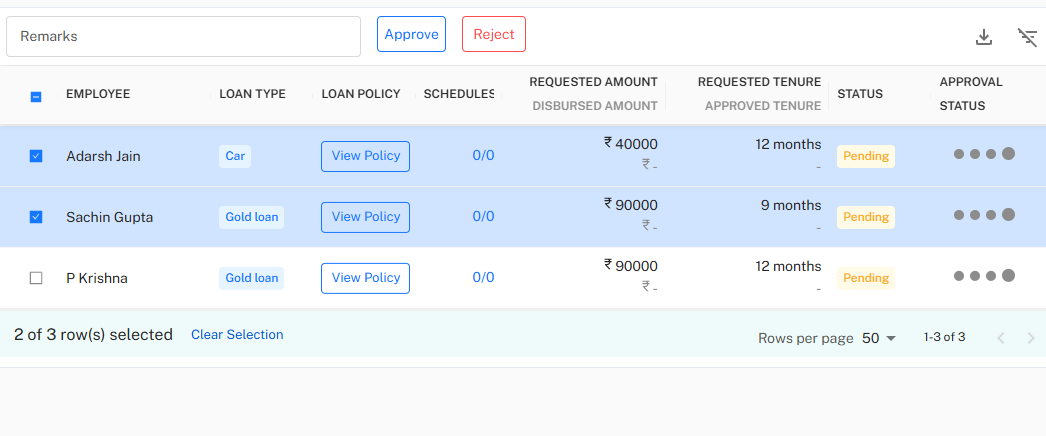 This step allows authorized users to approve or reject multiple requests in one action, improving operational efficiency.
!Approval Selection Page
Bulk Approval Workflow
Approval Process Steps:
- Select Requests: Tick the checkboxes for the employees whose loan requests need action.
- Add Remarks: Mention relevant comments or approval notes.
- Choose an Action:
- Click Approve to approve the loan request.
- Click Reject to decline the loan request.
- System Confirmation: A success notification confirms your action.
- Automatic Update: Approved or rejected loans reflect instantly in the Loan Requests list.
Step 3: Viewing Loan Requests and Disbursement Status
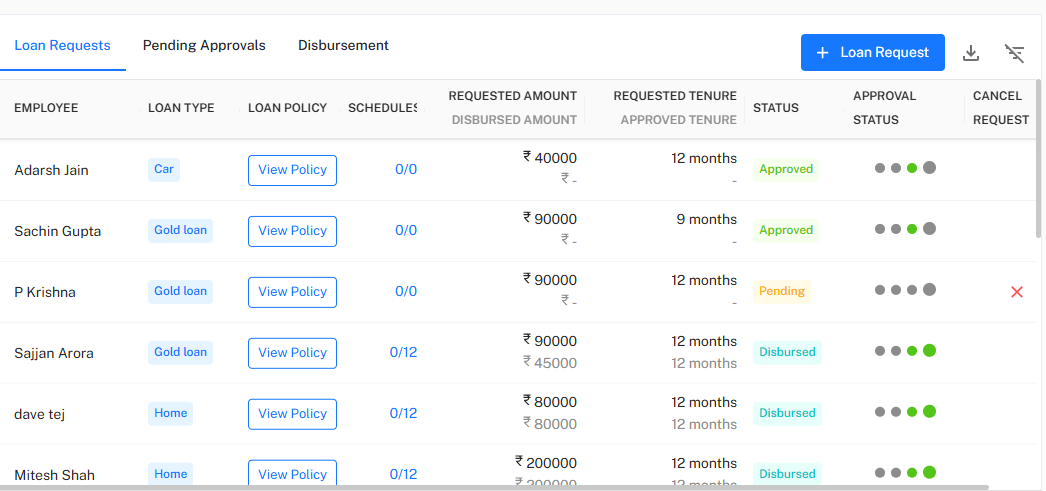 After approval, all loan details — including disbursed and pending statuses — are available in the Loan Requests tab.
Loan Requests Interface
!Loan Requests Page
Loan Tracking Features
- View each loan’s type, requested amount, and approved tenure.
- Monitor disbursement progress with “Disbursed Amount” indicators.
- Check Approval Status (Approved, Pending, Rejected).
- Cancel requests if required before disbursement.
Disbursement Workflow
Step-by-Step Review:
- Go to “Loan Requests”: Access from the Loan Management section.
- Review Status: Approved loans appear with a green status label.
- Track Disbursement: Disbursed loans show their paid amount and status.
- Cancel Option: Pending loans can be canceled if necessary.
Next: Explore the Disbursement Process to manage and record the release of approved loan amounts efficiently.