Overtime Policy Setup – HRMS (Emgage)
Module Name
Overtime Policy Setup
Screen Name
Overtime Policy List
Description
The Overtime Policy Setup module in Emgage HRMS is used to create, view, manage, and control overtime policies for employees. It allows administrators to define different overtime rules, activate or deactivate policies, and manage their applicability.
Navigation Path
HRMS → Policy Setup → Overtime Policy
Screen Overview
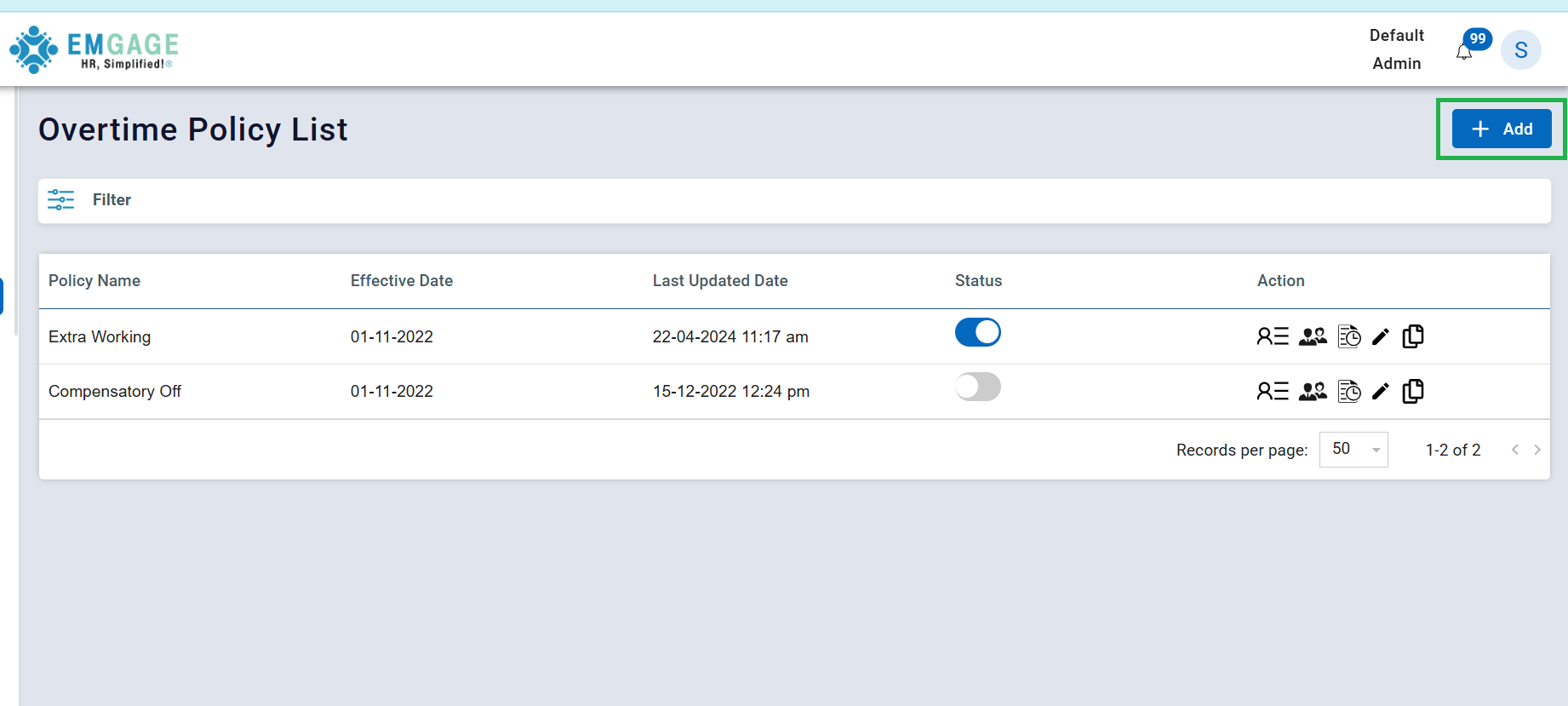
The Overtime Policy List screen displays all configured overtime policies along with their key details such as effective date, last updated date, status, and available actions.
Screen Components
1. Add Button
- Label:
+ Add - Purpose: Used to create a new overtime policy.
- Location: Top-right corner of the screen.
2. Filter Option
- Purpose: Allows users to filter and search overtime policies based on specific criteria.
- Helps in quickly locating a required policy when multiple records exist.
3. Overtime Policy List Table
The table displays the list of existing overtime policies with the following columns:
| Column Name | Description |
|---|---|
| Policy Name | Name of the overtime policy (e.g., Extra Working, Compensatory Off) |
| Effective Date | Date from which the overtime policy is applicable |
| Last Updated Date | Shows the date and time when the policy was last modified |
| Status | Indicates whether the policy is active or inactive |
| Action | Provides options to manage the policy |
4. Status Toggle
- ON (Blue): Policy is active and applicable.
- OFF (Grey): Policy is inactive and not applicable.
- Admins can enable or disable policies using this toggle.
5. Action Icons
Each policy row includes multiple action icons, which may include:
- View – View policy details
- Assign – Assign policy to employees or groups
- Edit – Modify policy details
- Clone / Copy – Duplicate the policy
- Other actions based on role permissions
6. Pagination
- Records per page: Option to select number of records displayed (default: 50).
- Displays current record range (e.g., 1–2 of 2).
- Navigation arrows allow moving between pages.
Sample Policies Displayed
- Extra Working (Active)
- Compensatory Off (Inactive)
User Roles & Access
- This module is generally accessible to Admin or HR roles.
- Only authorized users can add, edit, activate, or deactivate overtime policies.
Notes
- Only one or selected overtime policies can be active based on company rules.
- Deactivated policies are not applied in overtime calculations.
- Changes to policies are reflected based on the effective date.
1. Basic Tab
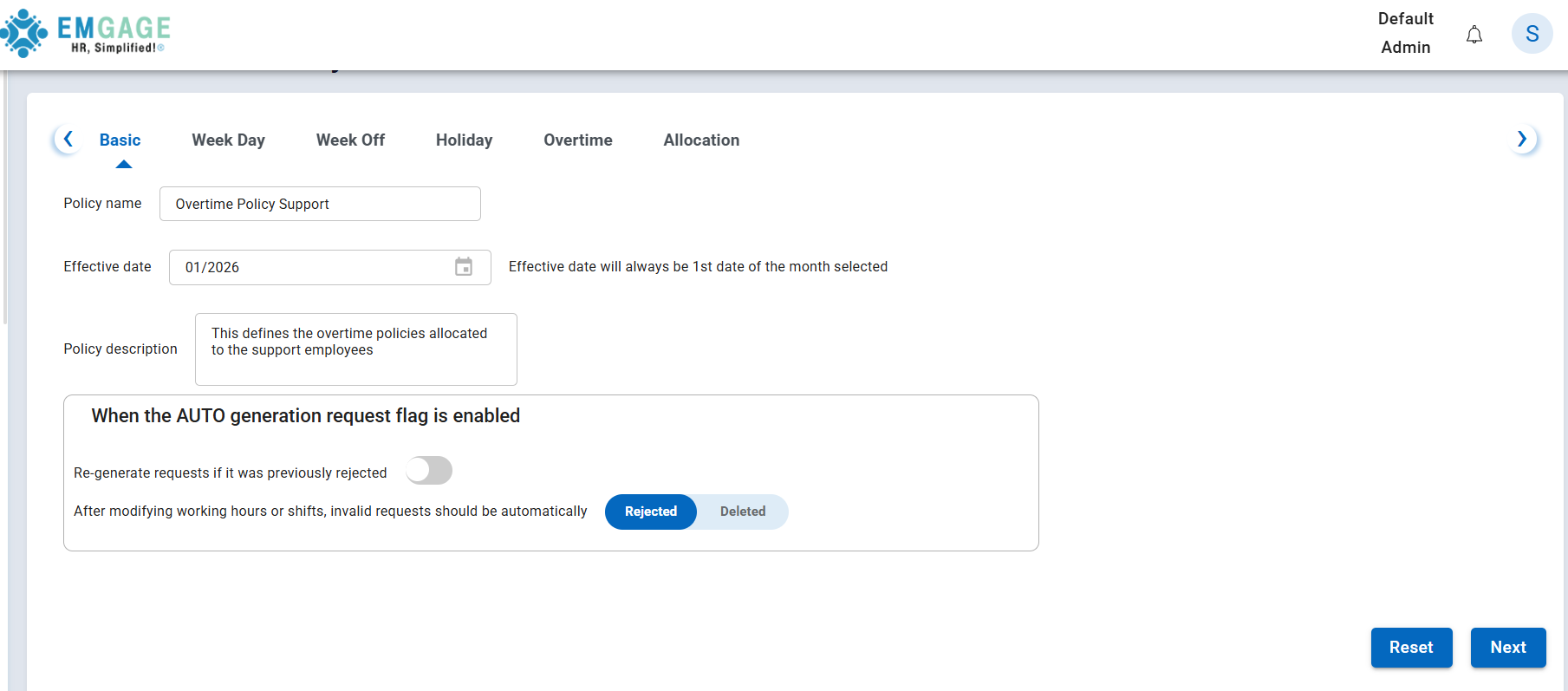
Fields
| Field Name | Description |
|---|---|
| Policy Name | Name of the overtime policy (Required) |
| Effective Date | Policy effective month. The system always considers the 1st date of the selected month |
| Policy Description | Optional description of the policy |
Auto Generation Settings
- Re-generate requests if previously rejected
- Option to auto-handle invalid requests after shift or working hour changes:
- Rejected
- Deleted
2. Week Day Tab
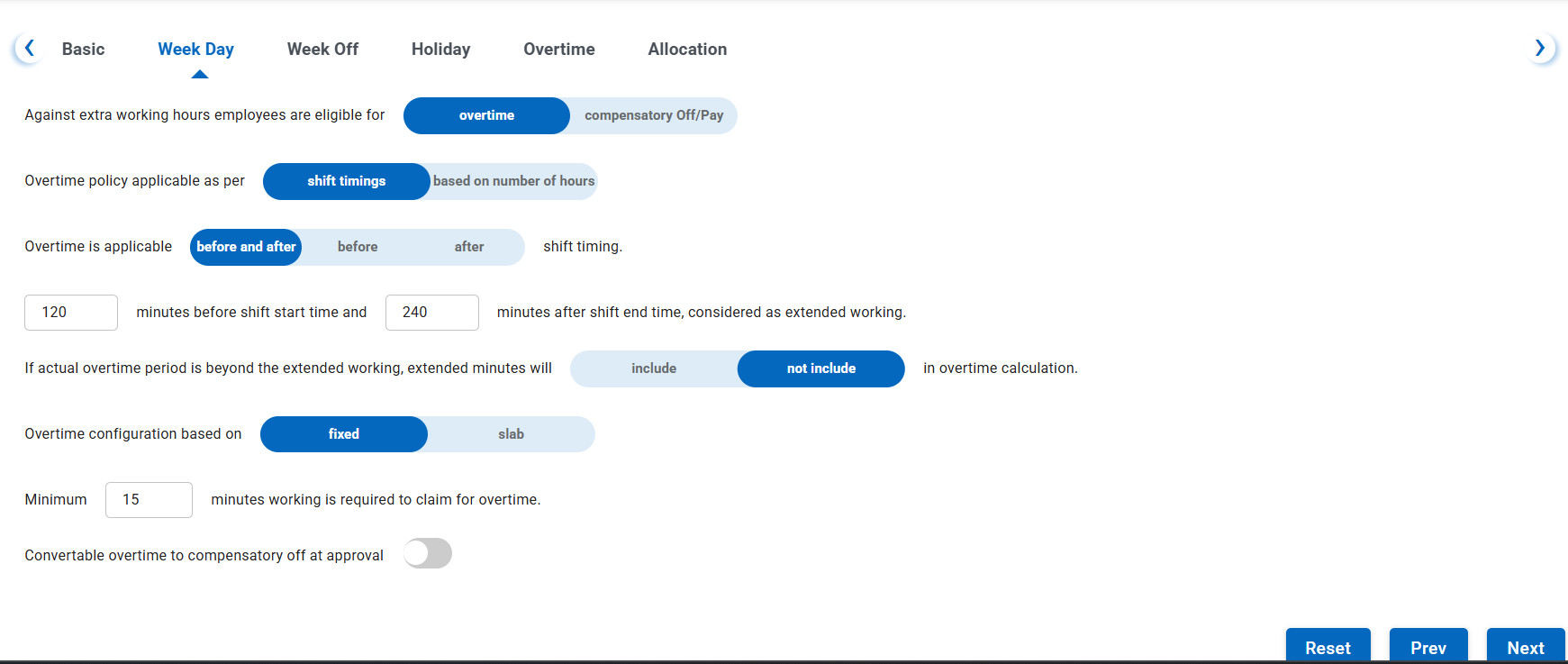
Configuration Options
-
Eligibility Against Extra Working Hours
- Overtime
- Compensatory Off / Pay
-
Overtime Applicable As Per
- Shift Timings
- Based on Number of Hours
-
Overtime Applicable Timing
- Before and After shift
- Before shift
- After shift
-
Extended Working Time
- Minutes before shift start
- Minutes after shift end
-
Extended Minutes Handling
- Include in overtime calculation
- Not include in overtime calculation
-
Overtime Configuration Based On
- Fixed
- Slab
-
Minimum Minutes Requirement
- Minimum working minutes required to claim overtime
-
Convertible to Compensatory Off
- Toggle to allow conversion at approval
3. Week Off Tab
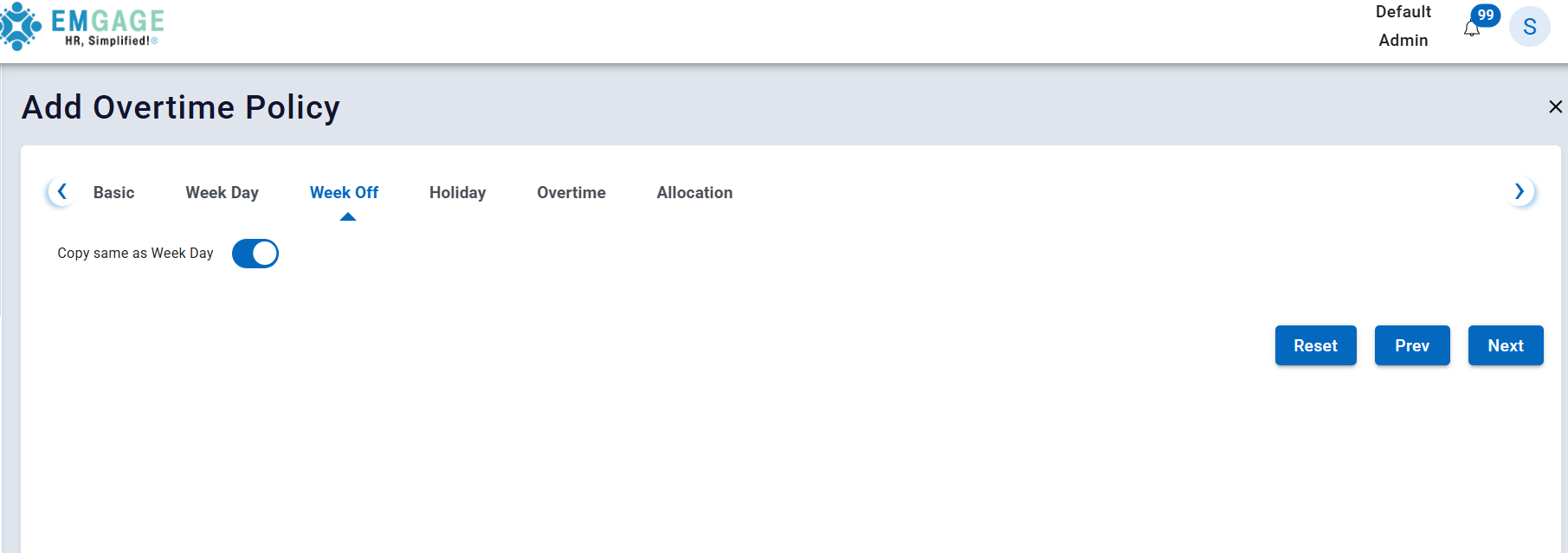
Options
- Copy Same as Week Day
- When enabled, week-off settings are copied from weekday configuration.
4. Holiday Tab
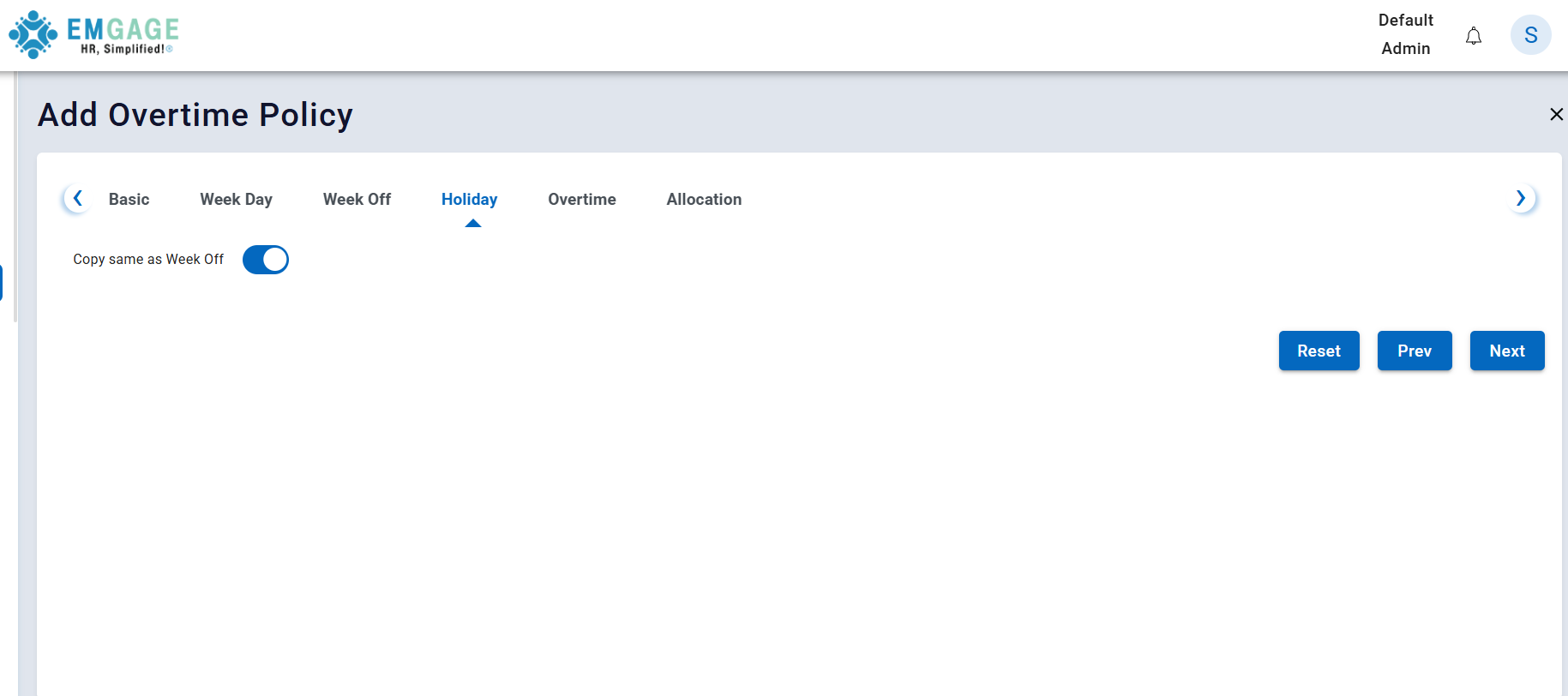
- Used to define overtime rules applicable on holidays.
- Configuration logic is similar to weekday and week-off setup.
5. Overtime Tab
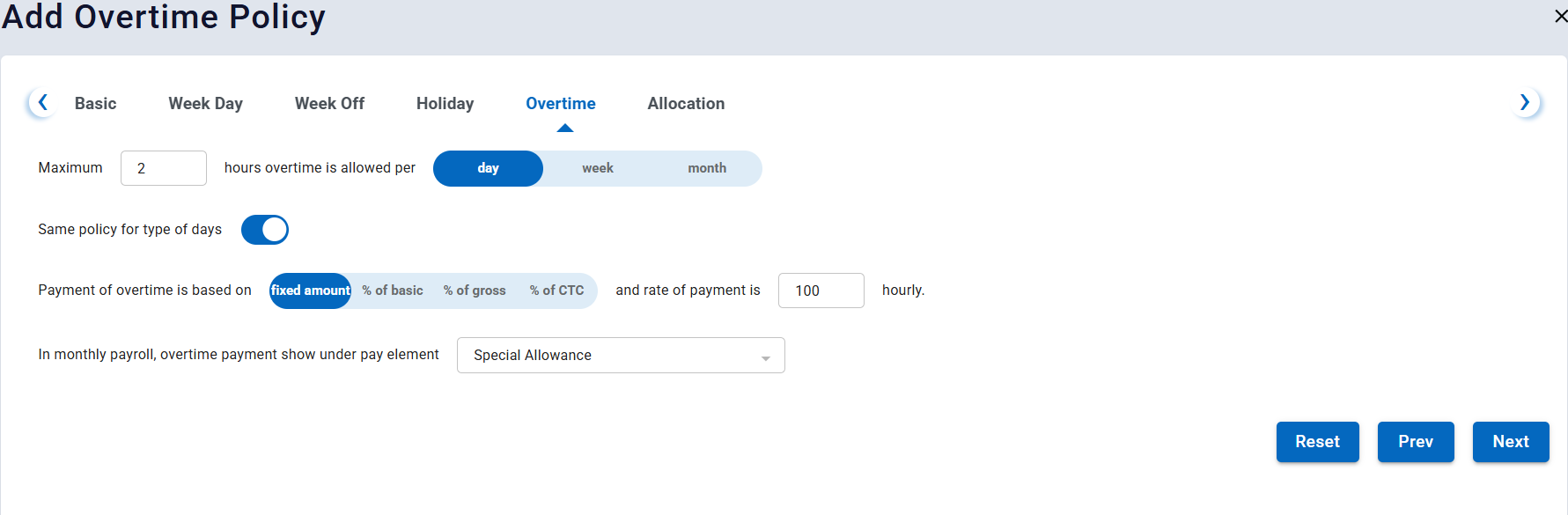
Fields
| Field | Description |
|---|---|
| Maximum Overtime | Maximum allowed overtime hours |
| Period Type | Day / Week / Month |
| Same Policy for Type of Days | Applies same rules for all types of days |
Payment Configuration
- Payment of overtime is based on:
- Fixed Amount
- % of Basic
- % of Gross
- % of CTC
- Hourly rate definition
- Payroll mapping:
- Overtime payment is shown under the selected pay element in payroll
6. Allocation Tab
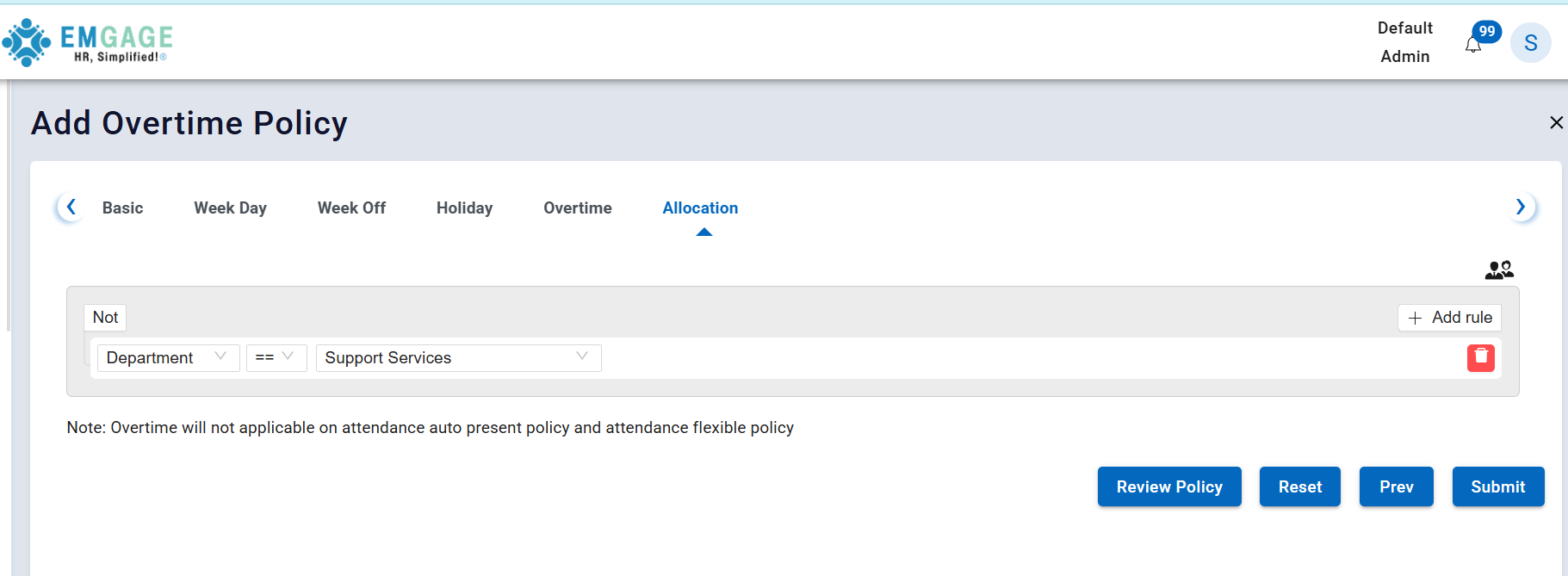
- Used to allocate the overtime policy to:
- Employees
- Departments
- Designations
- Locations (based on company setup)
Action Buttons
| Button | Description |
|---|---|
| Reset | Clears all entered data |
| Prev | Moves to the previous tab |
| Next | Moves to the next tab |
| Save | Saves the overtime policy |
Notes
- Effective date is always applied from the 1st day of the selected month.
- Only active overtime policies are considered for overtime calculation.
- Policy behavior depends on attendance, shift, and payroll configuration.
Conclusion
The Overtime Policy Setup module in Emgage HRMS provides a structured and flexible approach to define overtime rules, ensuring accurate overtime calculation, approval, and payroll processing.