Process Payroll
Step 1: Process Attendance
Navigate to Process Attendance
- Open the Attendance Module.
- Go to the Process Attendance page.
Select Month and Year
- Choose the required Month and Year for which attendance needs to be processed for payroll.
Search Employees
- Click on the Search button to load employee attendance data.
Select All Employees
- Select all employees for attendance processing.
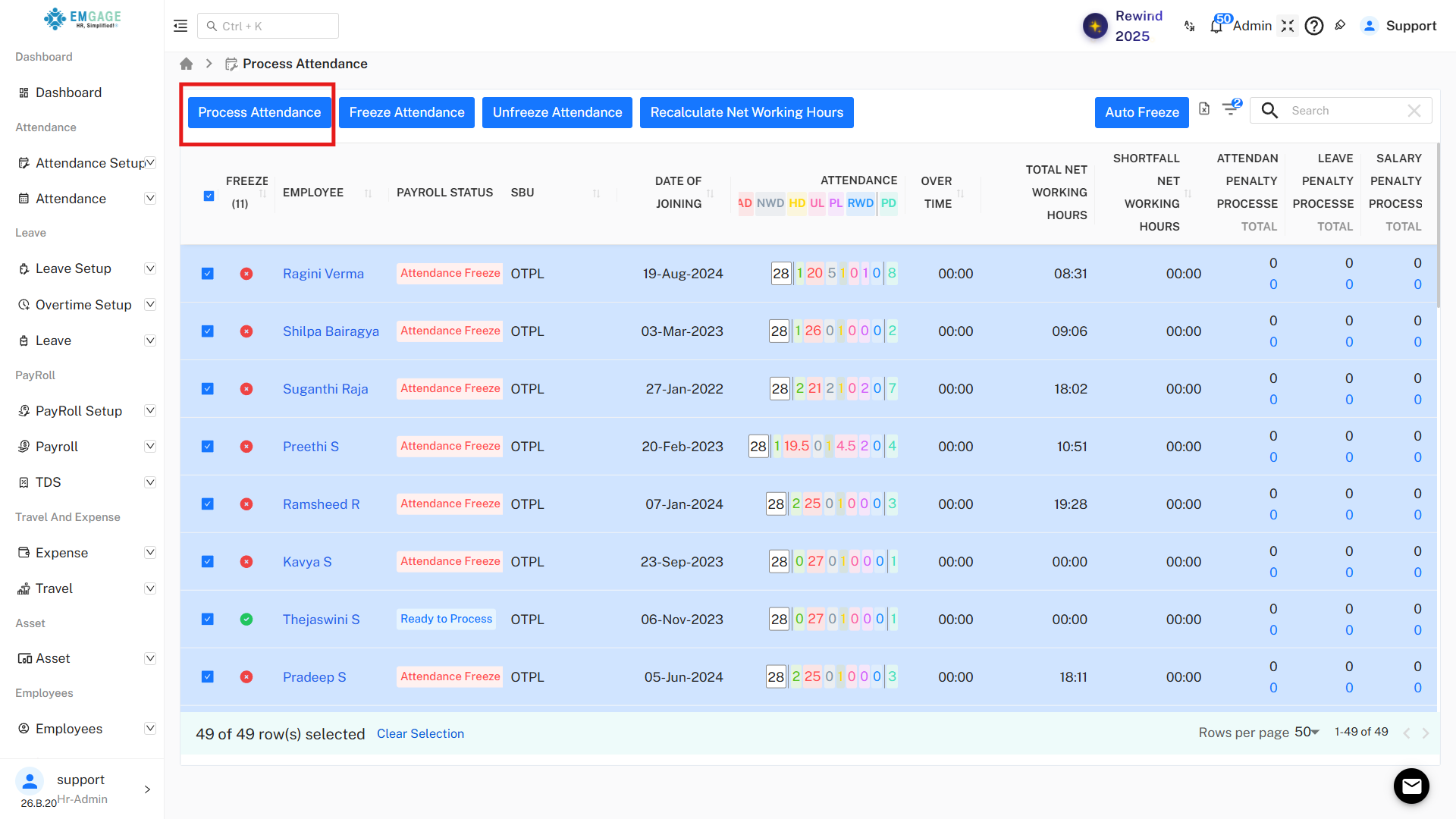
Process Attendance
- Click on the Process Attendance button.
- Wait until the system completes the attendance processing successfully.
Step 2: Freeze Attendance
Verify Pending Requests Before Freezing
Before freezing attendance, make sure there are no pending requests related to:
- Leave Requests
- Attendance Corrections
- Regularization Requests
Important Note
If any request is pending:
- Review the request
- Either Approve or Reject it
- Ensure no pending request remains open
Attendance cannot be frozen properly if pending requests are still open.
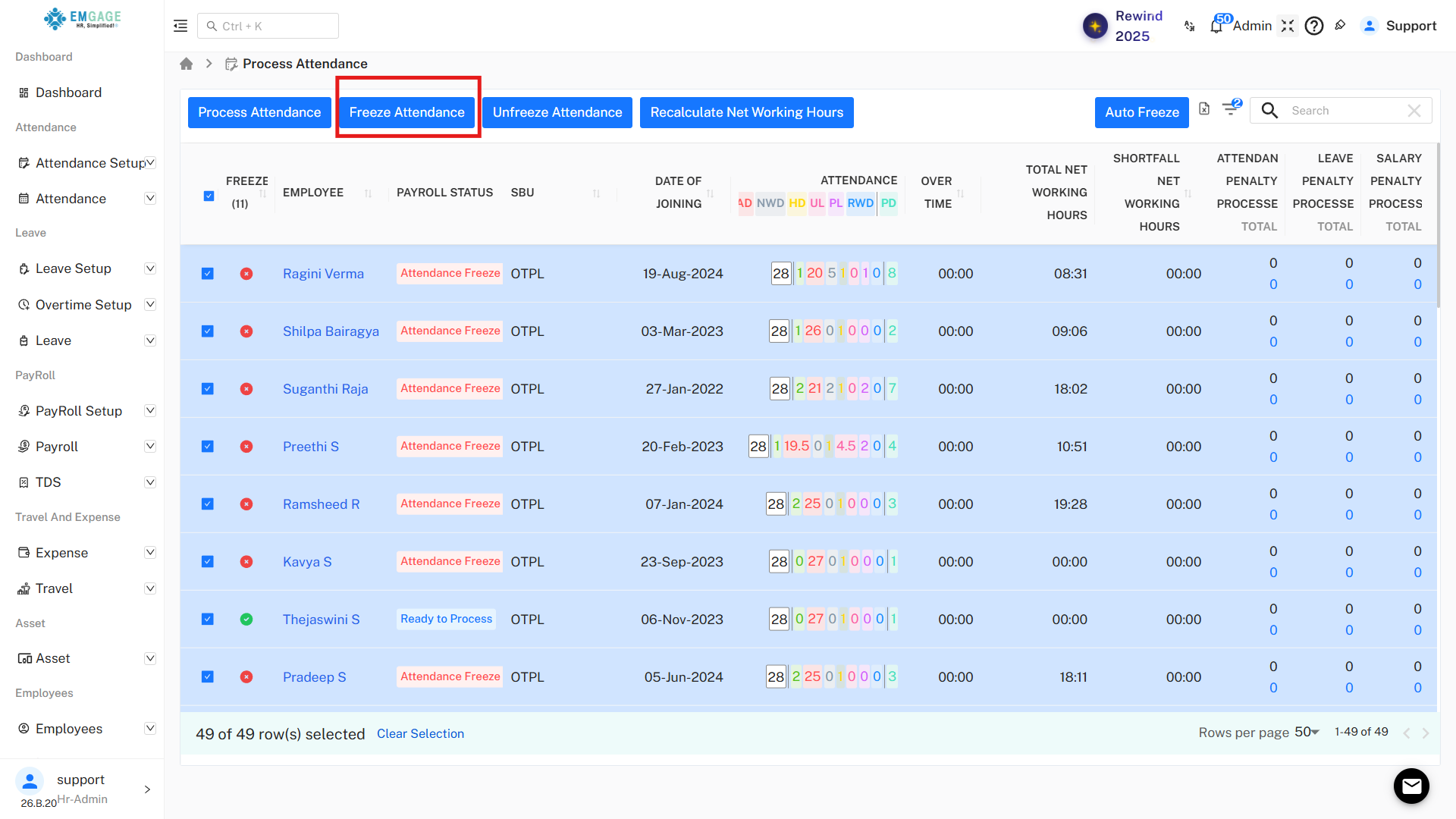
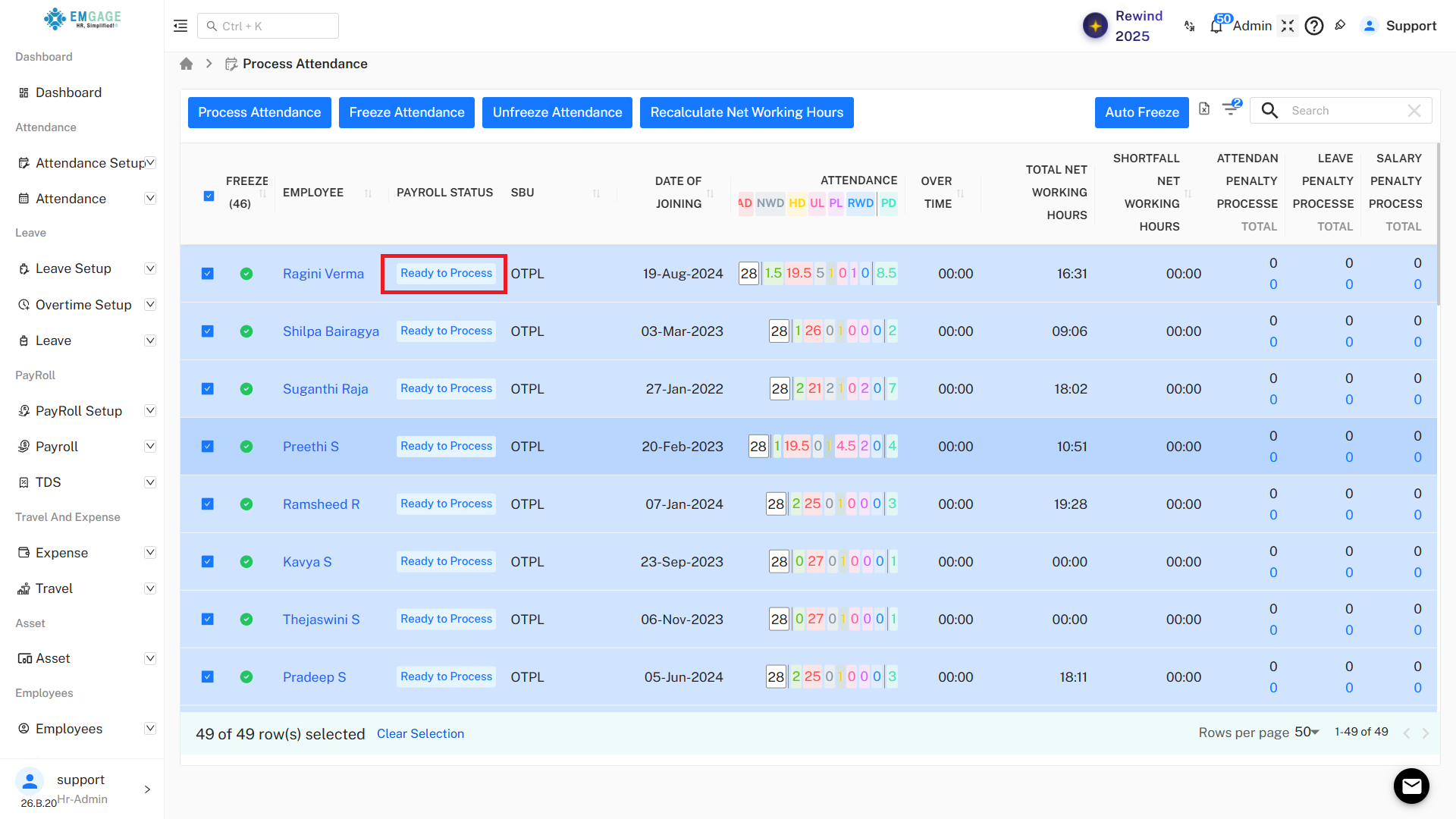
Freeze Attendance
- After verifying all requests are completed.
- Select all employees again.
- Click on the Freeze Attendance button.
This locks the attendance data for payroll processing.
Step 3: Process Payroll
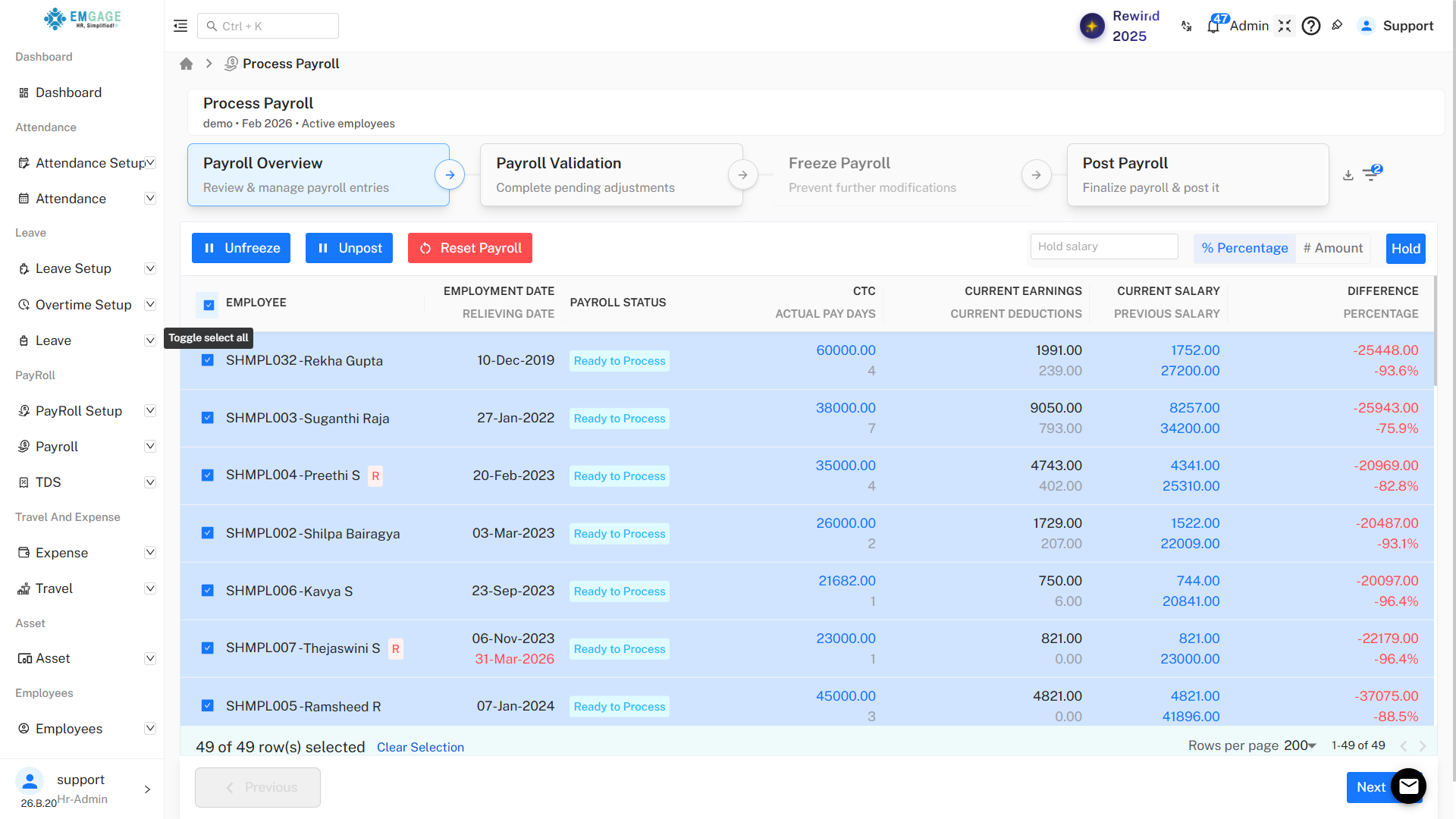
Navigate to Process Payroll
- Open the Payroll Module
- Go to the Process Payroll page
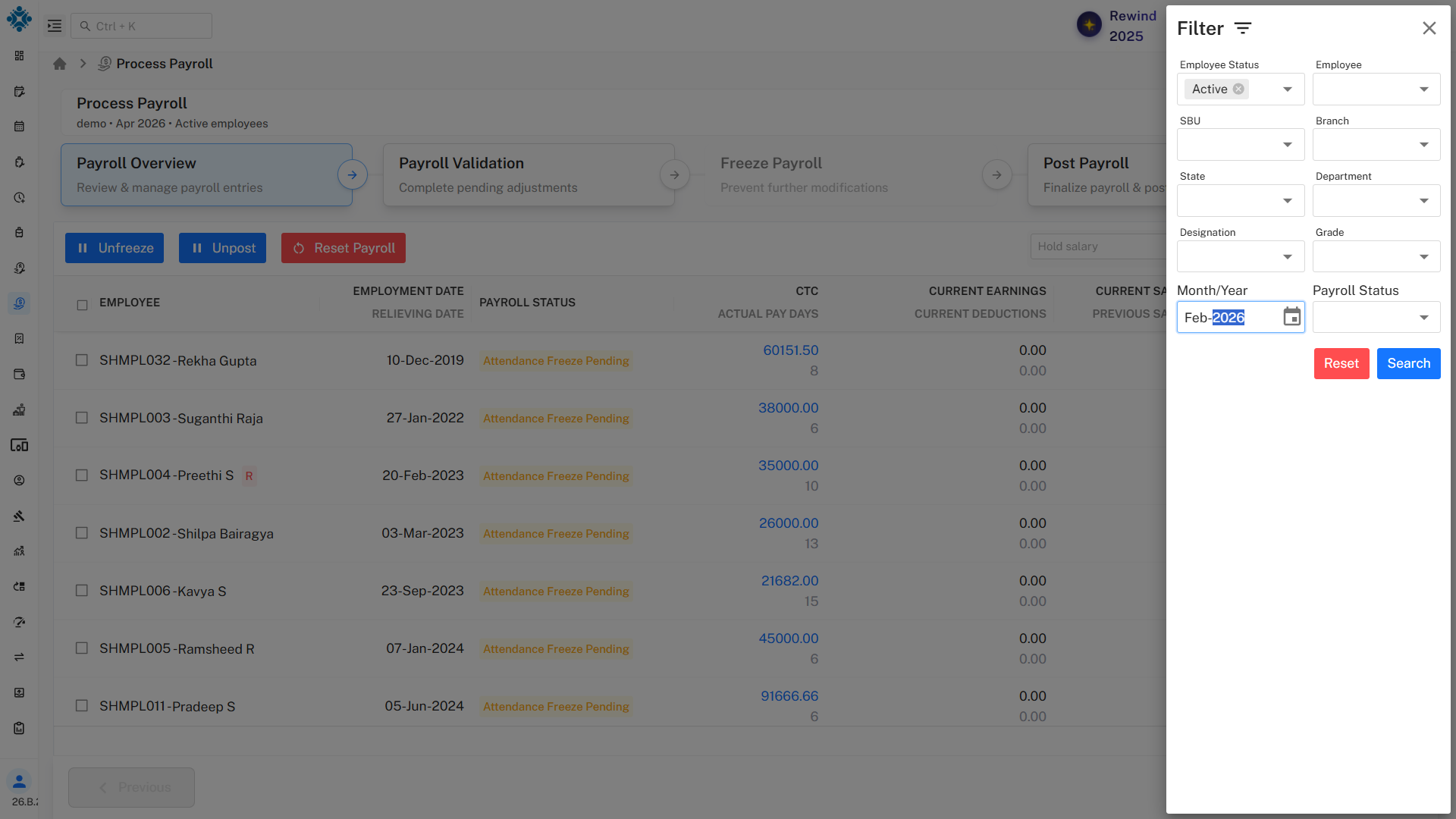
Filter the Required Month
- By default, the system shows the current month payroll data.
- Select the required payroll Month if needed.
Load Employee Data
- After filtering the month, verify employee records are displayed correctly.
Select All Employees
- Select all employees for payroll processing.
- Employees whose attendance is frozen are only eligible for payroll processing.
Click Next
- Click the Next button located at the bottom-right corner of the page.
- This takes you to the payroll validation screen.
Step 4: Resolve Payroll Errors
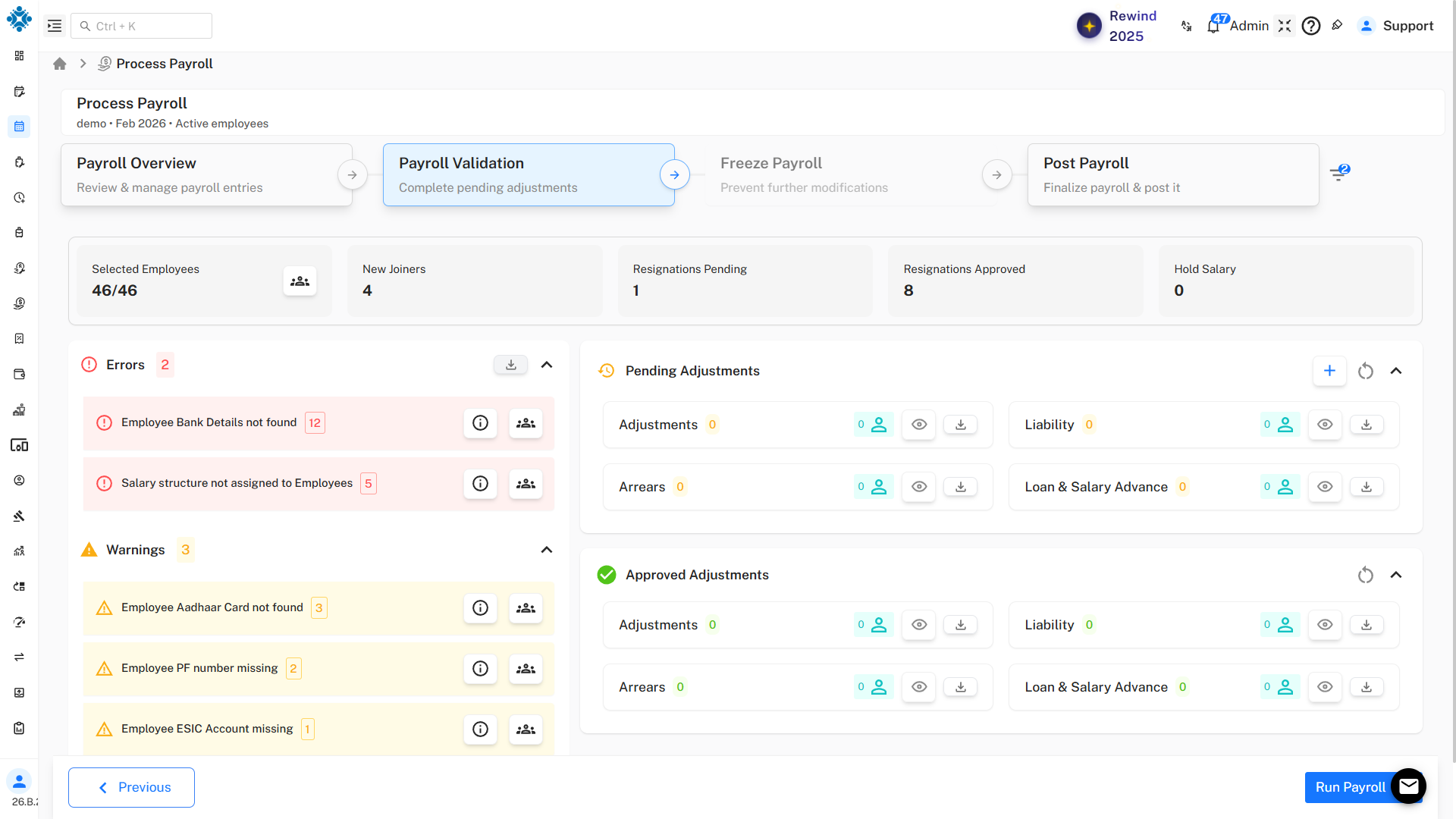
Review Validation Errors
The system will display:
- Errors
- Warnings
Important Rule
- Errors must be resolved compulsorily
- Warnings can be ignored if not critical
Fix All Errors
Review each error carefully and correct issues such as:
- Missing salary structure
- Incomplete bank details
- Payroll configuration issues
Only after clearing all mandatory errors payroll should be processed.
Also ensure that there are no Adjustments, Liabilities, Arrears, Loan and salary advance are in the pending state(They must be approved or forwarded to next/another month).
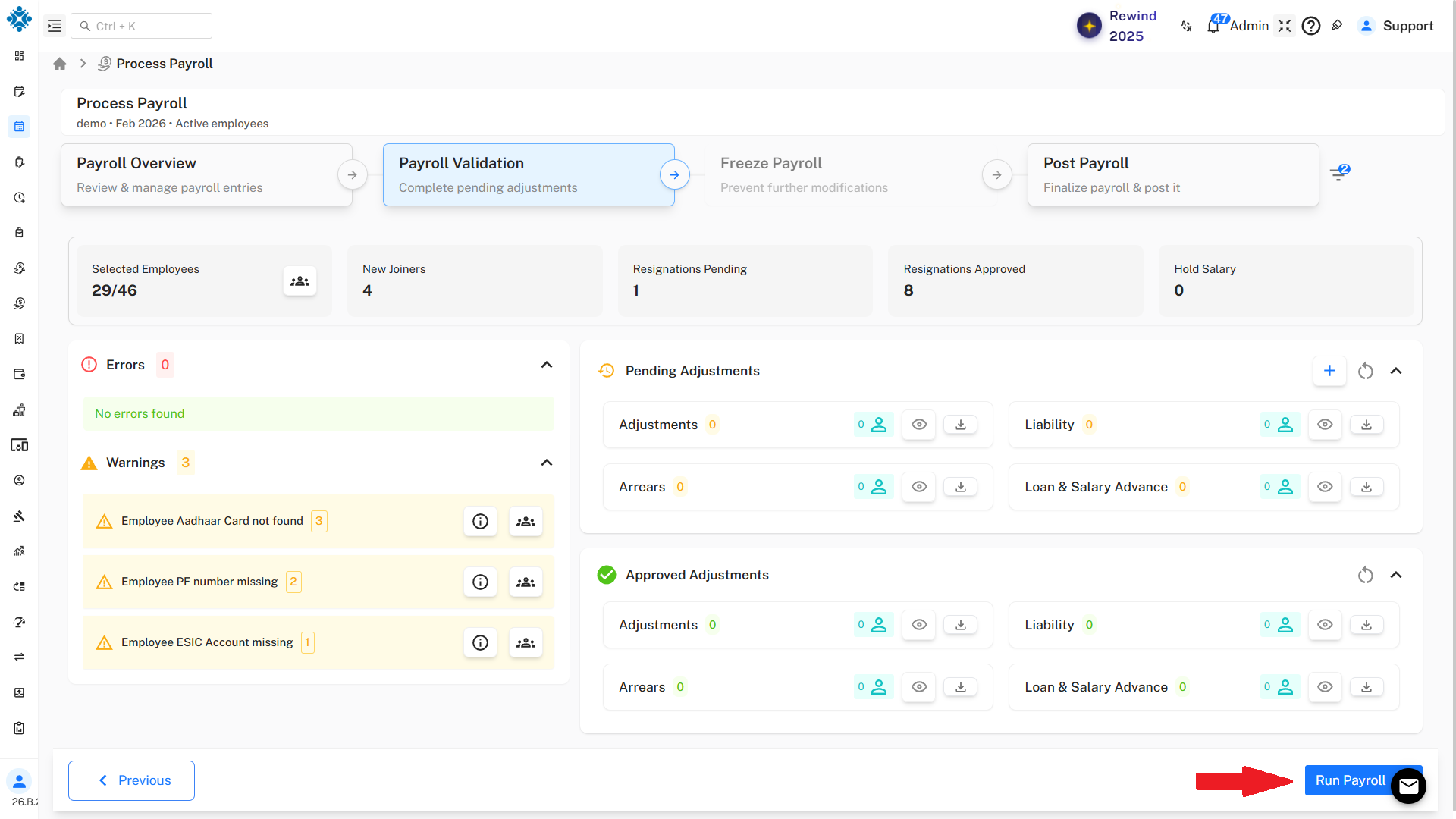
Run Payroll
- Click on the Run Payroll button located at the bottom-right of the page.
- Wait for the payroll process to complete successfully.
Step 5: Freeze and Post Payroll
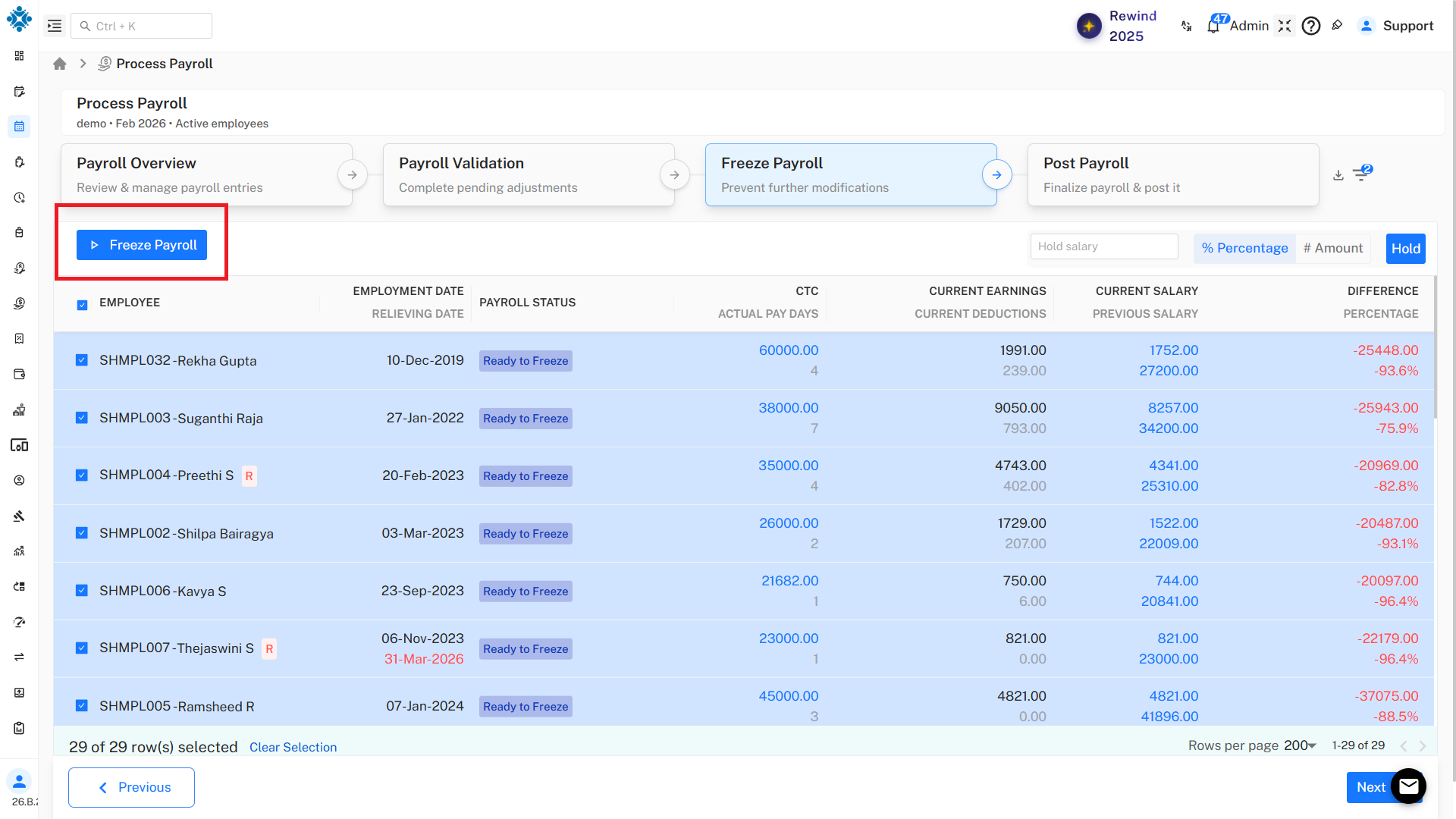
Freeze Payroll
After payroll is successfully run:
- Click on Freeze Payroll
- This locks the payroll calculations and prevents further modifications.
- After freezing the payroll you can vadlidate the salary amount by downloading the reports from Master-Reports module :
Employee-Type Wise Salary Register or Employee-Type Salary Sheet
- After the validation is done and all the amounts are clear, click on to the Next button located in the bottom-right corner to post the payroll.
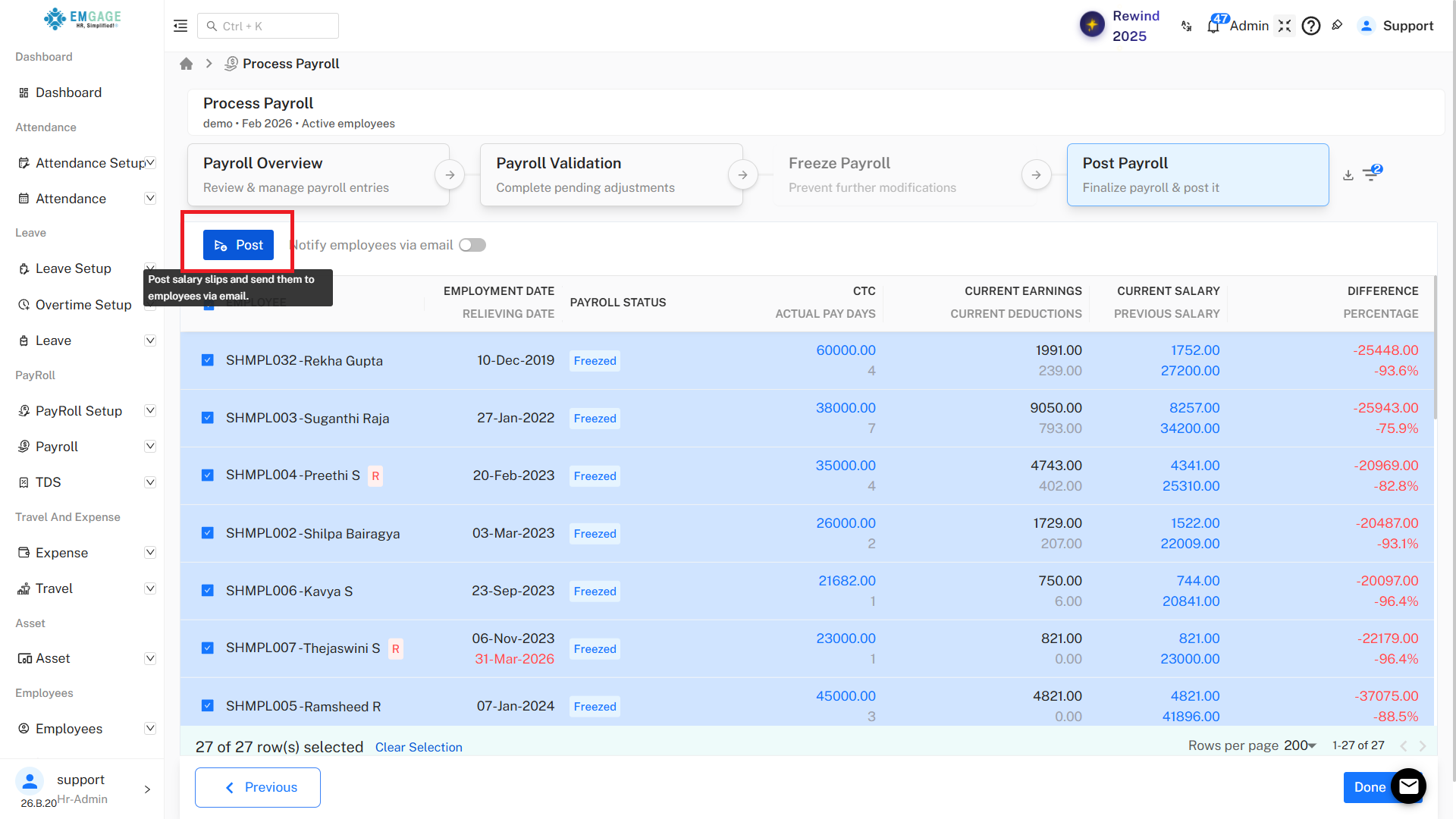
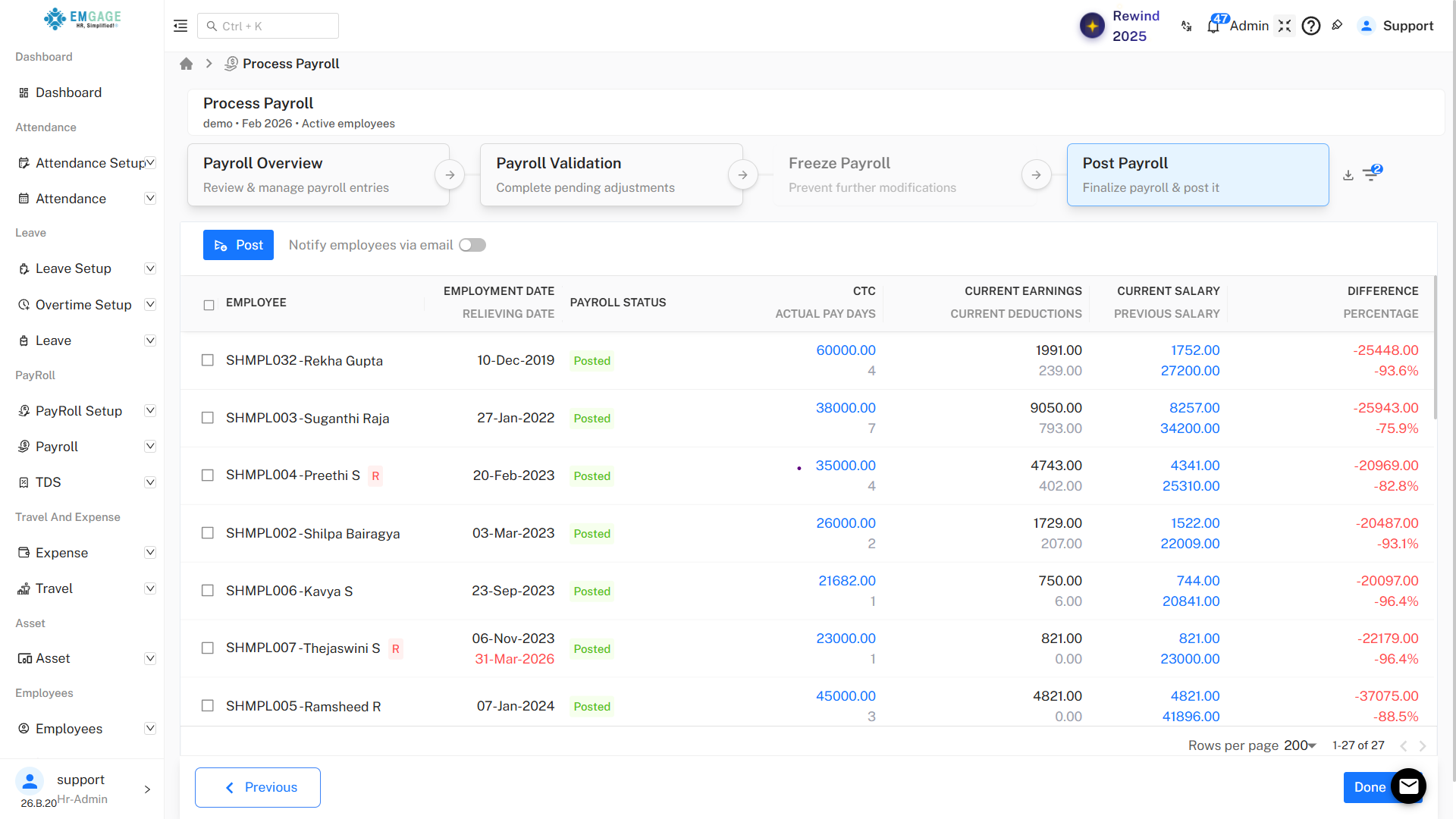
Post Payroll
After freezing payroll:
- Click on Post Payroll
Posting payroll finalizes salary processing.
Step 6: Payslip Visibility
Payslip Generation
Once payroll is posted successfully:
- Salary slips become available automatically
Where to Check
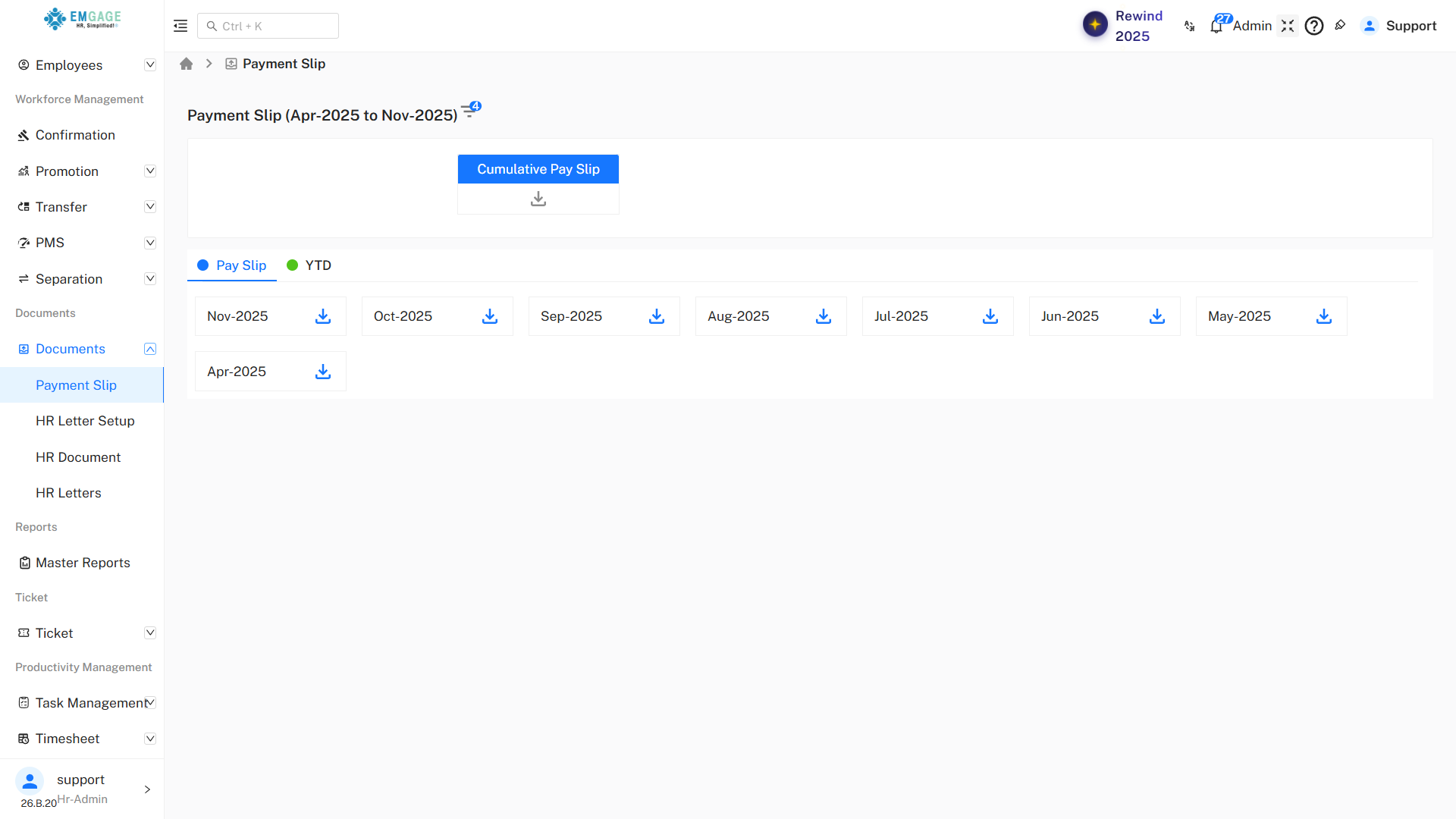
Employees can view their salary slips in the Documents module:
- Payslip Module
This confirms payroll processing is completed successfully.
Final Checklist
Before posting payroll, ensure:
- Attendance is processed
- Attendance is frozen
- No pending leave/regularization requests exist
- Payroll month is selected correctly
- All payroll errors are resolved
- Payroll is run successfully
- Payroll is frozen
- Payroll is posted
- Payslips are visible in the Payslip sub-Module in Documents Module53