Employee Promotion Management
Last Updated: October 22, 2025 Document Version: 1.0 Prepared for: Emgage HRMS Implementation Team
This module facilitates the entire employee promotion lifecycle, from the initial request and data entry to multi-level approval and final record-keeping.
Module Overview
Major features for promotion management:
- Promotion Request Form: Initiate a new promotion for any employee through a simple request form.
- Designation & Grade Updates: Allows for changing an employee's designation and, optionally, their pay grade/cadre in the same workflow.
- Effective Date Management: Set a specific "Promotion Date" for when the change will become effective.
- Status Tracking: Monitor the real-time status of all promotion requests (e.g., Pending, Approved) in a centralized list.
- Approval Workflow: A dedicated approvals queue for managers or HR to review, approve, or reject pending promotion requests.
Initiating a Promotion Request
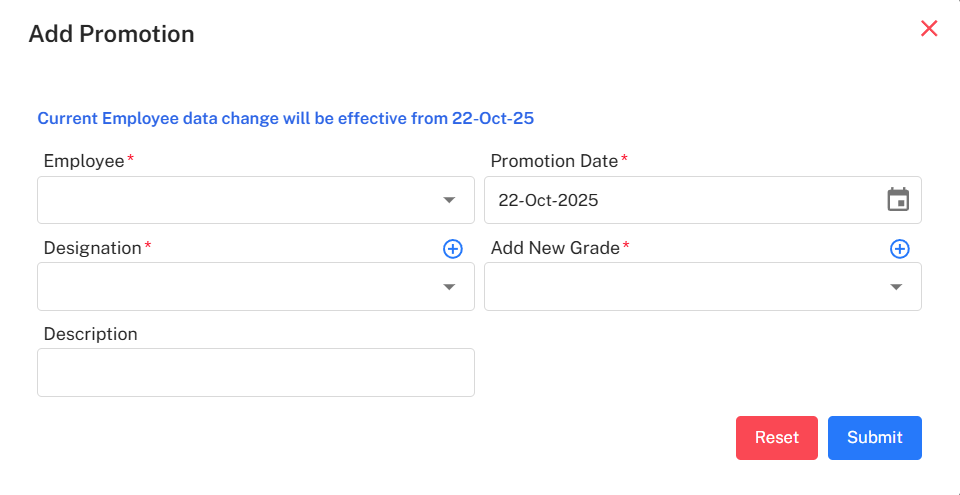
To initiate a promotion, click the + Request button from the main list. This opens the "Add Promotion" form where you can input the details of the advancement.
- Employee: Select the employee from the dropdown. Their current details (Branch, Designation, Pay Cadre) will auto-populate.
- Promotion Date: Select the date the promotion will take effect.
- Designation: Select the employee's new designation from the list.
- Add New Grade: (Optional) Check this box to reveal a dropdown for selecting a new pay grade.
- Description: Add any notes, justifications, or comments regarding the promotion.
After filling in the required fields, click Submit.
Promotion Status Dashboard
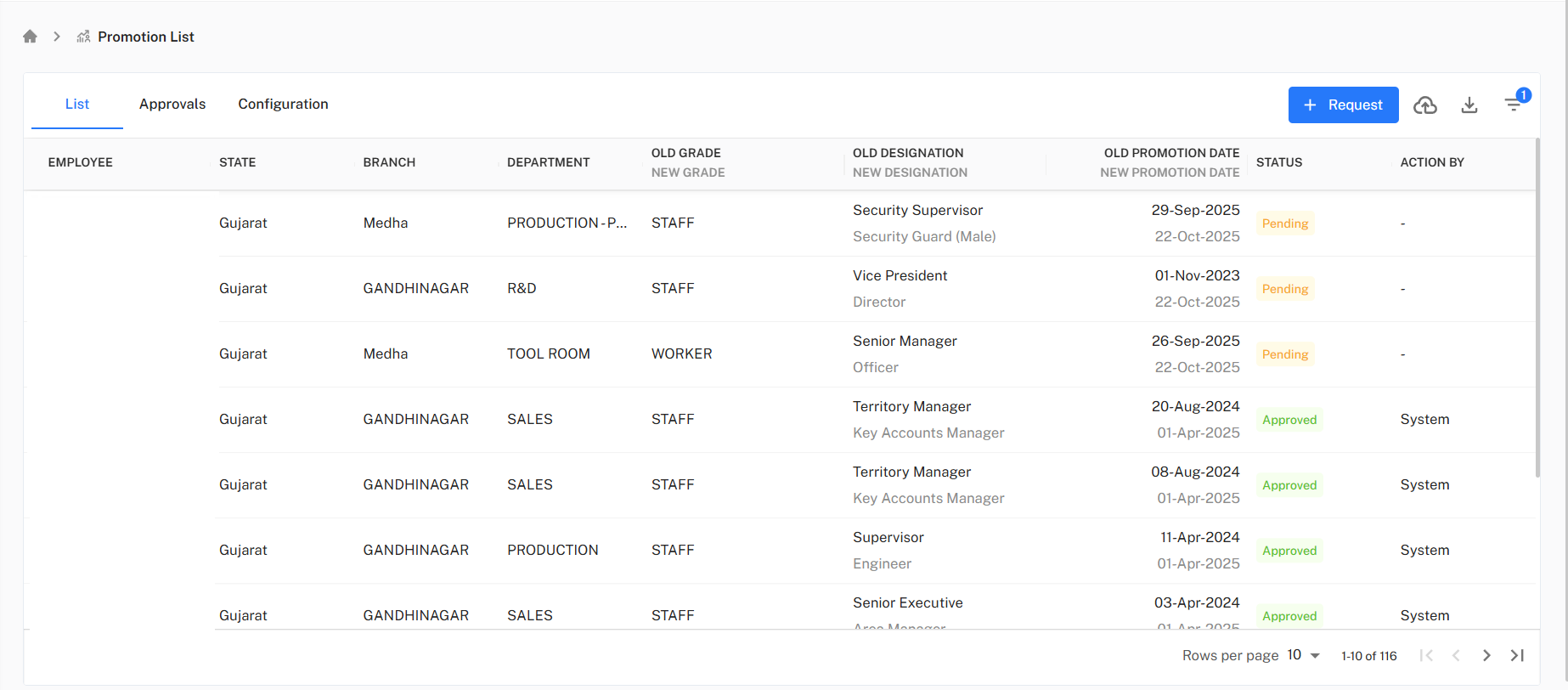
The main dashboard provides a comprehensive list of all historical and pending promotion requests. This serves as an audit trail for all employee advancements.
- Key Columns: The list tracks Old/New Designation, Old/New Grade, Effective Promotion Date, and Current Status.
- Status Indicators: The 'Status' column clearly shows whether a request is
Pending(awaiting approval) orApproved.
Multi-Step Approval Workflow
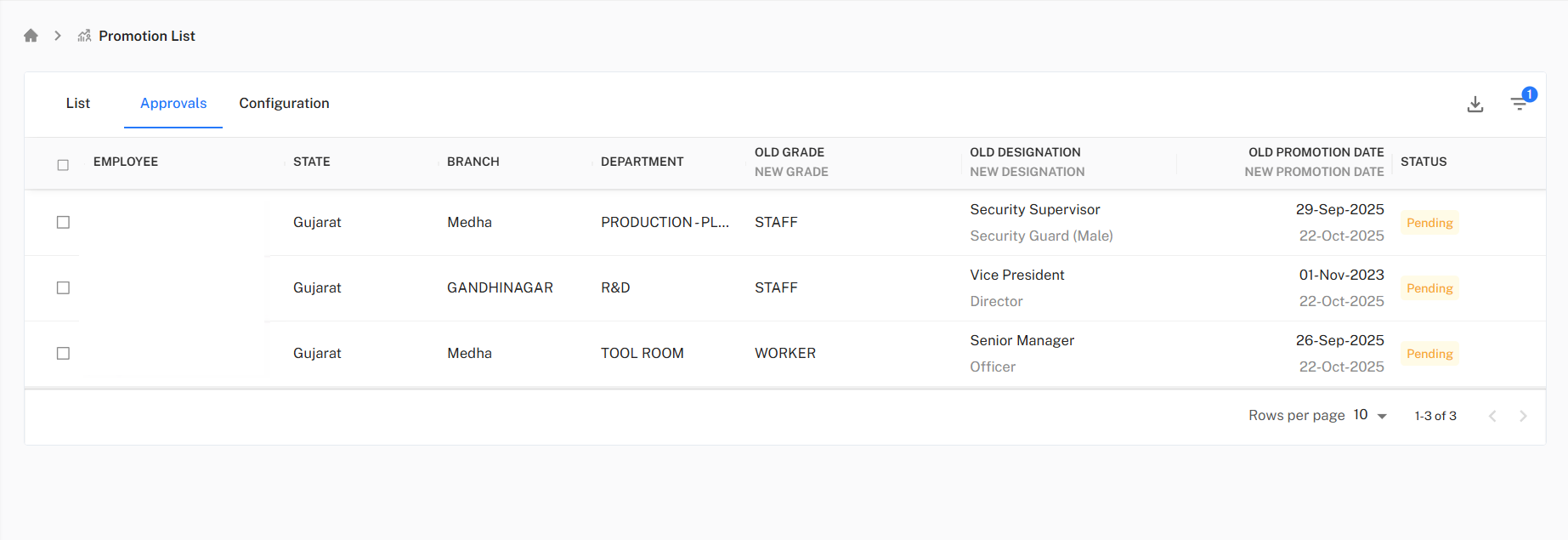
Promotions must be validated through a formal approval process. The module includes dedicated tabs for managing approvals and configuring the workflow.
- Approvals Tab: Managers and HR can view a queue of all requests awaiting their decision. From here, they can select one or more requests and choose to
ApproveorRejectthem. - Final Update: Once a request is approved, its status is updated from
PendingtoApprovedon the main promotion list.
Approval Workflow Configuration
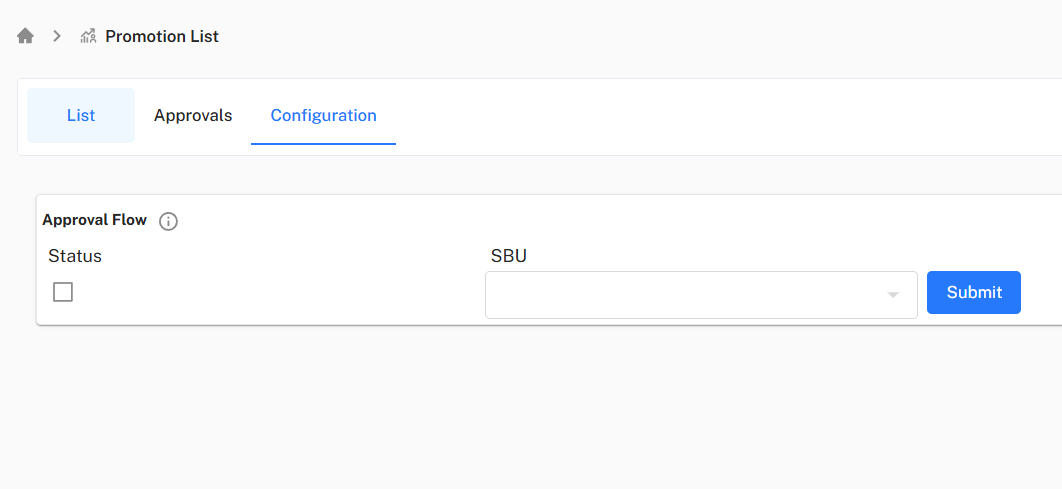
The Configuration tab allows administrators to define which promotions require manual approval, effectively disabling auto-approval for specific business units.
- SBU Selection: Use the multi-select dropdown to choose the SBUs (Strategic Business Units) that must follow the manual approval process.
- Enforcing Workflow: By adding an SBU to this list and clicking
Submit, all promotion requests for employees within that SBU will be routed to the 'Approvals' tab instead of being auto-approved. - System Notifications: The system provides feedback, confirming that the selected SBUs are configured to disable auto-approval and must follow the manual workflow.
Step-by-Step Workflow:
- (Admin) Configure Workflow: Go to the Configuration tab, select all SBUs that require manual approval, and click
Submit. - (User) Initiate Request: Navigate to the 'List' tab and click
+ Request. - (User) Fill Form: Select the
Employee, set thePromotion Date, and choose the newDesignationand/orGrade. ClickSubmit. - Await Approval: The new request appears on the 'List' tab with a
Pendingstatus. It also appears in the 'Approvals' tab queue. - (Approver) Review & Approve: A manager or HR admin navigates to the 'Approvals' tab, selects the pending request, and clicks
Approve. - Final Status: The request's status on the main 'List' tab changes from
PendingtoApproved, completing the process.--- title: "Employee Promotion Management" description: "Initiate, track, and approve employee promotions, including changes to designation and grade." sidebar_position: 9 tags:
- "Promotion"
- "Employee Growth"
- "HR Workflow"
- "Approval Process"
- "Designation"
Employee Promotion Management
This module facilitates the entire employee promotion lifecycle, from the initial request and data entry to multi-level approval and final record-keeping.
Module Overview
Major features for promotion management:
- Promotion Request Form: Initiate a new promotion for any employee through a simple request form.
- Designation & Grade Updates: Allows for changing an employee's designation and, optionally, their pay grade/cadre in the same workflow.
- Effective Date Management: Set a specific "Promotion Date" for when the change will become effective.
- Status Tracking: Monitor the real-time status of all promotion requests (e.g., Pending, Approved) in a centralized list.
- Approval Workflow: A dedicated approvals queue for managers or HR to review, approve, or reject pending promotion requests.
Initiating a Promotion Request
To initiate a promotion, click the + Request button from the main list. This opens the "Add Promotion" form where you can input the details of the advancement.
- Employee: Select the employee from the dropdown. Their current details (Branch, Designation, Pay Cadre) will auto-populate.
- Promotion Date: Select the date the promotion will take effect.
- Designation: Select the employee's new designation from the list.
- Add New Grade: (Optional) Check this box to reveal a dropdown for selecting a new pay grade.
- Description: Add any notes, justifications, or comments regarding the promotion.
After filling in the required fields, click Submit.
Promotion Status Dashboard
The main dashboard provides a comprehensive list of all historical and pending promotion requests. This serves as an audit trail for all employee advancements.
- Key Columns: The list tracks Old/New Designation, Old/New Grade, Effective Promotion Date, and Current Status.
- Status Indicators: The 'Status' column clearly shows whether a request is
Pending(awaiting approval) orApproved.
Multi-Step Approval Workflow
Promotions must be validated through a formal approval process. The module includes dedicated tabs for managing approvals and configuring the workflow.
- Approvals Tab: Managers and HR can view a queue of all requests awaiting their decision. From here, they can select one or more requests and choose to
ApproveorRejectthem. - Final Update: Once a request is approved, its status is updated from
PendingtoApprovedon the main promotion list.
Approval Workflow Configuration
The Configuration tab allows administrators to define which promotions require manual approval, effectively disabling auto-approval for specific business units.
- SBU Selection: Use the multi-select dropdown to choose the SBUs (Strategic Business Units) that must follow the manual approval process.
- Enforcing Workflow: By adding an SBU to this list and clicking
Submit, all promotion requests for employees within that SBU will be routed to the 'Approvals' tab instead of being auto-approved. - System Notifications: The system provides feedback, confirming that the selected SBUs are configured to disable auto-approval and must follow the manual workflow.
Step-by-Step Workflow:
- (Admin) Configure Workflow: Go to the Configuration tab, select all SBUs that require manual approval, and click
Submit. - (User) Initiate Request: Navigate to the 'List' tab and click
+ Request. - (User) Fill Form: Select the
Employee, set thePromotion Date, and choose the newDesignationand/orGrade. ClickSubmit. - Await Approval: The new request appears on the 'List' tab with a
Pendingstatus. It also appears in the 'Approvals' tab queue. - (Approver) Review & Approve: A manager or HR admin navigates to the 'Approvals' tab, selects the pending request, and clicks
Approve. - Final Status: The request's status on the main 'List' tab changes from
PendingtoApproved, completing the process.