Bulk Import Process
Last Updated: September 28, 2025 Document Version: 1.0 Prepared for: Emgage HRMS Implementation Team
Bulk Import Process
The bulk import functionality enables efficient processing of multiple candidates simultaneously through Excel spreadsheet uploads. This powerful feature is designed for large-scale recruitment drives, campus recruitment, and situations where candidate data has been collected in bulk.
Bulk Import Overview
Bulk importing streamlines the onboarding process by allowing administrators to process dozens or hundreds of candidates in a single operation, dramatically reducing administrative overhead while maintaining data integrity and quality.
- Efficiency: Process hundreds of candidates in minutes, eliminating repetitive data entry.
- Quality Assurance: Built-in data validation and error detection.
- Scalability: Handle recruitment drives of any size.
Starting the Import Process
Accessing Bulk Import
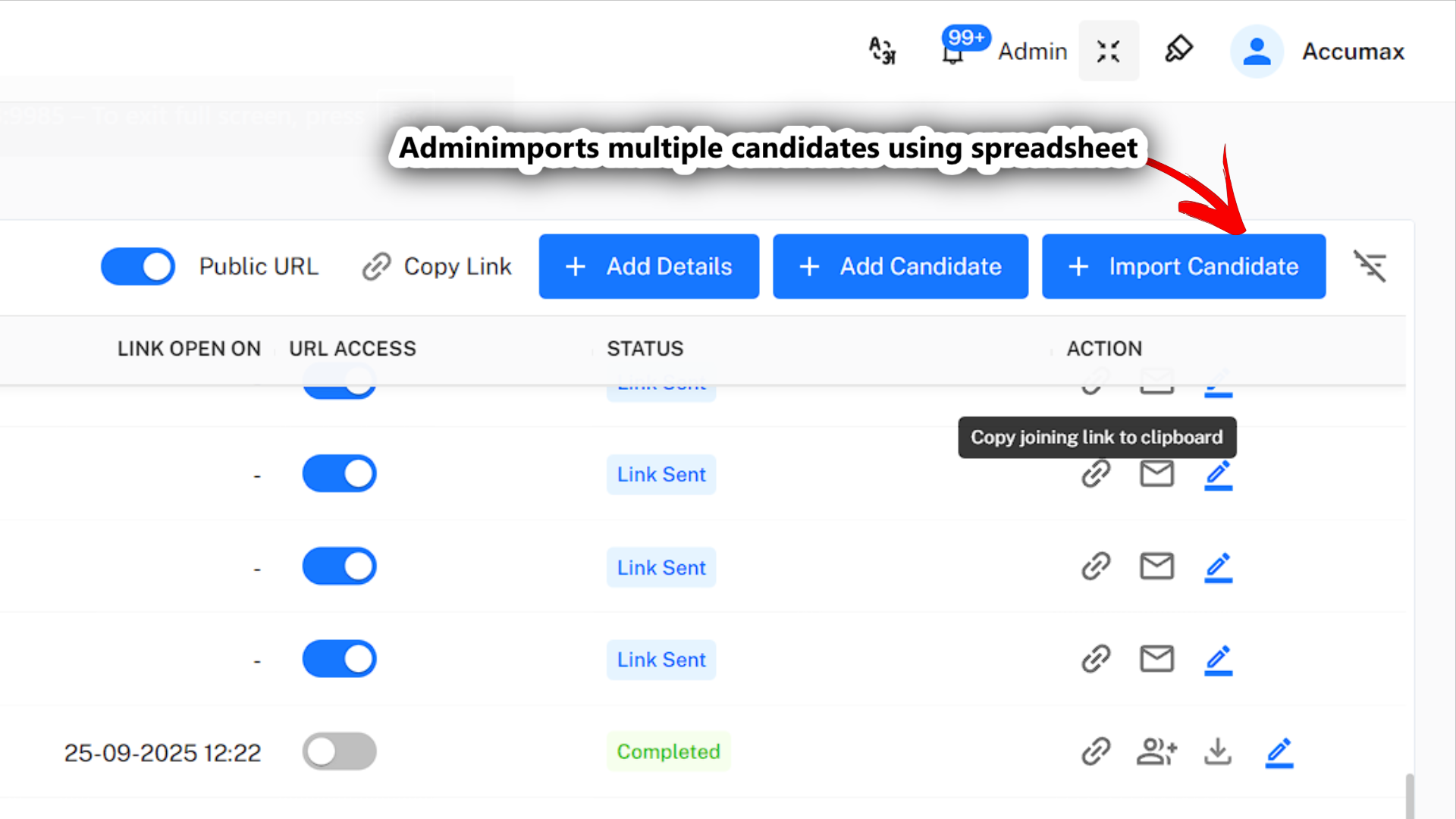
The bulk import process begins from the main dashboard by clicking the "Import Candidate" button, which launches a three-step wizard.
Excel File Preparation
Proper file preparation is crucial for successful bulk imports. Follow these guidelines to ensure smooth processing.
Required Format and Structure
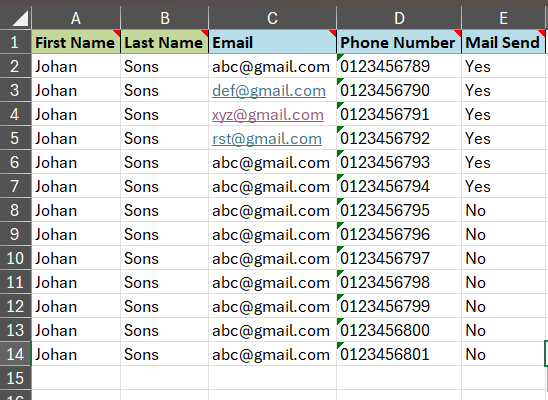
- File Format:
.xlsxor.xls. - Header Row: The first row must contain column headers (e.g., First Name, Last Name, Email).
- Required Columns: At a minimum,
First Name,Last Name, and a uniqueEmail Addressare required.
Step-by-Step Import Process
This video demonstrates the complete bulk import workflow, from file upload to final confirmation.
Step 1: File Upload
Use the drag-and-drop interface or file browser to upload your prepared Excel file.
Step 2: Data Validation and Review
The system automatically checks for required fields, correct formats, and duplicate entries. It provides a detailed error report if any issues are found.
Step 3: Import Confirmation and Execution
After reviewing the validation summary, confirm the import to create records for all valid candidates.
Next: Learn about the Candidate Experience to understand what candidates see and how they interact with the joining form system.