Role Master
Last Updated: February 09, 2026
Document Version: 1.0
About Role Master
-
Role Master is used to create roles, assign roles to employees, and control what users can access in the system. It helps the admin decide who can see and use which pages.
-
It manages user access, Roles must be created before assignment to employees, and page access is controlled through Edit Role, employee-role mapping is managed through Assign Role.It help to create new roles and assign roles to employees,You can view roles assigned to an employee.
-
You can quickly open Role Master using the global search(ctrl + K).
Role Master Page
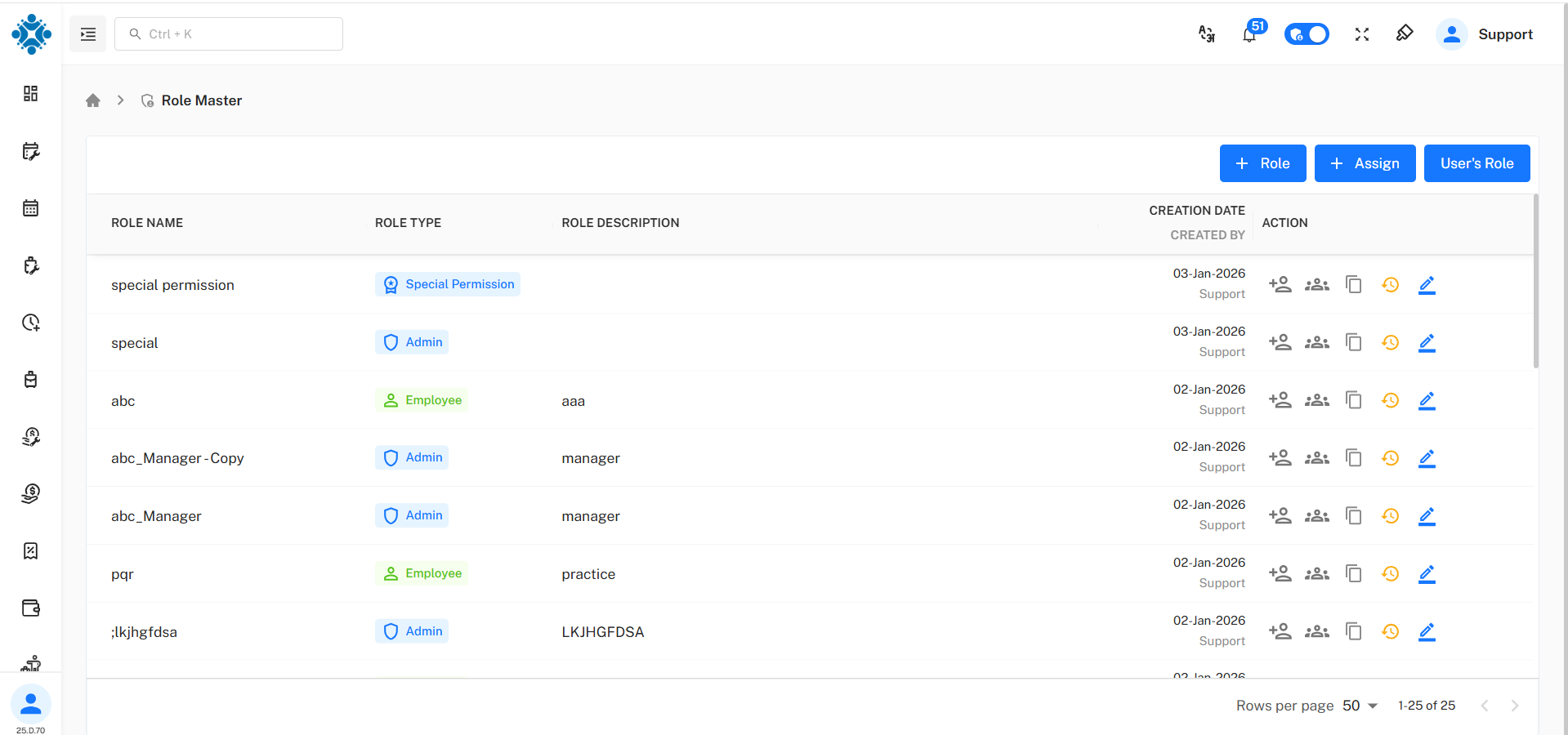
The Role Master page shows all available roles with basic details:
- Role Name: The name of the role.
- Role Type : The category of the role (e.g., Admin, User, etc.).
- Created Date: The date when the role was created.
- Action options to manage the role (Edit, Assign, Add Members, View Members, Copy Role, View History).
Create Role
To create a new role:
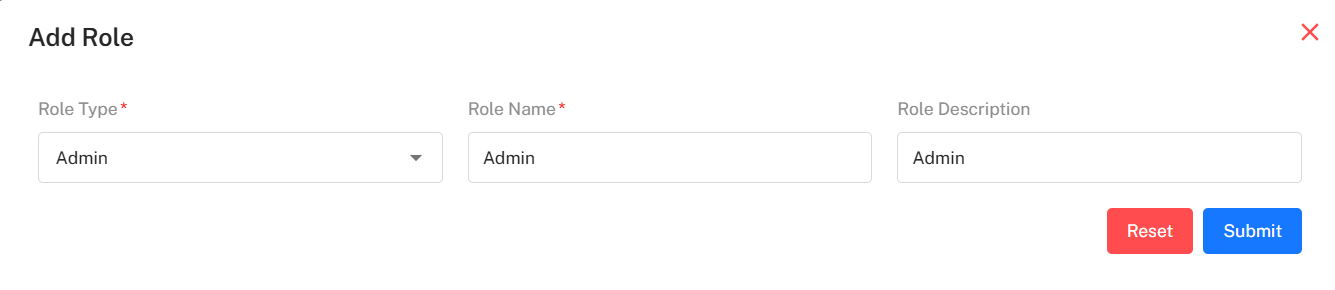
- Click + Role
- Role Type : Select the category of the role (e.g., Admin, User, etc.).
- Role Name : Enter a unique name for the role.
- Role Description : Provide a brief description of the role's purpose and responsibilities.
- After Submit The new role will be created and listed on the Role Master page.
A role must be created before it can be assigned to any employee.
Assign Role
To assign a role to employees:
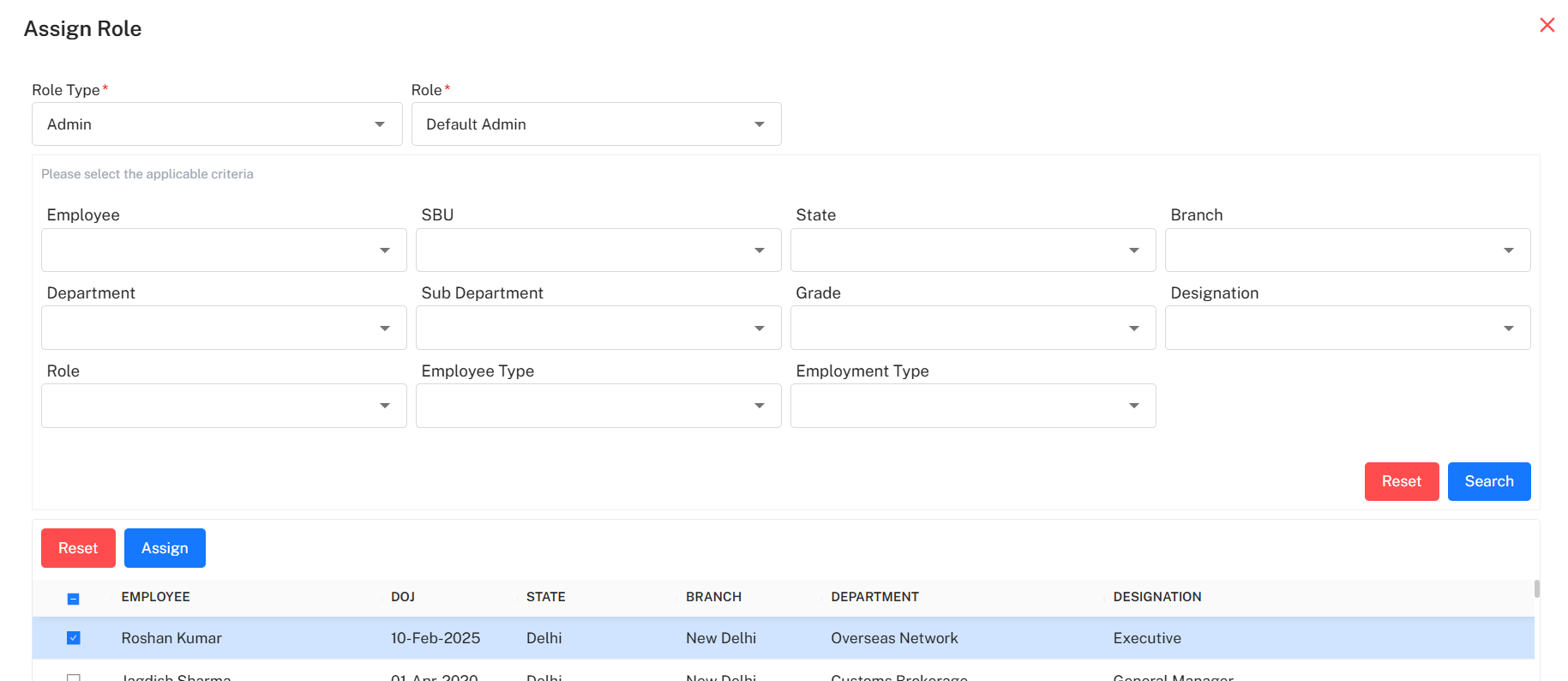
- Click + Assign
- Role Type: Select the category of the role (e.g., Admin, User, etc.).
- Role: Select the role to be assigned.
- Choose applicable criteria (Department, SBU, Designation, etc.) and then click Search to find employees matching the criteria.
- Select employees from the search results to assign the role. Click assign to complete the process.
User’s Role
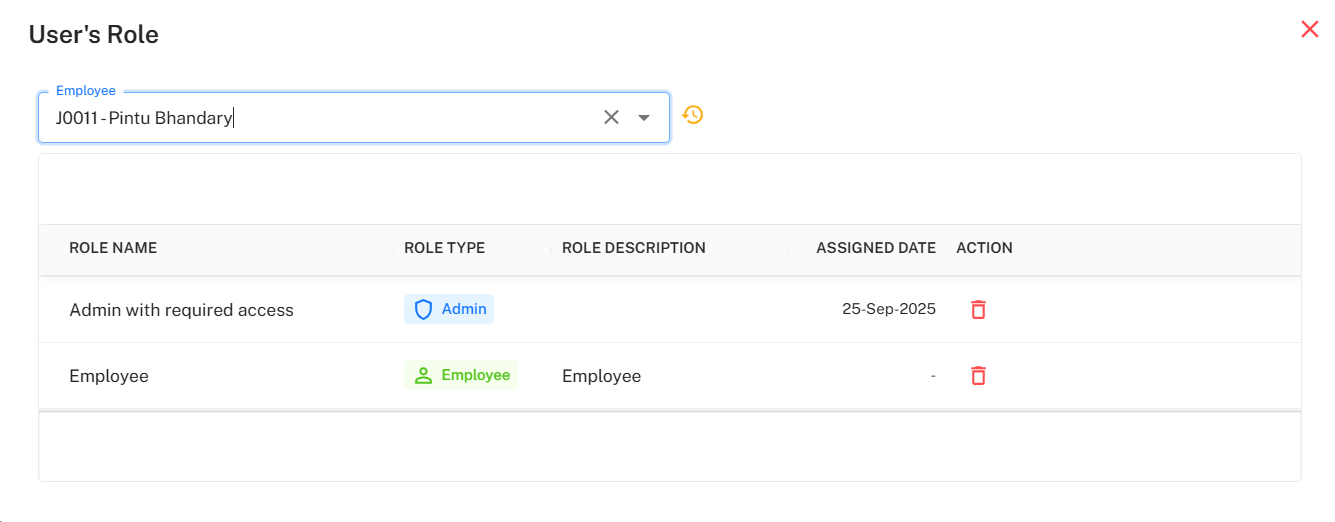
This option helps you view roles assigned to an employee.
You can:
- Search an employee and view all roles assigned to that employee. You can also remove a role from an employee if required.
You can Add Members to directly assign employees to a role.and view all employees who are currently using a role by clicking on View Members.
The Edit Role option is used to control page access.
You can:
- Allow or restrict page access
- Control which pages a role can use
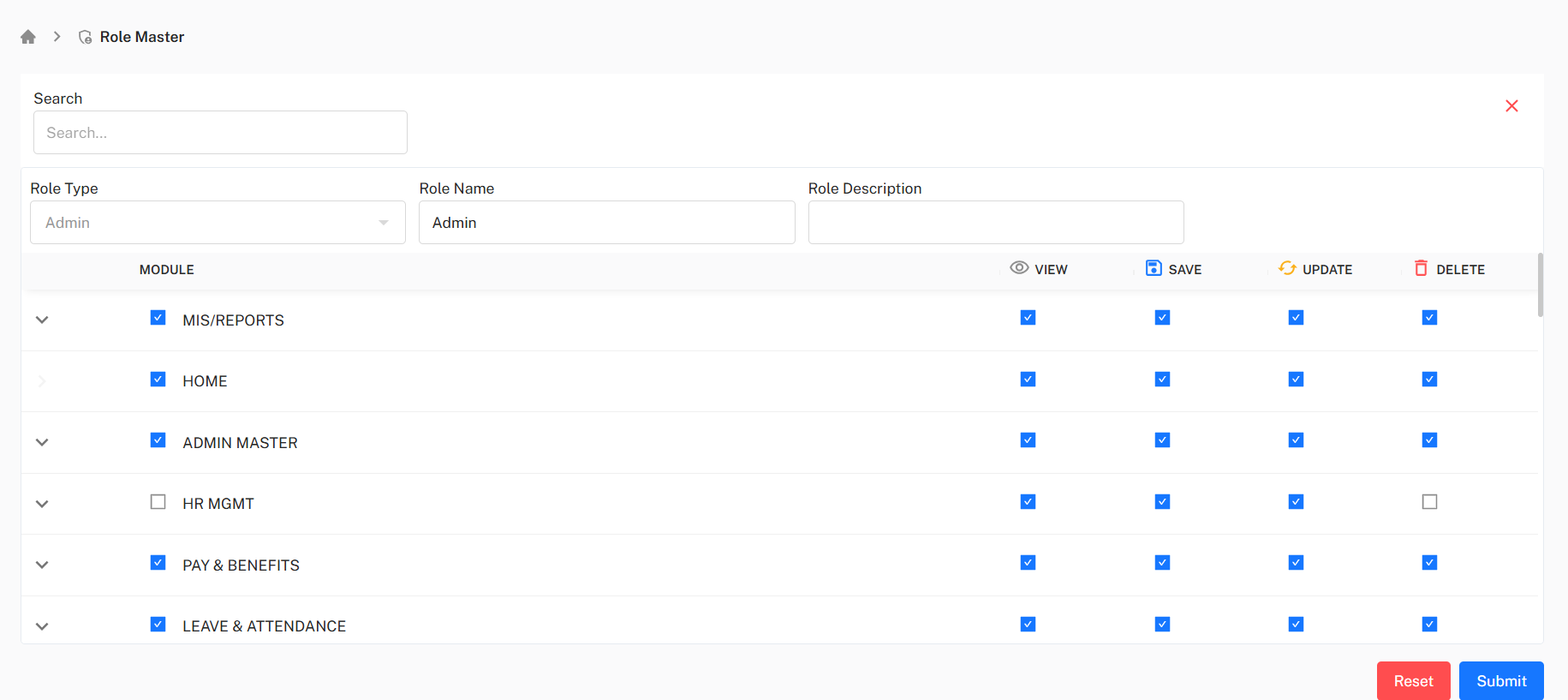
This controls page access only, not employee visibility.
Copy Role allows you to create a new role with the same permissions as an existing role.
This saves time when creating similar roles.
You can show history of changes made to a role by clicking on View History. This includes details such as:
- Who made the change
- When the change was made