Special Permission
🔐 About Special Permission
This permission is helpful when an Admin should see only selected employees and not everyone.
When this permission is turned on:
- A Special Admin role can be created
- If this permission is turned off, the employee will have only a limited Admin role
A Special Admin role can be created only when the role is set as Admin, not Employee.
📌 Prerequisites
- Logged in to the EMGAGE Dashboard
- Access to Admin
- Permission to manage Role Master
🔎 Accessing Role Master
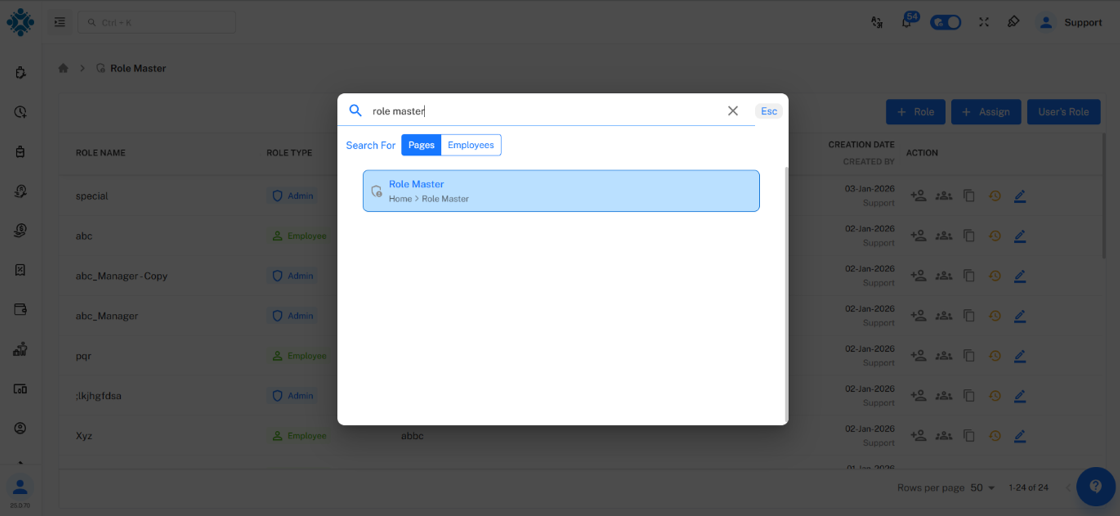
Use the Search option in the EMGAGE dashboard and search for Role Master.
🧑💼 Edit Admin Role
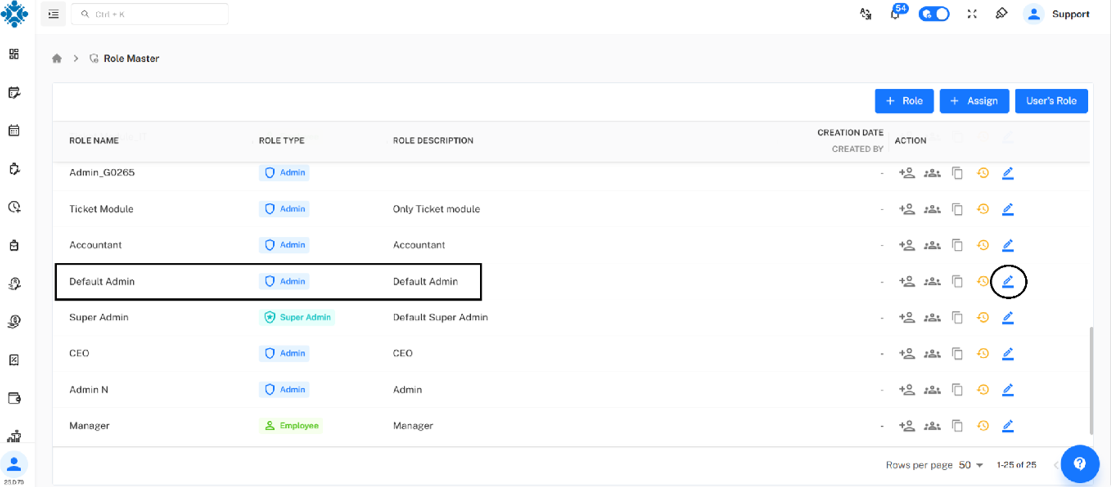
From the Role Master list, Find & Edit Admin.
This role is used to configure Special Permission settings.
⚙️ Accessing Special Permission
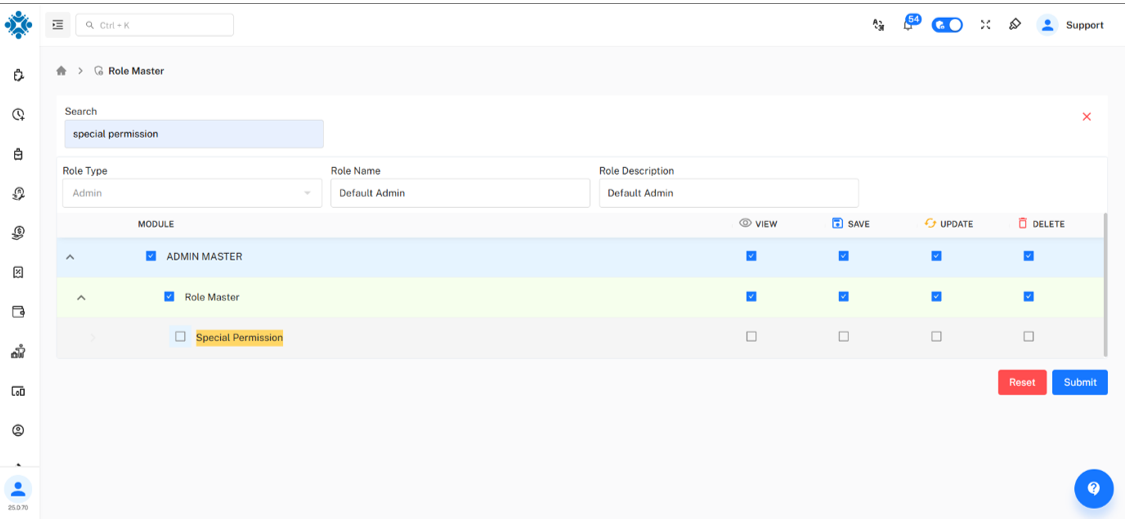
Search for Special Permission
Special Permission is available under the admin role configuration.
Navigation Path:
- Admin Master → Role Master → Special Permission
This section displays all available special permissions in checkbox format.
✅ Selecting Required Permissions
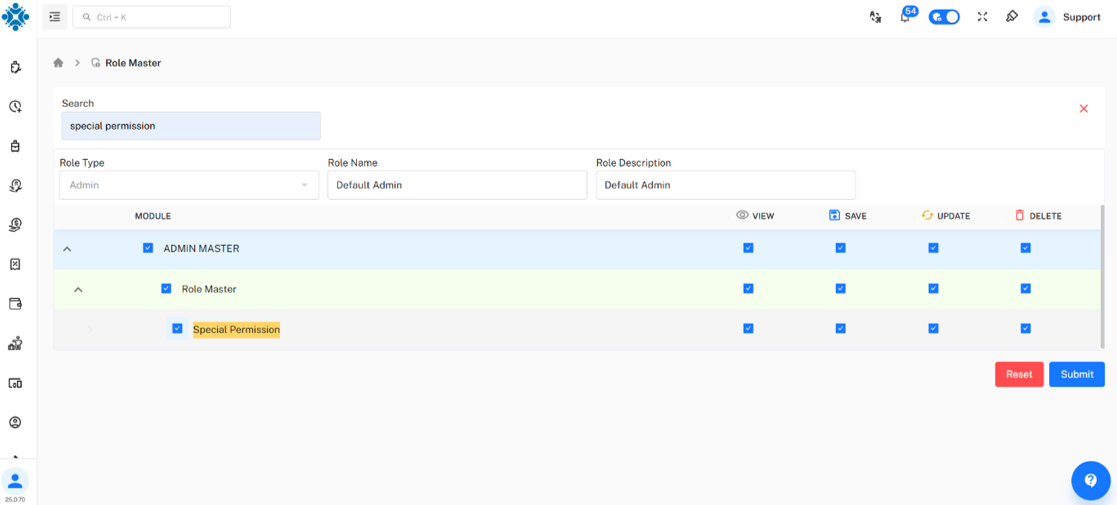
Select permissions based on actual usage and role responsibility.
- Enable permissions by selecting the required checkboxes
- Multiple permissions can be selected
- Avoid selecting unnecessary permissions to maintain security
💾 Submitting Permission Configuration
After selecting the required permissions, submit the configuration to save changes.
Once submitted, the permissions are applied to the role.
🏷️ Creating a Special Permission Role
Go to the Role Add Button to create Special Permission Role
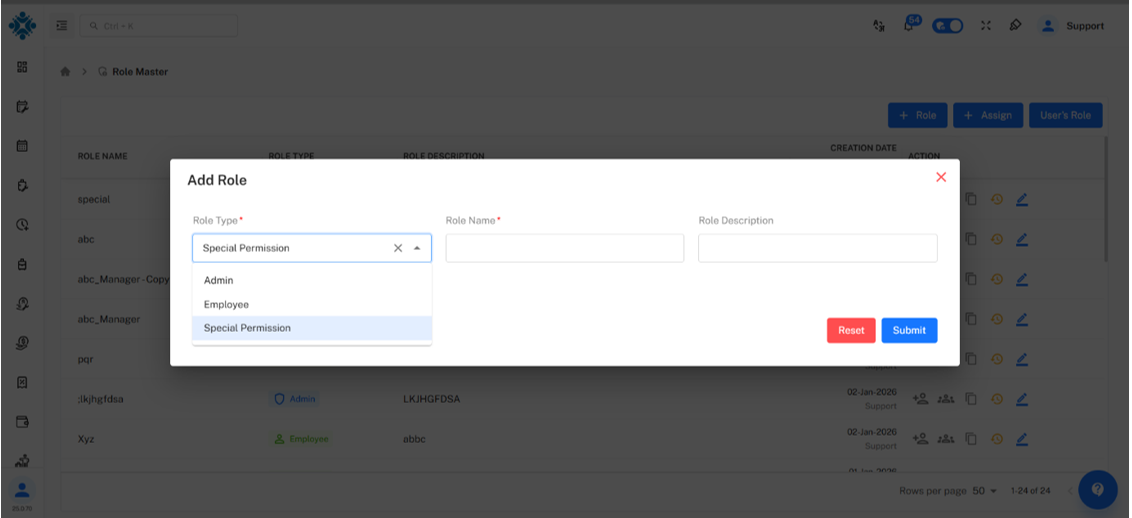
✅ Enabling Special Filter Permission
When the Special Permission toggle is enabled, a criteria section is displayed.
Criteria can be applied using the following fields:
- SBU
- Designation
- Department
- Branch
Each field supports two rule types:
- Any In – Only selected values are visible
- Not In – Selected values are hidden & other values already selected
You must select the page where the Special Permission filter should be applied; currently, this filter works on the Correction pages.
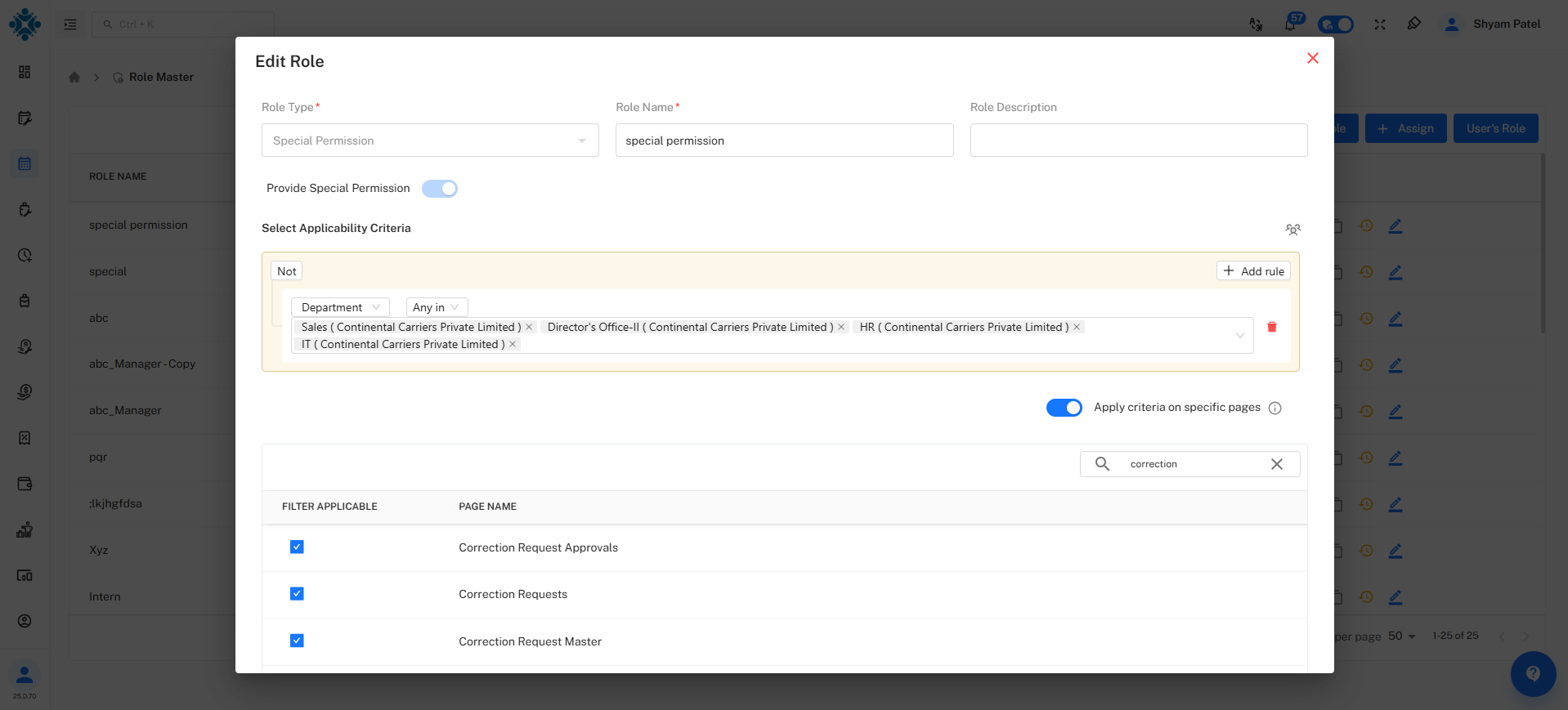
Example:
- SBU → Any In →
SBU-A - Designation → Not In →
Payroll_Executive
Result:
- Only employees from SBU-A are visible
- Employees with Payroll_Executive designation are not shown
💾 Saving the Configuration
After selecting the required criteria:
- Review the selections
- Submit to save the configuration
The filter is now attached to the Admin role.
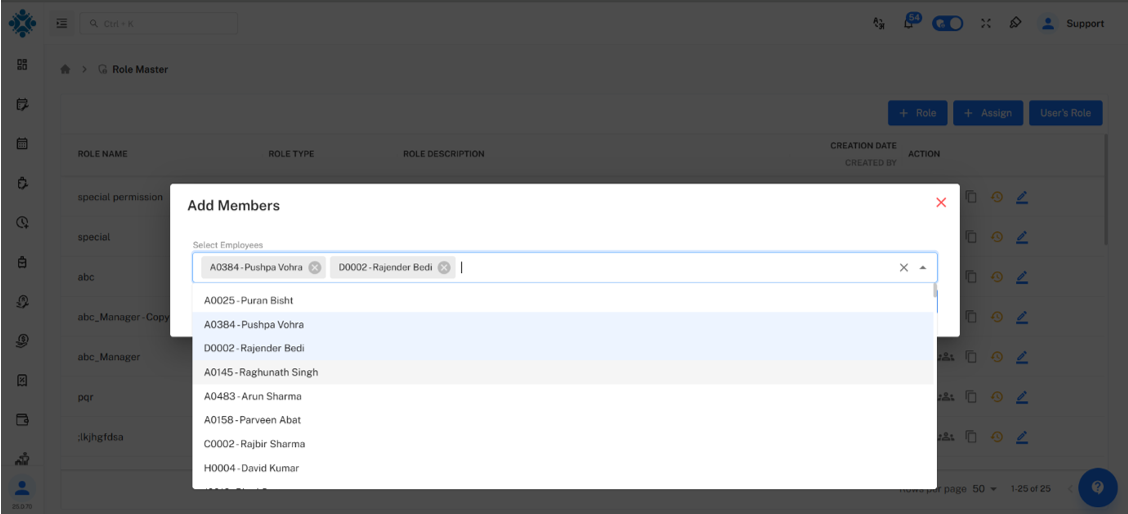
👤 Assigning Role to User
Assign the created Special Admin role to a user.
Important behavior:
- The filter works only when the user is in Admin role
- The filter does not affect Employee role
🧩 Behavior on Correction Page
This feature is currently applied only on the Correct Request Master page.
On this page:
- Filters are applied automatically
- Fields with criteria cannot be cleared
- Mandatory fields must remain selected
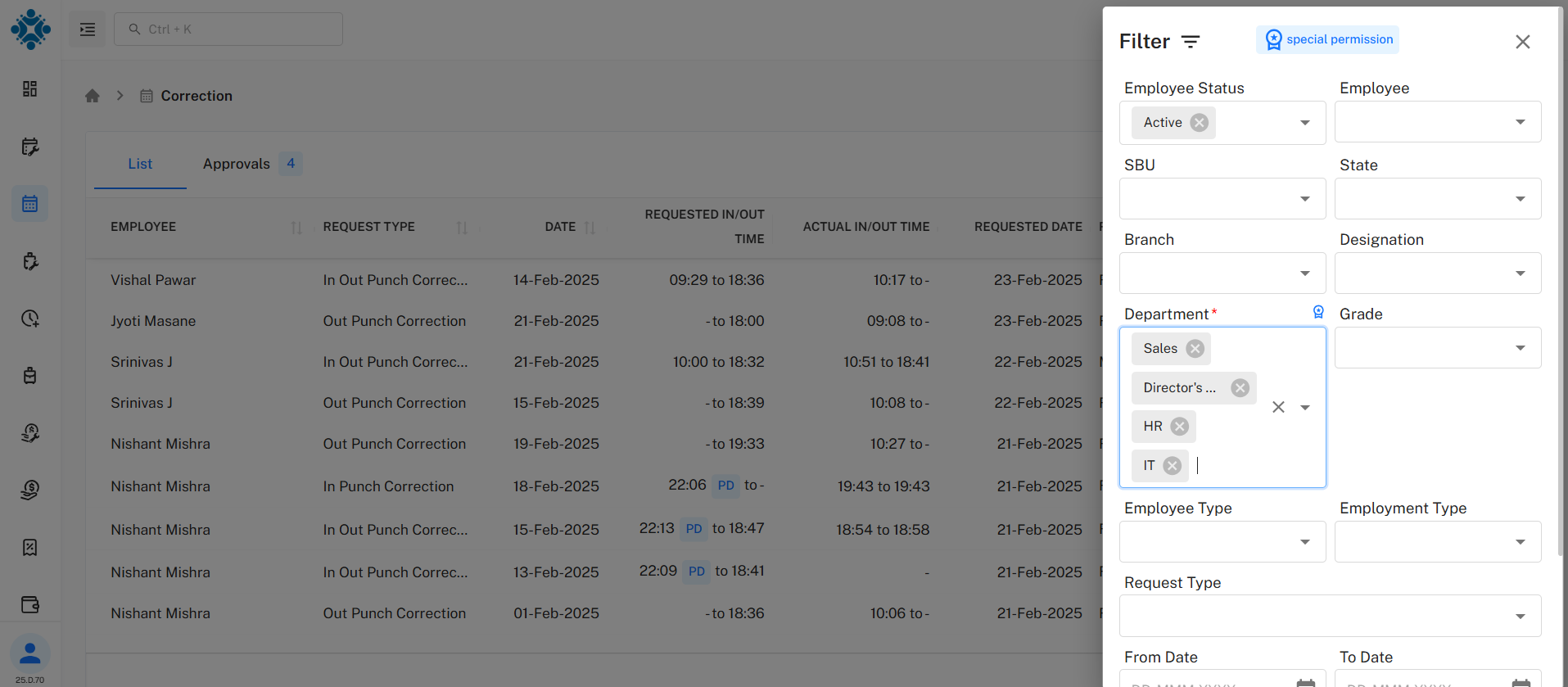
If enabled, it applies to:
- Correction List
- Approval Page
🎯 Role-Based Scenarios
Case 1: User has only Employee role
- Special Permission is assigned
- No change in behavior
Case 2: User has Employee and Admin roles
- Special Permission is assigned
- Special Filter works only in Admin role
- Employee role works normally
🚫 Page Access Impact
Special Permission does not change page access.
Page access depends on the Admin role permissions.
Example:
- User has Employee and HR Admin roles
- Special Permission is assigned
- When switched to HR Admin, only HR Admin pages are visible
- If Payroll pages are not allowed for HR Admin, they remain hidden
🎉 Completion
Special Permission setup is complete.
This feature helps control data visibility while keeping existing role and page permissions unchanged.
This function is currently available only on the Correction Page and will be extended to other pages in the future.For further help, contact the EMGAGE Support Team.