Daily Task
Last Updated: Oct 10, 2025. Document Version: 1.0 Prepared for: Emgage HRMS Implementation Team
Daily Task
✅ Individual Task Tracking and Management
The Daily Task module provides a comprehensive system for managing individual daily tasks, tracking today's assignments, monitoring progress through dashboards, and handling recurring tasks. This system enables efficient task organization, time tracking, and productivity monitoring for daily work activities.
Overview Features
Daily Task Management Benefits
The Daily Task system provides powerful individual task management capabilities, enabling:
- Today's Task View: Quick access to tasks assigned for the current day.
- All Daily Tasks: Complete list of all daily tasks across all dates.
- Task Creation: Create new daily tasks with detailed configuration.
- Progress Dashboard: Visual overview of task status and priority distribution.
- Recurring Tasks: Set up and manage tasks that repeat on a schedule.
- Time Tracking: Monitor task hours with estimated vs actual time spent.
- Status Management: Track task progress through multiple statuses.
- Employee Assignment: Assign tasks to specific team members.
- Action Tracking: Monitor who created and modified tasks.
The Daily Task interface contains four primary tabs:
- Today's Task: View and manage tasks assigned for today
- Daily Task: View and manage all daily tasks
- Dashboard: Overview of task statistics and progress visualization
- Recurring Task: Manage tasks with recurring schedules
1. Today's Task
Overview
The Today's Task tab displays all tasks assigned for the current date, providing quick access to today's work items.
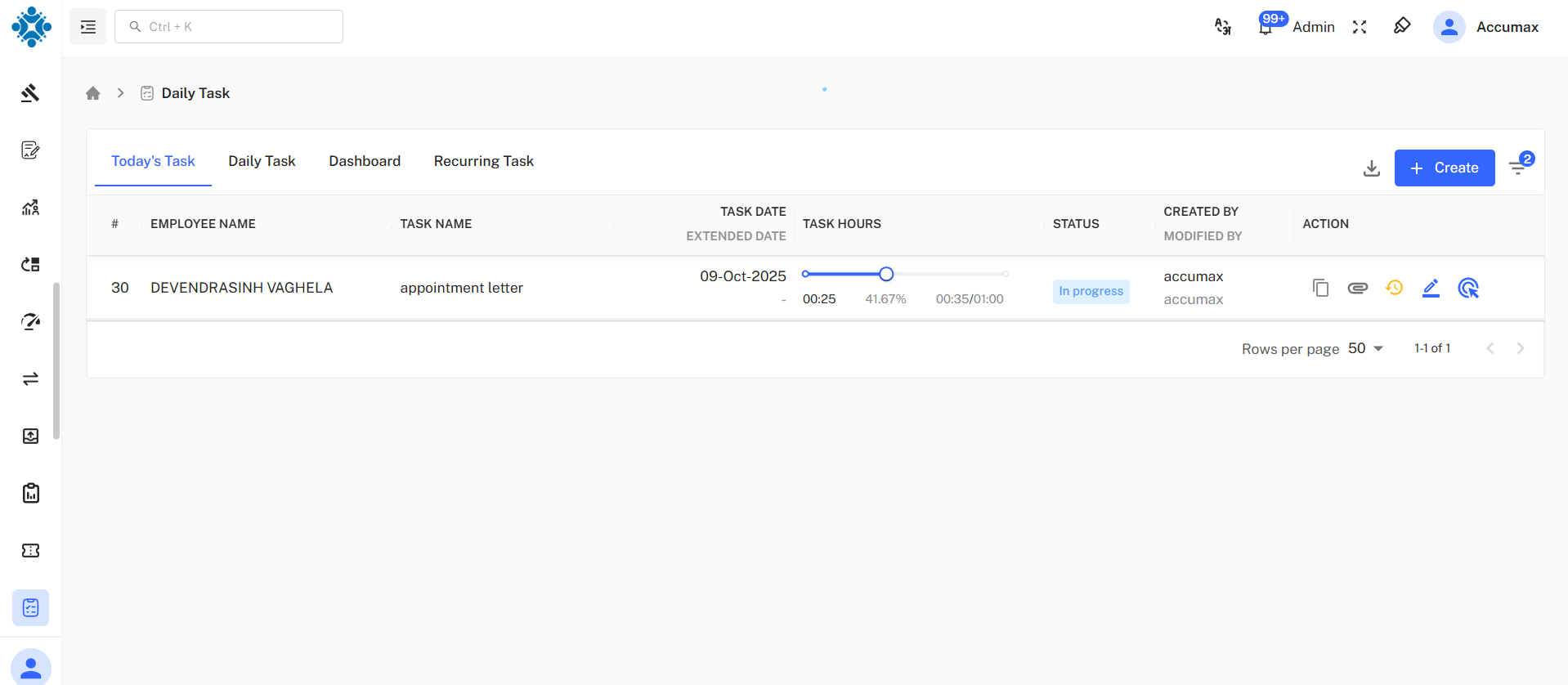
Top Action Buttons:
- Download Icon: Export today's task list (.pdf, .csv, .xlsx)
- + Create: Create new task (top-right)
Task List Table
Table Columns:
| # | Employee Name | Task Name | Task Date | Task Hours | Status | Created By | Modified By | Action |
|---|---|---|---|---|---|---|---|---|
| [Task serial number] | [Employee Name] | [Task Description] | [Today's date] | [HH:MM] | Created | [Username] | [Username] | Icons |
- #: Task serial number
- EMPLOYEE NAME: Person assigned to the task
- TASK NAME: Task description/title
- TASK DATE / EXTENDED DATE: Original and extended due dates
- TASK HOURS: Time information
- HH:MM Format
- STATUS: Current task status with colored badge
- CREATED BY / MODIFIED BY: User who created and last modified
- ACTION: Available operations for the task
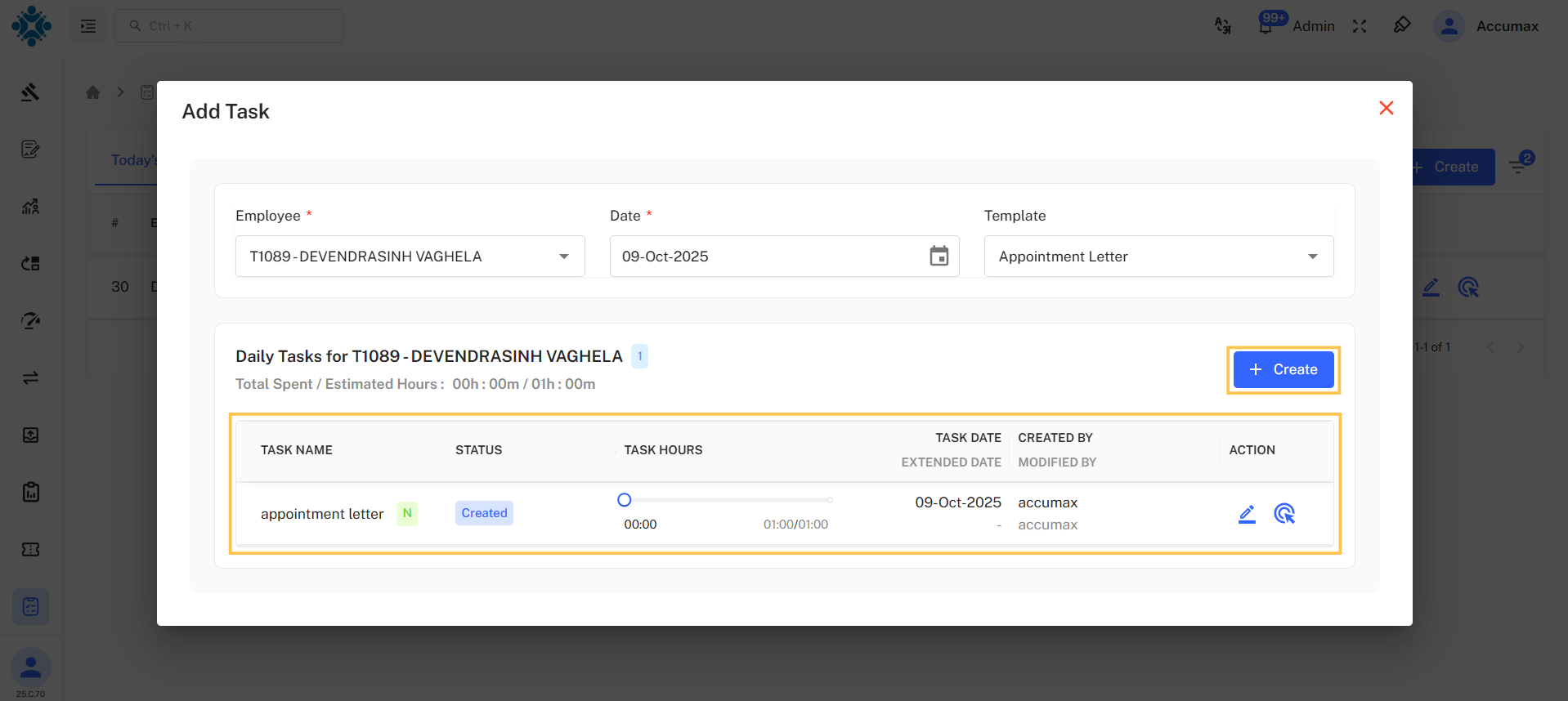
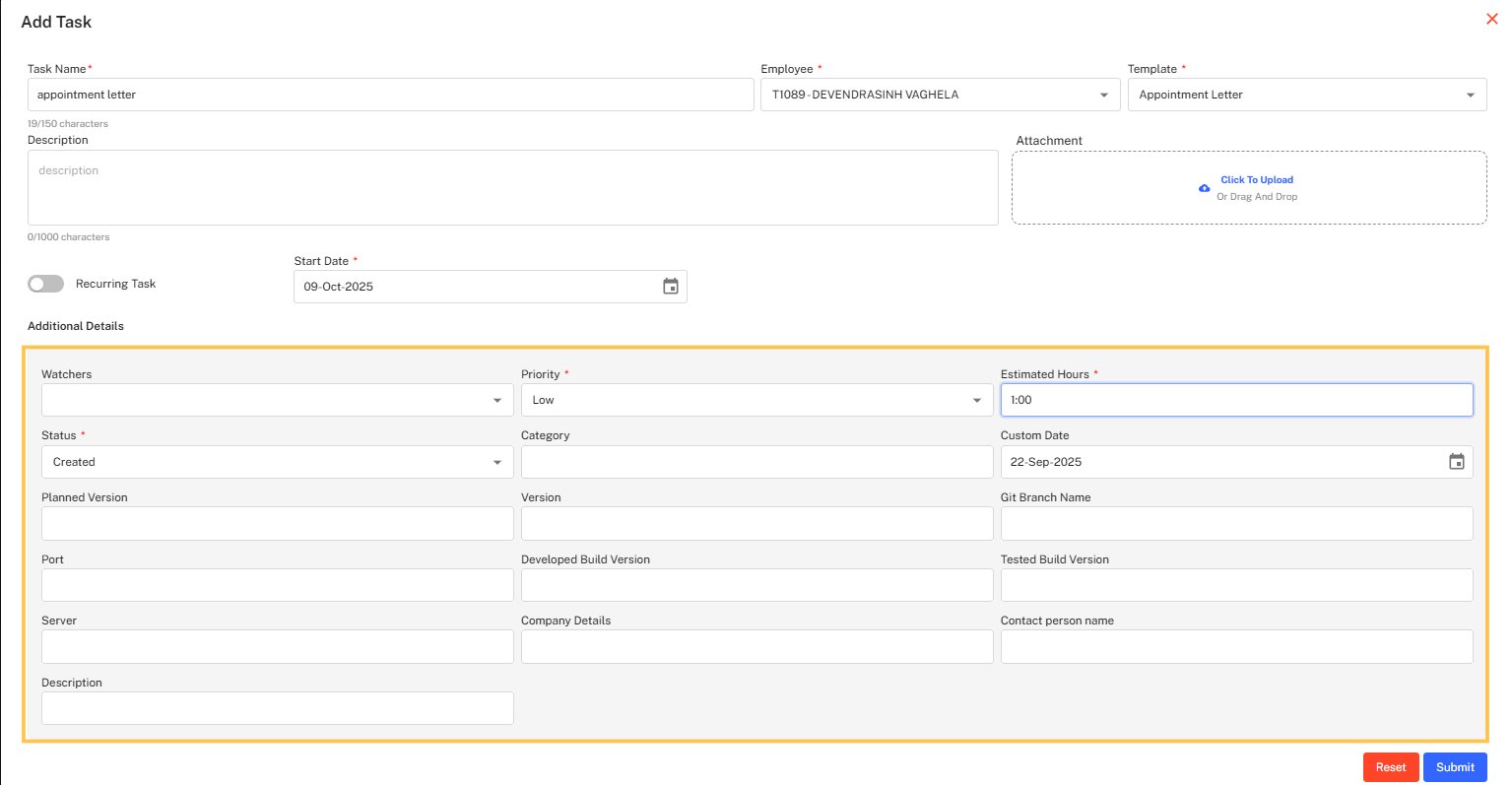
Action Buttons
| Action | Description |
|---|---|
| 📋 Copy | Duplicate the task |
| 🔗 Attachment | Attach documents related to the task. |
| 🕐 History | View detailed logs of all updates and edits made to the task |
| ✏️ Edit | Modify task details |
| 🔍 Update Task | To Update Task status |
-
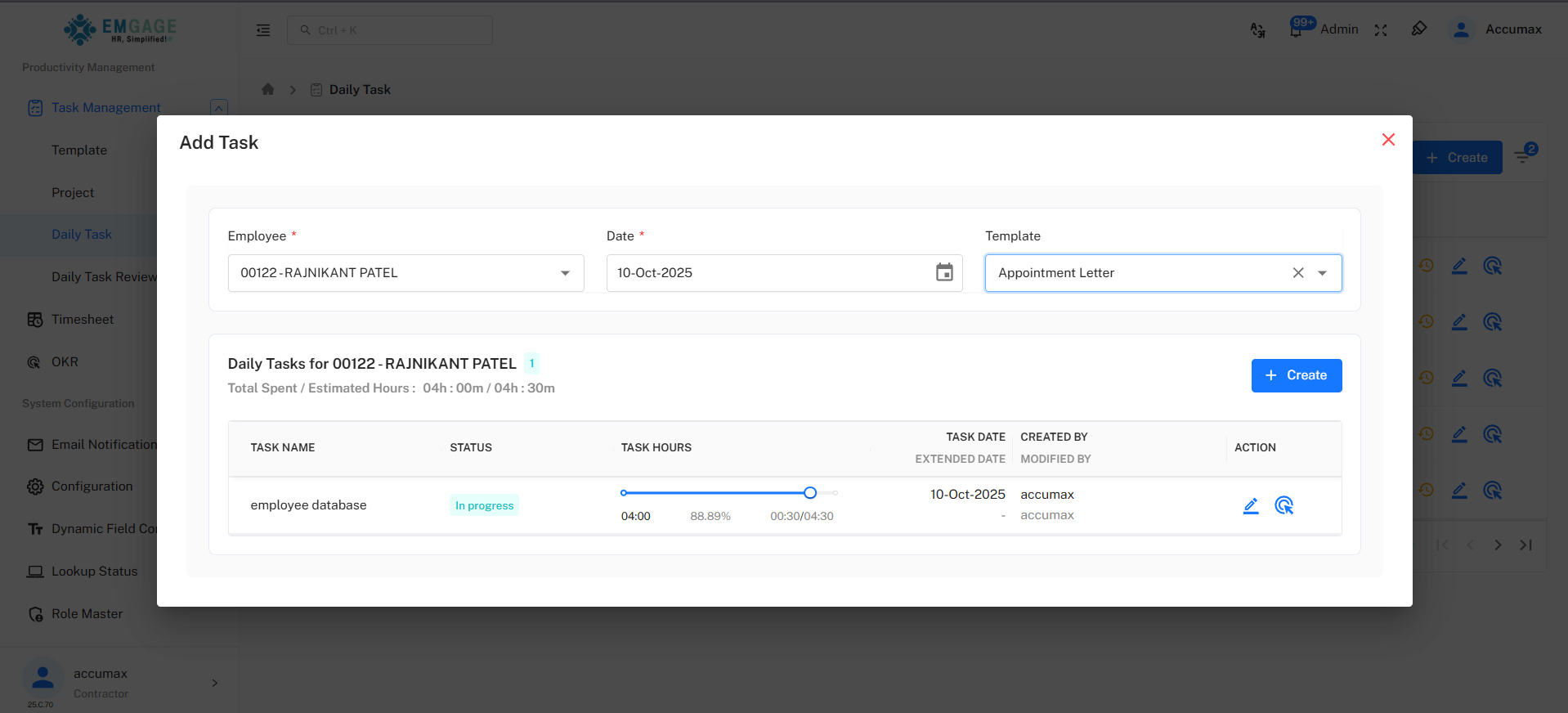
When adding a task to an employee, the Template dropdown field will only display templates that have been assigned to that specific employee.
-
In the + Add Task section, the Additional Details will be displayed according to the configuration set in the assigned template.
-
If you create a “Today’s Task” but select a date other than the current day, it will not appear under Today’s Tasks. Instead, it will be listed under the Daily Tasks tab next to it. This is because the Today’s Tasks section displays only the tasks scheduled for the current day.
2. Daily Task
Overview
The Daily Task tab displays all daily tasks across all dates, providing a comprehensive view of all task assignments.
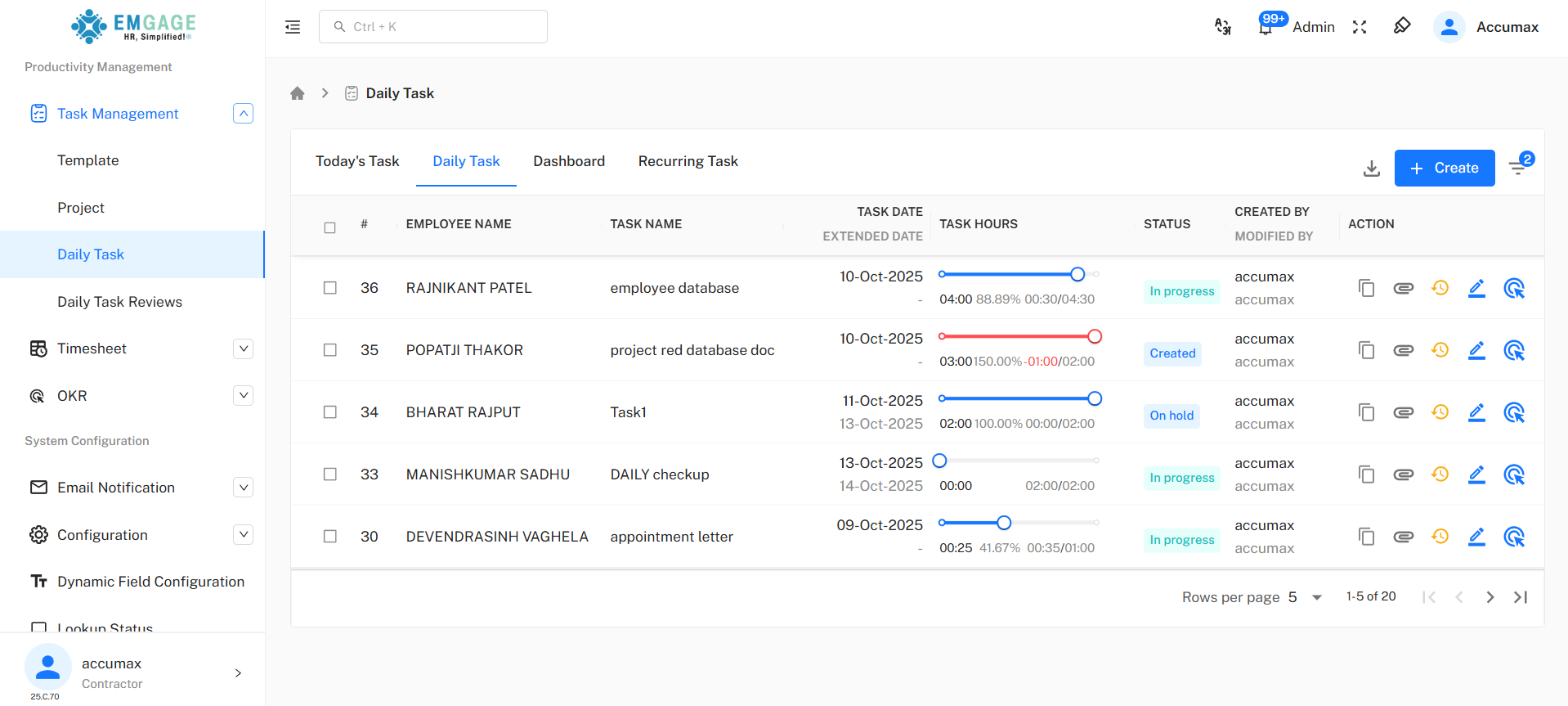
Top Action Buttons:
- Download Icon: Export daily task list (top-right)
- + Create: Create new task (top-right)
- Filter Icon: Filter tasks (top-right)
Task List Table
Table Structure:
Same columns as Today's Task with additional checkbox column for bulk selection:
- Checkbox: Select tasks for bulk operations
- #: Task ID number
- EMPLOYEE NAME: Person assigned to the task
- TASK NAME: Task description/title
- TASK DATE / EXTENDED DATE: Original and extended due dates
- TASK HOURS: Time information
- HH:MM Format
- STATUS: Current task status with colored badge
- CREATED BY / MODIFIED BY: User who created and last modified
- ACTION: Available operations for the task
Sample Task Entries:
| # | Employee | Task Name | Task Date | Task Hours | Status | Action |
|---|---|---|---|---|---|---|
| [ID] | [Employee] | [Task] | DD-MMM-YYYY | HH:MM | [Created,On Hold,In Progress,Completed] | [Action buttons] |
Action Buttons
| Action | Description |
|---|---|
| 📋 Copy | Duplicate the task |
| 🔗 Attachment | Attach documents related to the task. |
| 🕐 History | View detailed logs of all updates and edits made to the task |
| ✏️ Edit | Modify task details |
| 🔍 Update Task | To Update Task status |
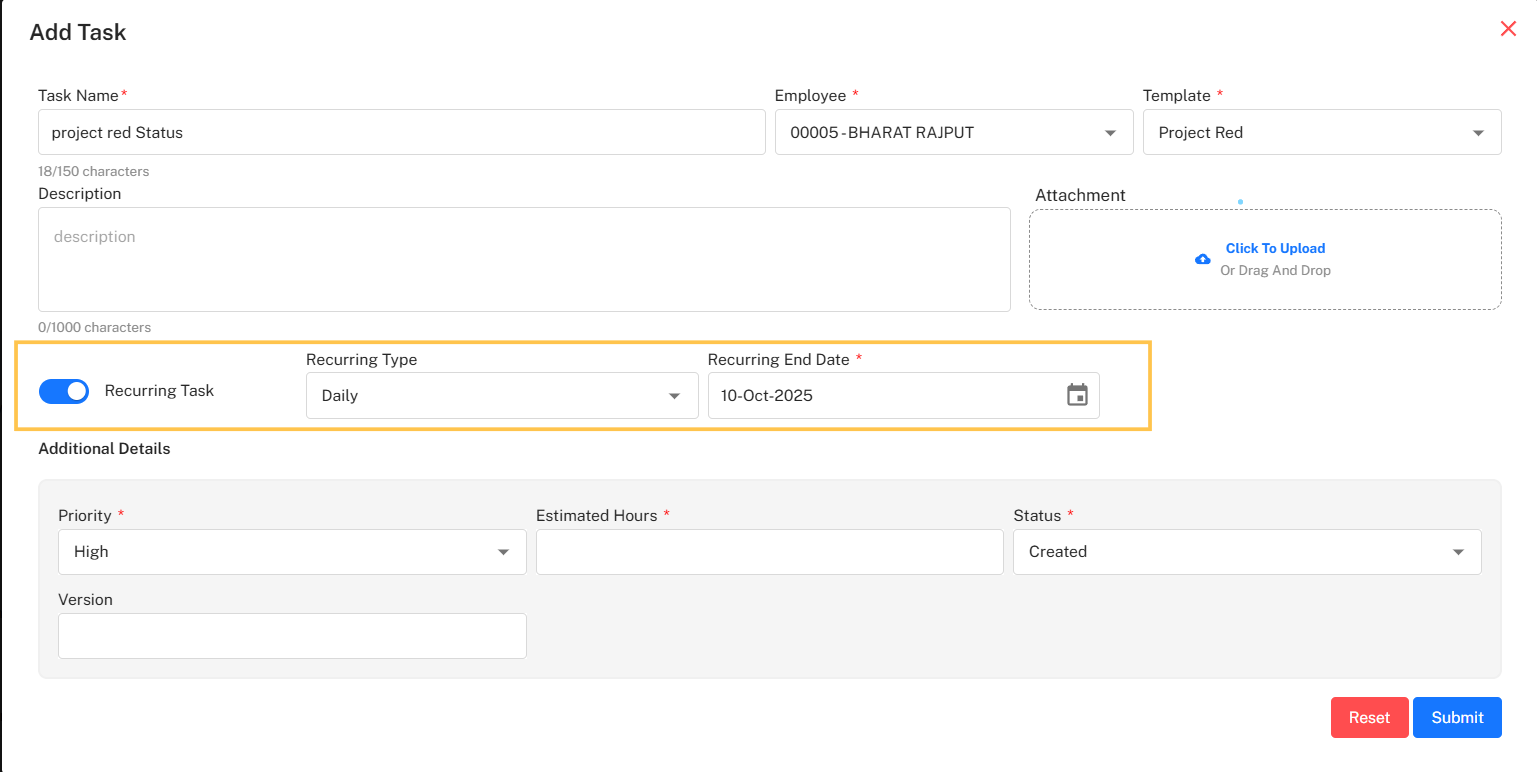
🔁 Recurring Task Settings
To make a task repeat automatically:
- Toggle Recurring Task: Turn the switch ON (as shown in the image) to enable recurring tasks.
- Recurring Type: Select how often the task should repeat (e.g., Daily, Weekly, Monthly).
- Recurring End Date*: Set the last date for the recurring task. The task will automatically stop repeating after this date.
Example: If you select Daily and set the end date to 10-Oct-2050, the task will recur every day until that date.
⚙️ Additional Details
These fields may vary depending on the selected template.
- Priority* — Choose the task’s urgency level (e.g., High, Medium, Low).
- Estimated Hours* — Enter the expected time required to complete the task.
- Status* — Set the initial status of the task (e.g., Created, In Progress, Completed).
- Version — Optionally, specify a version or iteration label related to the task.
🧩 Actions
- Submit — Save the task and assign it to the selected employee.
- Reset — Clear all entered data and start again.
Here’s a concise and professional 2–3 sentence description in Markdown:
📩 Send Reminder
You can send reminders to employees for their assigned tasks by selecting one or more tasks from the list and clicking the Send Reminder button. This helps ensure that employees stay updated on their pending or ongoing tasks.
📘 Notes
- The Additional Details section is dynamically configured based on the selected template.
3.📅 Dashboard
Overview
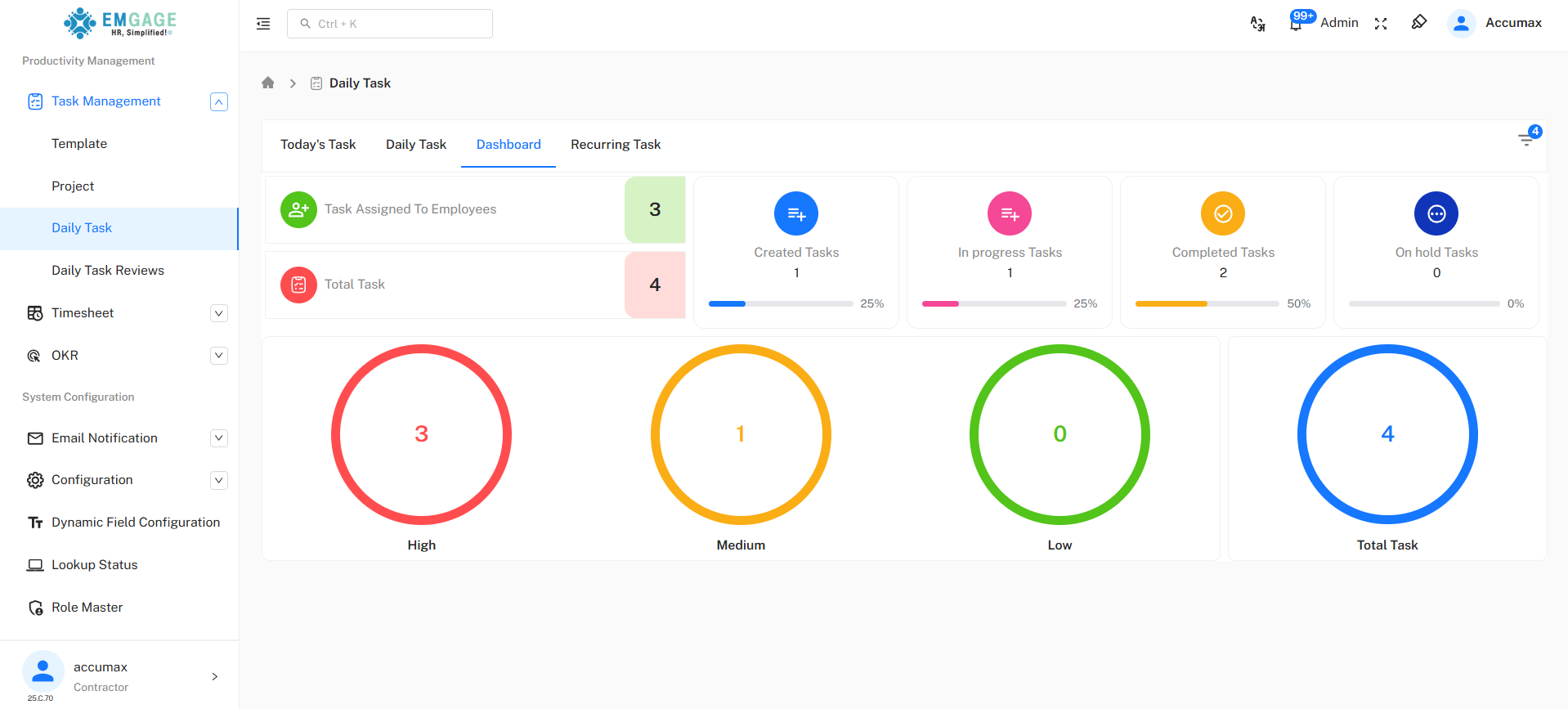
The Dashboard tab provides visual analytics and statistics for daily tasks.
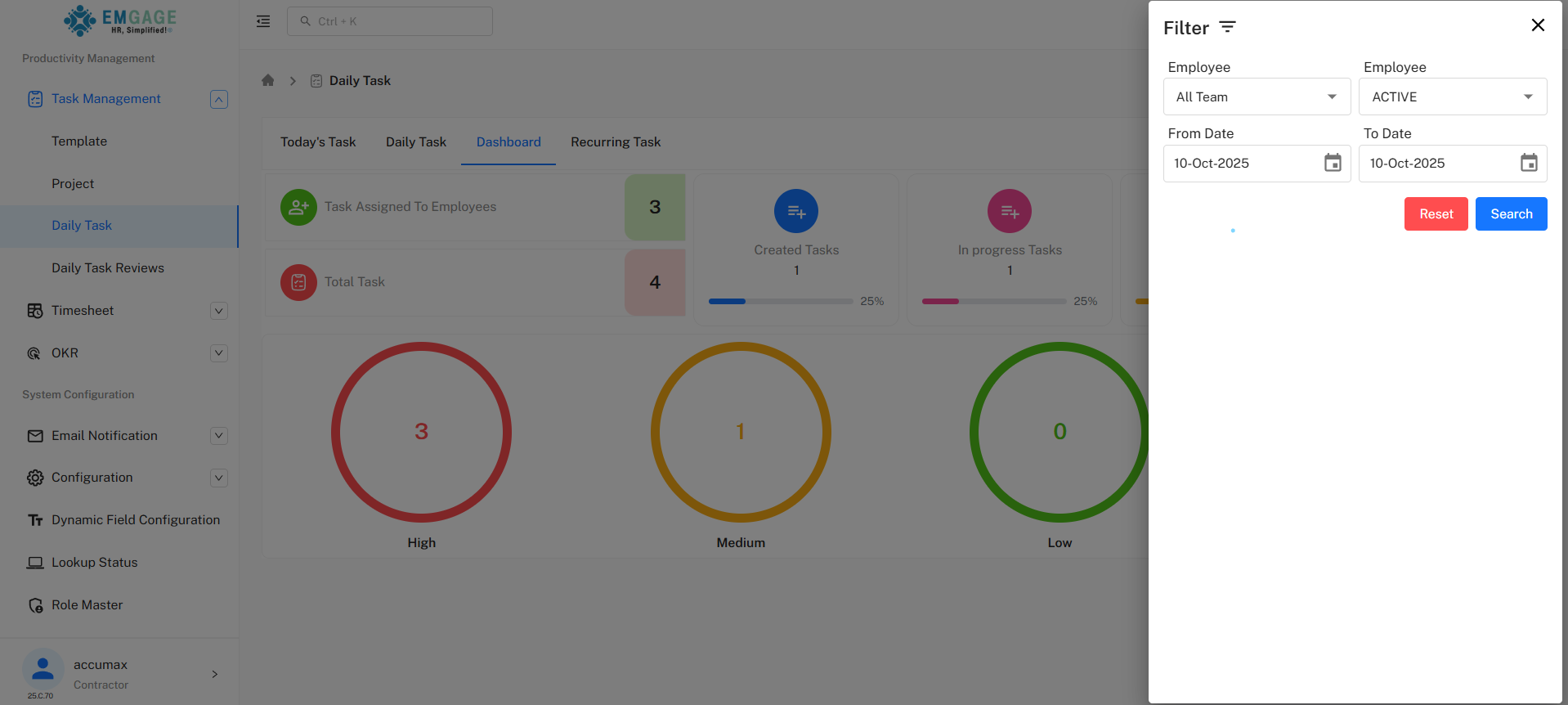
By default, the dashboard displays only the task list for the current day. To view tasks from other dates, use the From Date and To Date filters to adjust the date range.
Top Section Metrics
Dashboard includes:
- 🟢 Task Assigned To Employees:
- Shows total tasks assigned to team members
- 🔴 Total Task:
- Overall task count
- 🔵 Created Tasks:
- Newly created tasks with progress bar
- 🩷 In Progress Tasks:
- Tasks being worked on with progress percentage
- 🟡 Completed Tasks:
- Finished tasks count
- 🟣 On Hold Tasks:
- Paused tasks count
Priority Distribution Section
Visual representation of tasks by priority level using circular progress indicators:
- 🔴 High Priority:
- Indicates urgent tasks requiring immediate attention
- 🟡 Medium Priority:
- Indicates moderately important tasks
- 🟢 Low Priority:
- Indicates less urgent tasks
- 🔵 Total Task:
- Shows overall task count
4. Recurring Task
Overview
The Recurring Task tab displays tasks that have been configured to repeat according to a schedule when created in Task Management > Daily Task > [Daily Task tab OR Today's Task].
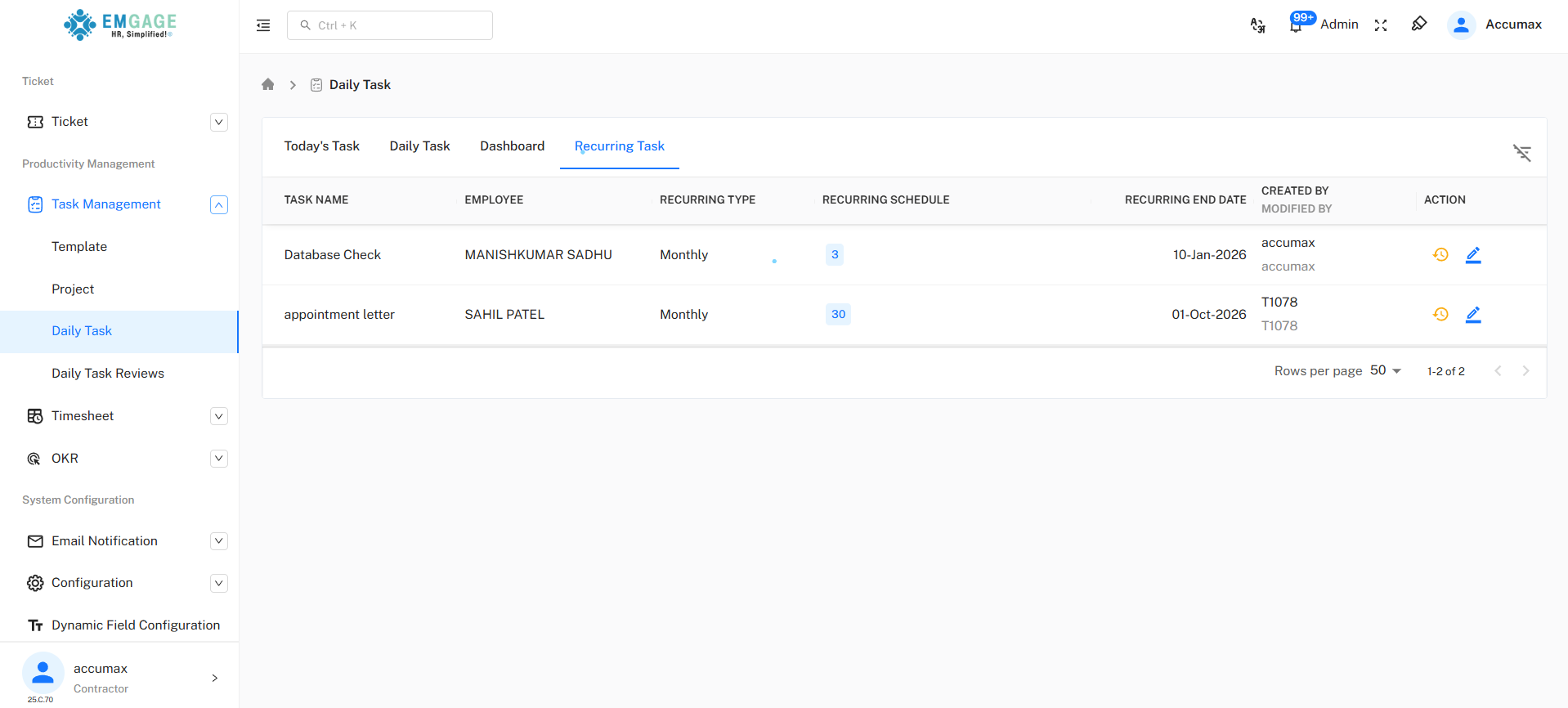
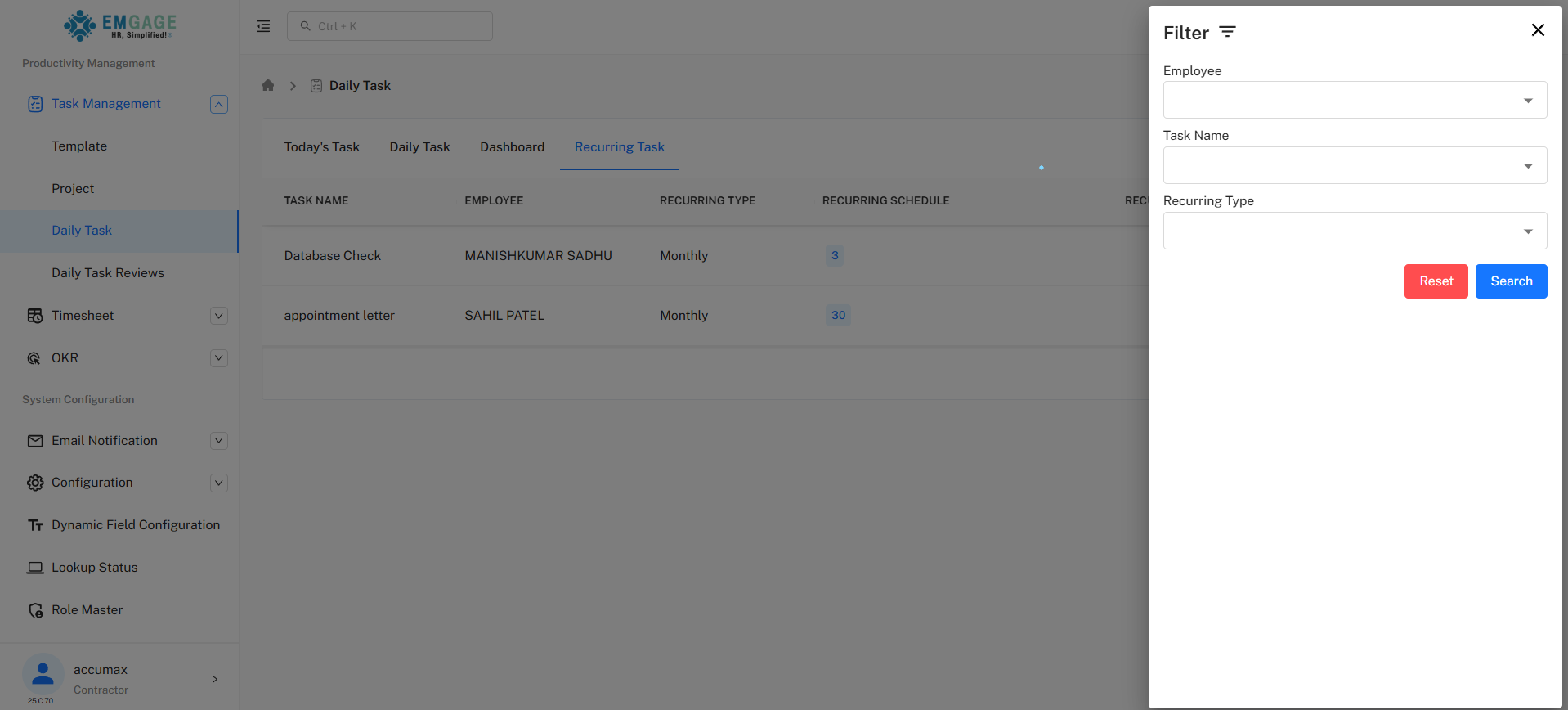
Sample Recurring Task:
| Task Name | Employee | Recurring Type | Schedule | End Date | Action |
|---|---|---|---|---|---|
| [Task Description] | [Employee] | [type (Daily, Weekly, Monthly) ] | [date] | DD-MMM-YYYY | [Action Buttons] |
Recurring Schedule Indicator
Day Badge:
- 🔵 Blue rounded badge
- Shows number "date"
- Indicates day of month/week/daily when task repeats
- For monthly recurrence, shows which day
Recurring Types
Available Recurrence Options:
- Daily: Task repeats every day
- Weekly: Task repeats every week on specified days
- Monthly: Task repeats every month on specified day
Action Buttons
| Action | Description |
|---|---|
| ✏️ Edit | Modify task details |
| 🕐 History | View detailed logs of all updates and edits made to the task |
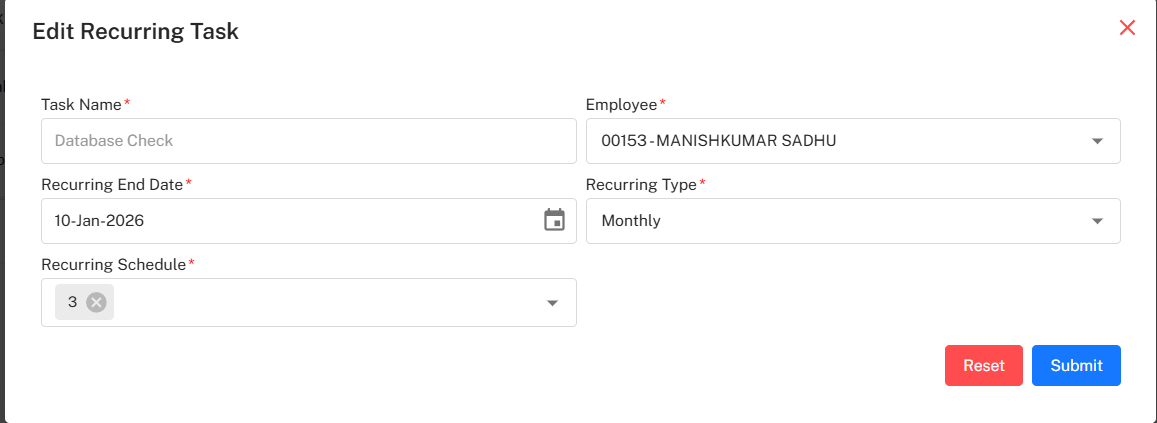
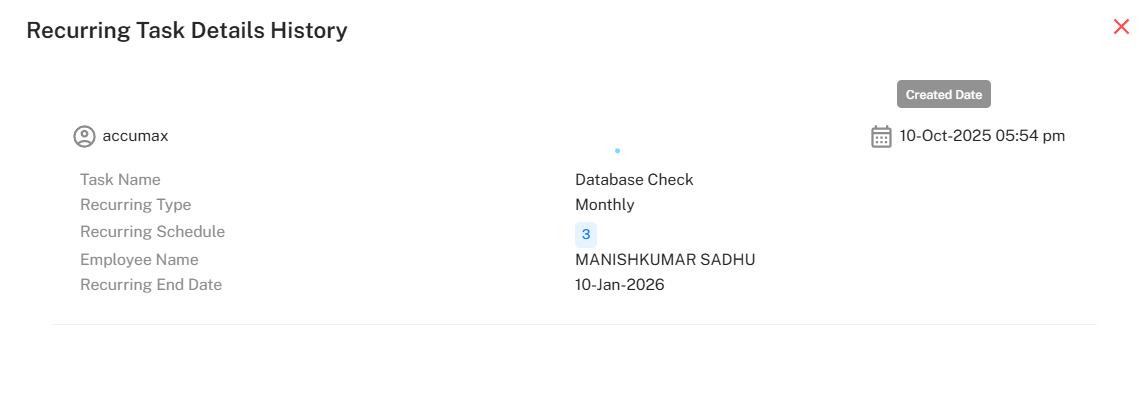
Best Practices
💡 Daily Task Management Tips
Effective Task Organization:
- Today's Focus: Start day by reviewing Today's Task tab
- Accurate Estimates: Set realistic estimated hours for planning
- Status Updates: Update task status as work progresses
- Time Tracking: Log actual hours spent for productivity insights
- Priority Usage: Use priorities to focus on important work
- Recurring Setup: Use recurring tasks for repetitive daily/weekly work
- Regular Review: Check Daily Task tab for upcoming assignments
- Dashboard Monitoring: Use dashboard to identify bottlenecks
- Comments: Add notes for context and progress updates
- Watchers: Include stakeholders who need task visibility
Recurring Task Guidelines
🔄 Recurring Task Best Practices
Setting Up Recurring Tasks:
- Choose Appropriate Frequency: Match recurrence to actual need
- Set End Dates: Define when recurring should stop to avoid clutter
- Review Regularly: Audit recurring tasks quarterly
- Use for Routine Work: Daily reports, weekly meetings, monthly reviews
- Clear Naming: Include frequency in task name (e.g., "Weekly Status Report")
- Consistent Timing: Schedule recurring tasks for same day/time
- Monitor Completion: Track completion rate of recurring tasks
- Adjust as Needed: Modify or stop recurring if requirements change
Troubleshooting
Common Issues
Task Not Appearing in Today's Task:
- Verify task date matches today's date
- Check if task is assigned to correct employee
- Refresh page to reload data
- Verify task was successfully created
Recurring Tasks Not Generating:
- Check recurring end date hasn't passed
- Verify recurring schedule is properly configured
- Ensure recurring toggle is enabled
- Review system date/time settings
Time Tracking Not Updating:
- Confirm hours are being logged properly
- Check if time entry is saved
- Verify user has permission to log time
- Refresh page to see latest updates
Cannot Change Task Status:
- Verify user has permission to edit task
- Check if task is locked or archived
- Ensure status workflow allows the change
- Try editing from Daily Task tab instead
Dashboard Not Showing Tasks:
- Verify tasks are assigned to employees
- Check date range if filters are applied
- Ensure tasks have proper status set
- Refresh dashboard to reload statistics