Daily Task Reviews
Last Updated: Oct 13, 2025. Document Version: 1.0 Prepared for: Emgage HRMS Implementation Team
Daily Task Reviews
✅ Task Performance Review and Quality Management
The Daily Task Reviews module enables supervisors and managers to evaluate completed tasks, provide performance feedback, track quality metrics, and maintain accountability through structured rating systems and comments history.
Overview Features
Daily Task Reviews Management Benefits
The Daily Task Reviews system provides powerful task evaluation capabilities, enabling:
- Pending Reviews: View all tasks awaiting review and evaluation.
- Reviewed Tasks: Access complete history of reviewed tasks.
- Performance Ratings: Rate task completion quality on a scale of 0-10.
- Feedback Comments: Provide detailed feedback and observations.
- Comments History: Track all reviews and feedback chronologically.
- Task Metrics: Monitor task hours, completion percentage, and time variance.
- Employee Performance: Track individual employee task completion quality.
- Action Icons: Quick access to view, attachment, and review functions.
- Dual View System: Separate tabs for pending and completed reviews.
The Daily Task Reviews interface contains two primary tabs:
- Pending: View and review tasks that are awaiting evaluation
- Reviewed: View tasks that have already been reviewed with ratings and comments
1. Pending Reviews Tab
Overview
The Pending tab displays all tasks that are completed and awaiting review and evaluation. This section enables managers to assess task completion and provide performance feedback.
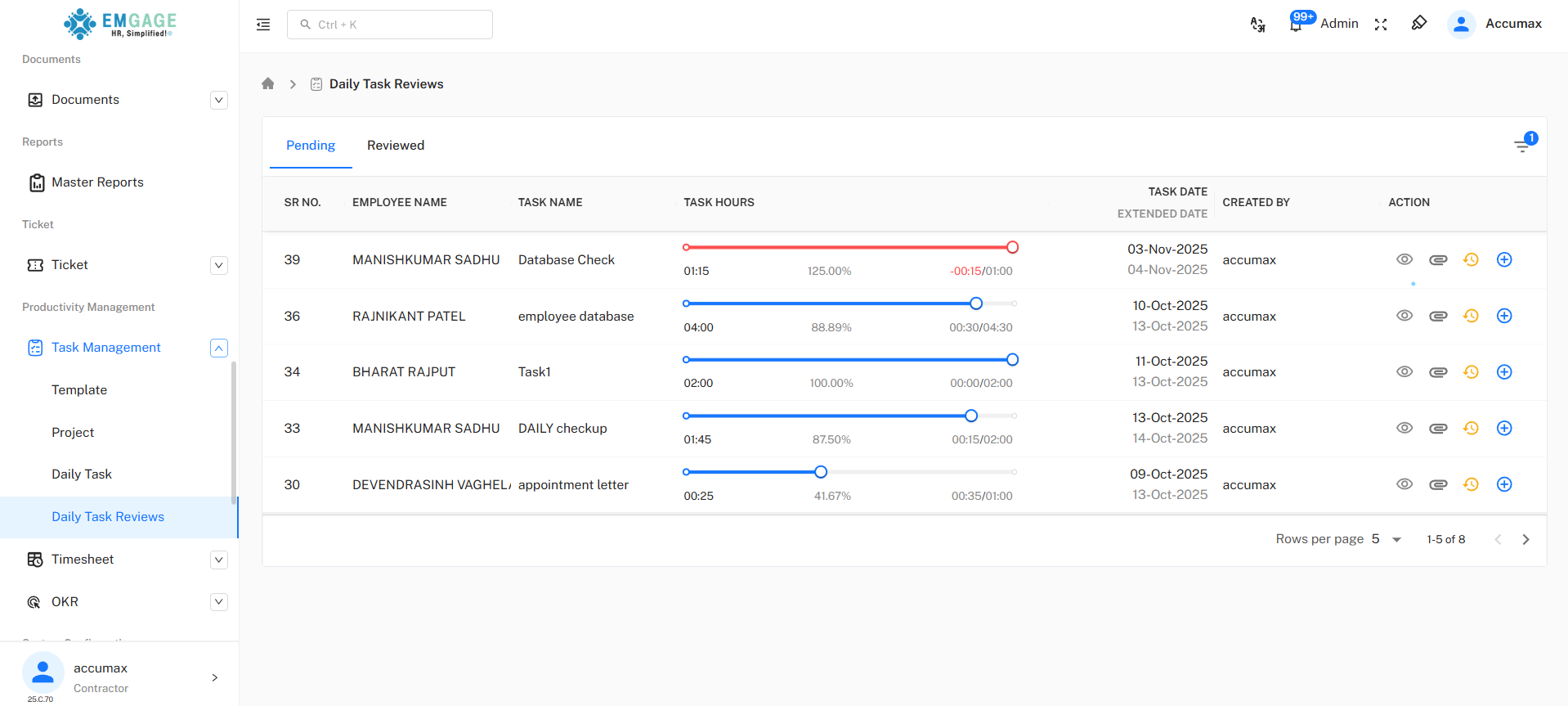
Key Features:
- Tasks appear with progress bars showing completion percentage
- Color-coded time variance indicators (red for overdue, blue for on-time/ before-time)
- Quick action icons for each task
- Detailed task metrics including hours and percentages
Task List Table
Table Columns:
| Column | Description |
|---|---|
| SR NO. | Sequential task number |
| EMPLOYEE NAME | Person who completed the task |
| TASK NAME | Description/title of the task |
| TASK HOURS | Time metrics with progress bar. Shown in HH:MM format |
| TASK DATE / EXTENDED DATE | Original and revised due dates |
| CREATED BY | User who created the task |
| ACTION | Available operations |
Task Hours Visualization
The TASK HOURS column displays comprehensive time tracking information:
- Allocated Time: Shown in HH:MM format (e.g., 01:15)
- Completion Percentage: Visual progress bar with percentage (e.g., 125.00%)
- Time Variance: Color-coded time difference
- Red Text: Time exceeded (e.g., -00:15/01:00 means 15 minutes over)
- Blue Text: Time within limit (e.g., 00:30/04:30 means 30 minutes under)
- Progress Bar Colors:
- Red bar: Task exceeded time allocation
- Blue bar: Task completed within time
Action Icons
Each task in the Pending tab has the following action buttons:
| Icon | Action | Description |
|---|---|---|
| 👁️ | View | View complete task details and history |
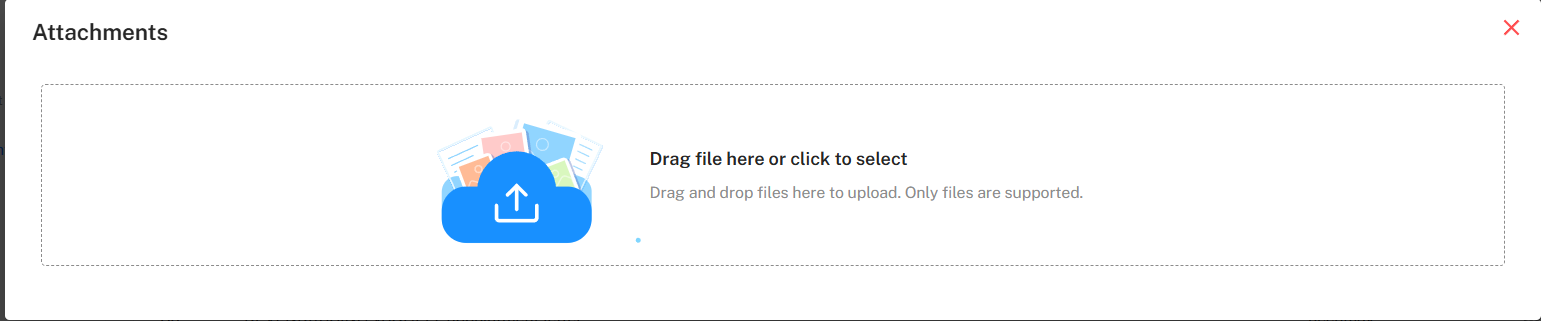
| 📎 | Attachment | View or manage task-related attachments |
| ℹ️ | Review | Open review form to rate and provide feedback |
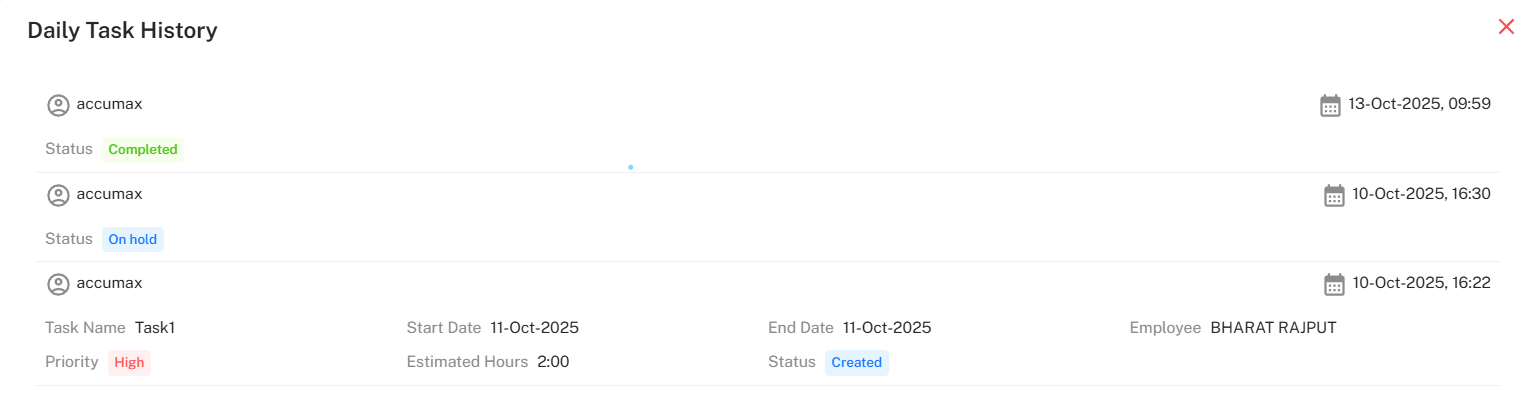
| 🕓 | History | To view the history logs of Daily Task |
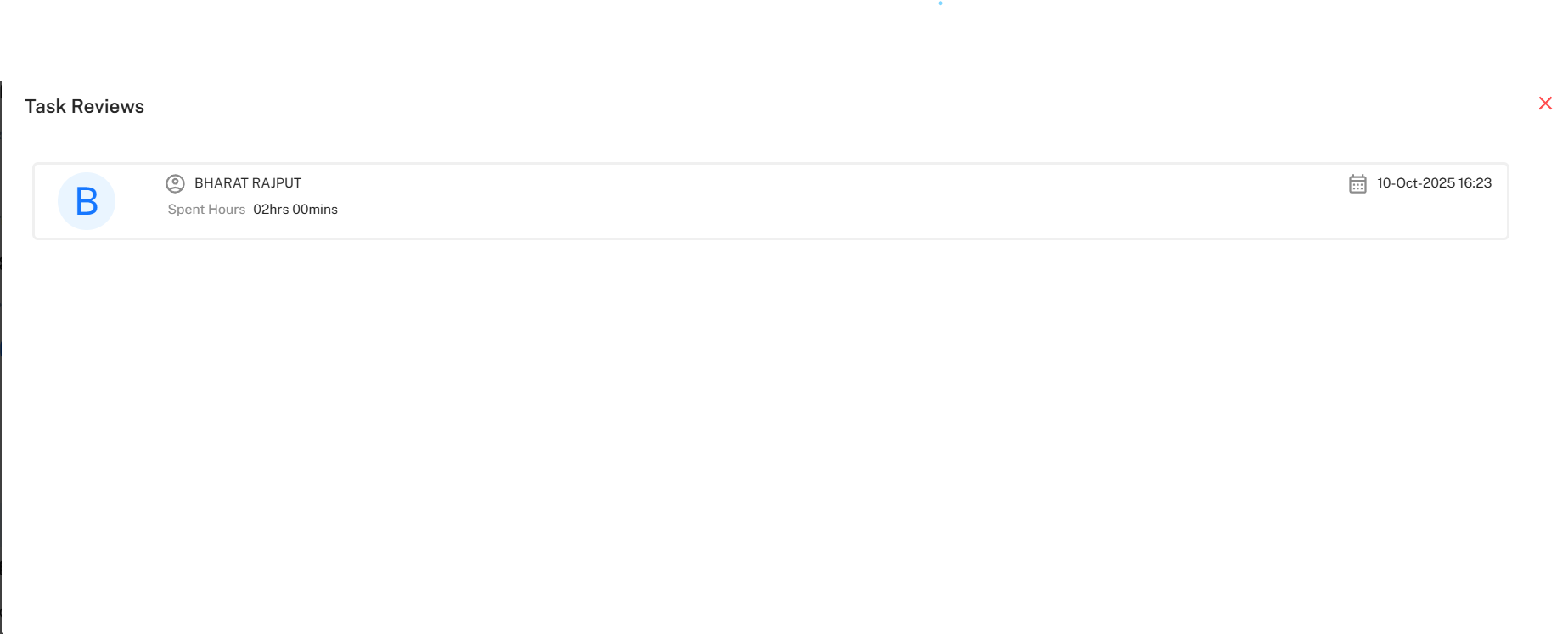
Adding a Review
To review a task from the Pending tab:
- Click Review Icon (⭐) next to the task
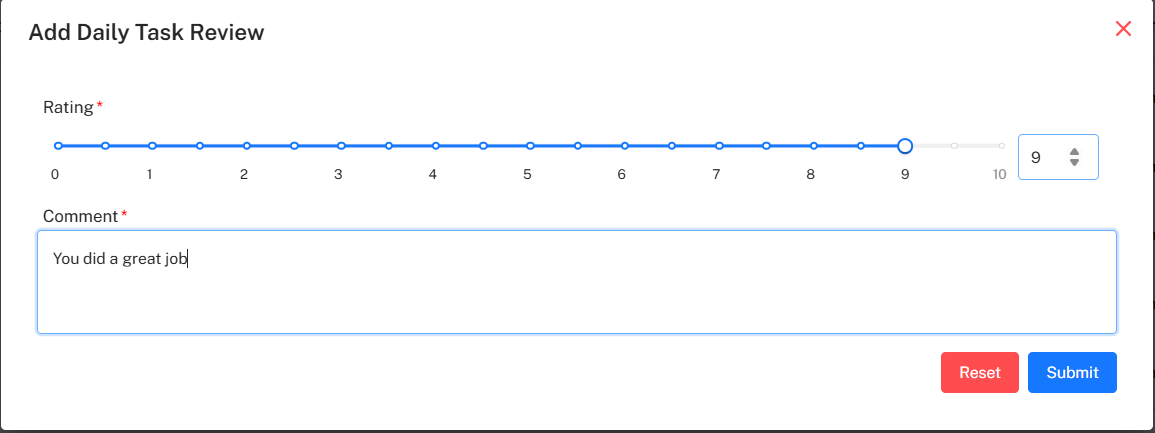
- Review Form Opens with two sections:
- Comments History tab: View previous reviews
- Add Review tab: Submit new review
Review Form Fields:
Rating *
- Scale: 0 to 10 (using interactive slider)
- Current Value: Displayed on the right side
- Adjustment: Drag slider or use increment/decrement buttons
Comment *
- Purpose: Provide detailed feedback on task completion
- Text Area: Multi-line input for comprehensive comments
- Required: Must be filled to submit review
Action Buttons:
- Reset: Clear all entered data
- Submit: Save review and move task to Reviewed tab
2. Reviewed Tab
Overview
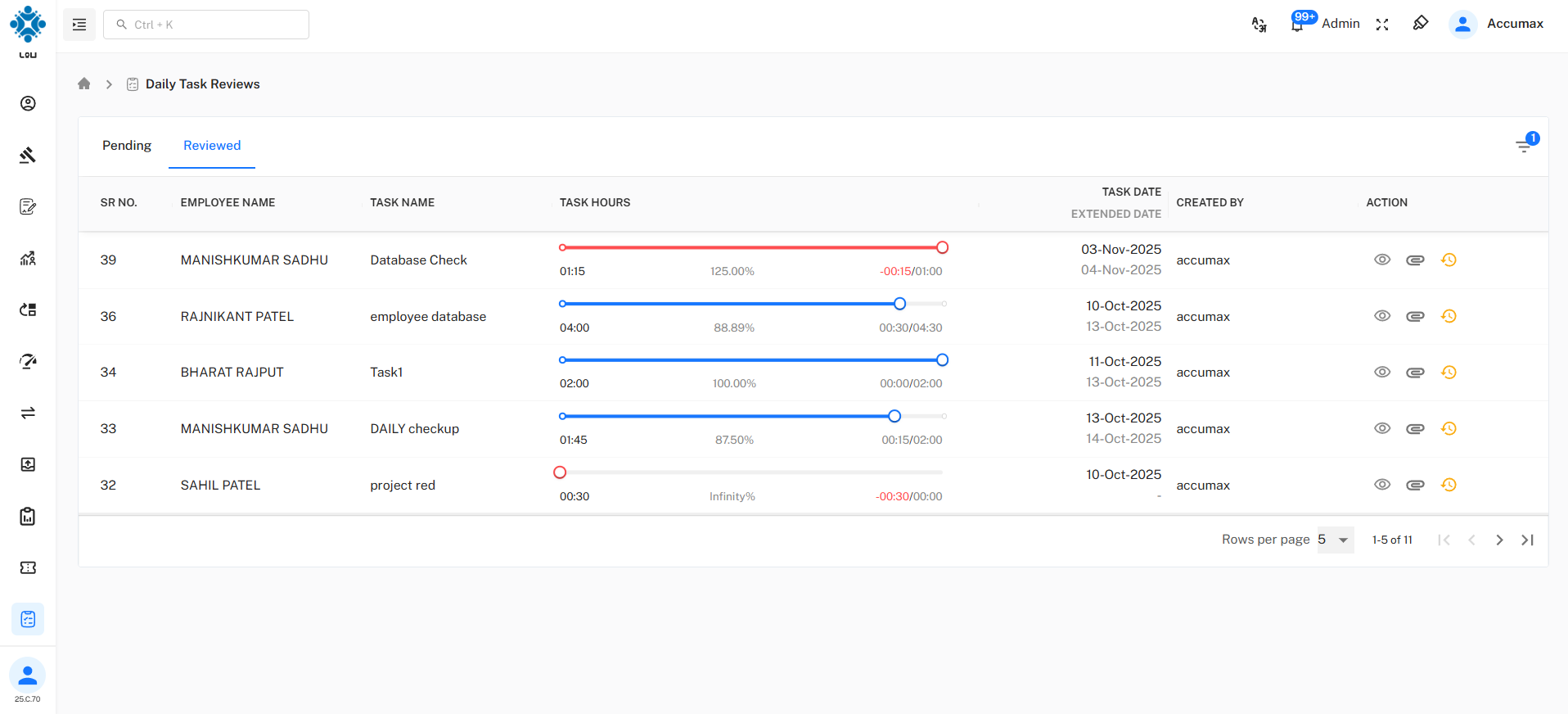
The Reviewed tab displays all tasks that have been evaluated and reviewed, providing a complete history of performance assessments.
Key Features:
- Same table structure as Pending tab
- All tasks show completed review status
- Access to review history for each task
- View employee performance over time
Task List Table
Table Columns:
| Column | Description |
|---|---|
| SR NO. | Sequential task number |
| EMPLOYEE NAME | Person who completed the task |
| TASK NAME | Description/title of the task |
| TASK HOURS | Time metrics with progress bar |
| TASK DATE / EXTENDED DATE | Original and revised due dates |
| CREATED BY | User who created the task |
| ACTION | Available operations |
Action Icons
Each task in the Reviewed tab has the following action buttons:
| Icon | Action | Description |
|---|---|---|
| 👁️ | View | View complete task details and review history |
| 📎 | Attachment | View task-related attachments |
| ⭐ | Review History | View all reviews and ratings |
-
View
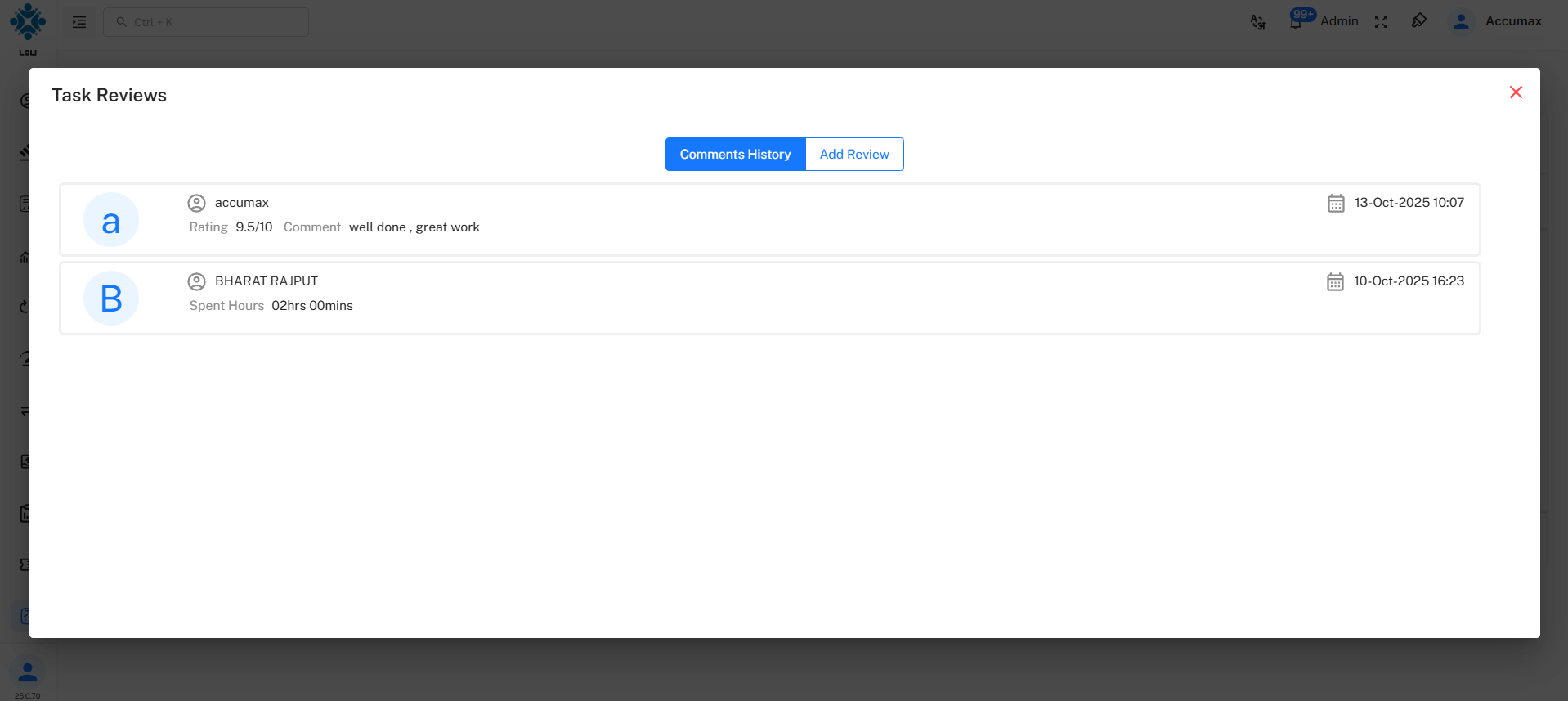
- Comment History
- This section displays the complete history of all comments added for a specific task, allowing users to track previous feedback and ratings.
- Add Review
- This section allows users to provide a new review by adding a rating and comment for the selected task.
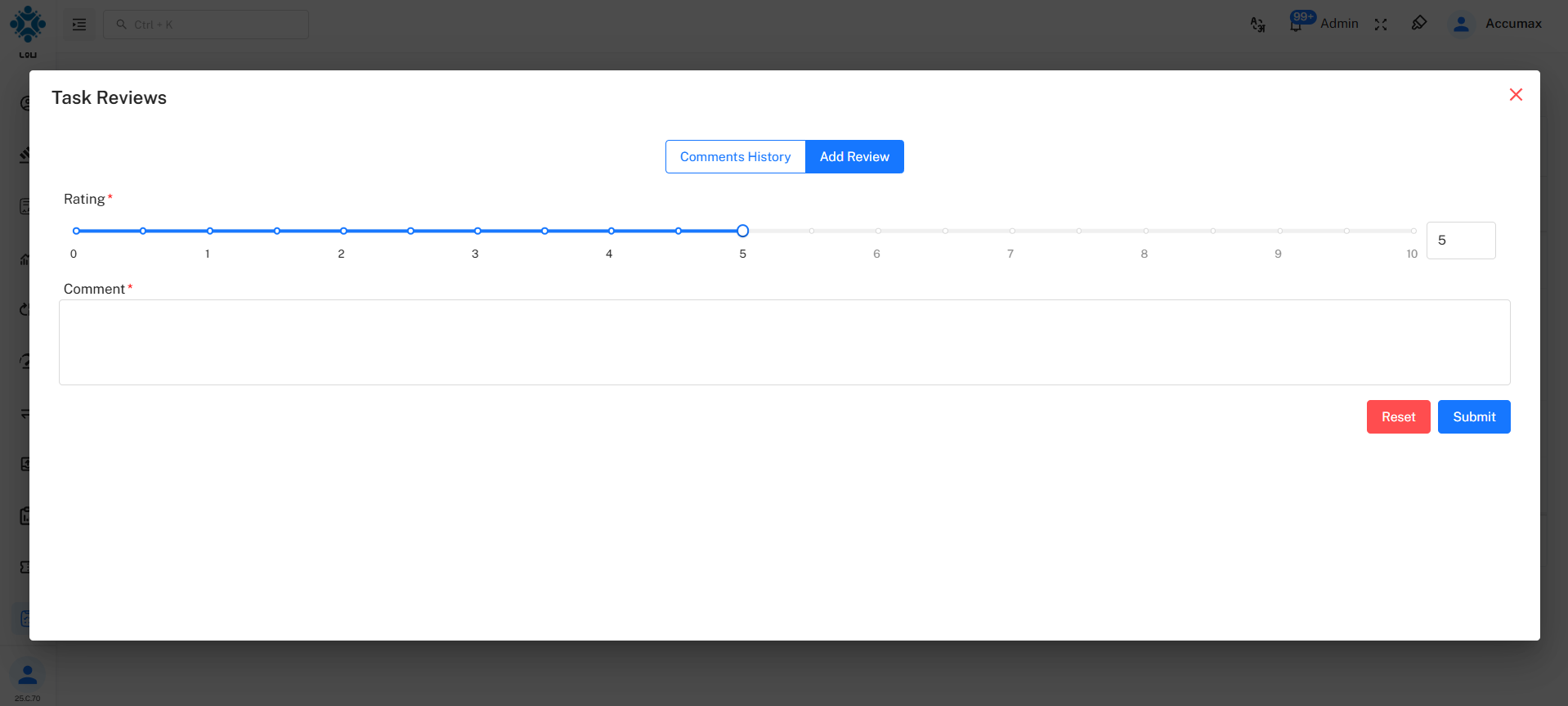
- This section allows managers or administrators to add their individual reviews for a specific task.
- If multiple reviewers (e.g., Manager 1, Manager 2, and Admin) are assigned, each reviewer can submit their own rating and comment. Once any reviewer provides feedback, the task automatically moves to the Reviewed tab as per the configured approval workflow. The remaining reviewers can then access the same task in the Reviewed tab to add their comments and ratings as part of the overall evaluation process.
Buttons:
- 🔄 Reset – Clears all entered data.
- ✅ Submit – Saves and updates the review record.
-
Attachment
-
History
Filtering Options
Use the filter icon (top-right corner of the table) to narrow down results based on:
- Employee Name
- Task Name
- Recurring Type
- Date Range
This helps quickly locate specific tasks or employees during review sessions.
Attachment Notes
- Files can be uploaded by task creators or reviewers
- Common file types include documents, images, and spreadsheets
- Attachments provide context for task reviews
- All team members with access can view attachments
Best Practices
💡 Task Review Best Practices
Effective Review Management:
- Timely Reviews: Review completed tasks within 24-48 hours
- Constructive Feedback: Provide specific, actionable comments
- Fair Rating: Use the full 0-10 scale appropriately
- Positive Recognition: Acknowledge excellent work with high ratings
- Development Focus: Use reviews to guide employee improvement
- Consistency: Apply similar standards across all team members
- Documentation: Provide detailed comments for reference
- Follow-up: Address recurring issues in subsequent reviews
- Check Attachments: Review supporting documents before rating
- Monitor Trends: Track employee performance over time
Troubleshooting
Common Issues
Task Not Appearing in Pending Tab:
- Verify task status is set to "Completed"
- Check if task has already been reviewed (check Reviewed tab)
- Ensure you have permission to review the task
- Refresh the page to reload data
- Verify the task date range in filters
Cannot Submit Review:
- Ensure Rating is selected (0-10)
- Verify Comment field is not empty
- Check for required field indicators (*)
- Try refreshing the page and re-entering data
- Verify you have review permissions
Comments History Not Loading:
- Check internet connection
- Refresh the page
- Verify task has existing reviews
- Clear browser cache if necessary
- Check if you have view permissions
Review Button Not Showing:
- Verify task is in Completed status
- Check if task has already been reviewed
- Ensure you have reviewer/manager role
- Confirm you're in the Pending tab
- Refresh the page to reload permissions
Time Metrics Not Displaying:
- Verify task has estimated hours set
- Check if employee logged actual hours
- Ensure task is in completed status
- Refresh page to reload calculations
- Verify task template includes time tracking
Attachments Not Opening:
- Check file format is supported
- Verify file was properly uploaded
- Ensure you have download permissions
- Try different browser if issue persists
- Check file size limitations
Frequently Asked Questions
Q: Can I edit a review after submitting? A: Once a review is submitted, it becomes part of the permanent record. Contact your system administrator if a review needs modification.
Q: Who can see my reviews? A: Reviews are visible to the employee, their direct manager, and HR personnel. Visibility may vary based on organizational settings.
Q: How long are reviews stored? A: Reviews are stored permanently as part of the employee's performance history.
Q: Can employees respond to reviews? A: Currently, the system supports viewing reviews. Employee feedback should be addressed in one-on-one meetings.
Q: What happens if I don't review a task? A: Unreviewed tasks remain in the Pending tab. Regular review completion is important for accurate performance tracking.
Q: Can I review tasks from other departments? A: Review permissions are typically limited to your direct reports and team members. Check with your administrator for cross-department access.