Project
Last Updated: Oct 06,2025. Document Version: 1.0 Prepared for: Emgage HRMS Implementation Team
Project
📁 Organize Projects into Structured Task
The Project Management module enables teams to organize tasks into projects, track progress, assign work to employees, and monitor project completion. This system provides comprehensive dashboards, task management capabilities, and detailed reporting views for effective project execution.
Overview Features
Project Management Benefits
The Project Management system provides comprehensive project organization capabilities, enabling:
- Project Creation: Create and configure projects with templates and priorities.
- Task Assignment: Assign tasks to team members with deadlines and estimates.
- Progress Tracking: Monitor project completion with visual progress indicators.
- Dashboard Overview: View high-level project statistics and task distribution.
- Task Management: Organize and track individual tasks within projects.
- Team Reports: Generate reports by employee or team for project work.
- Status Monitoring: Track task statuses (Created, In Progress, On Hold, Completed).
- Time Tracking: Monitor estimated hours vs actual hours spent.
- Priority Management: Categorize tasks by priority (High, Medium, Low).
The Project interface contains three primary tabs:
- Dashboard: Overview of project statistics and progress visualization
- Project Task: Create projects, assign tasks, and track task progress
- Reports: View employee-wise or team-wise project reports
1. Dashboard
Overview Section
The Dashboard tab provides a comprehensive overview of project and task statistics.
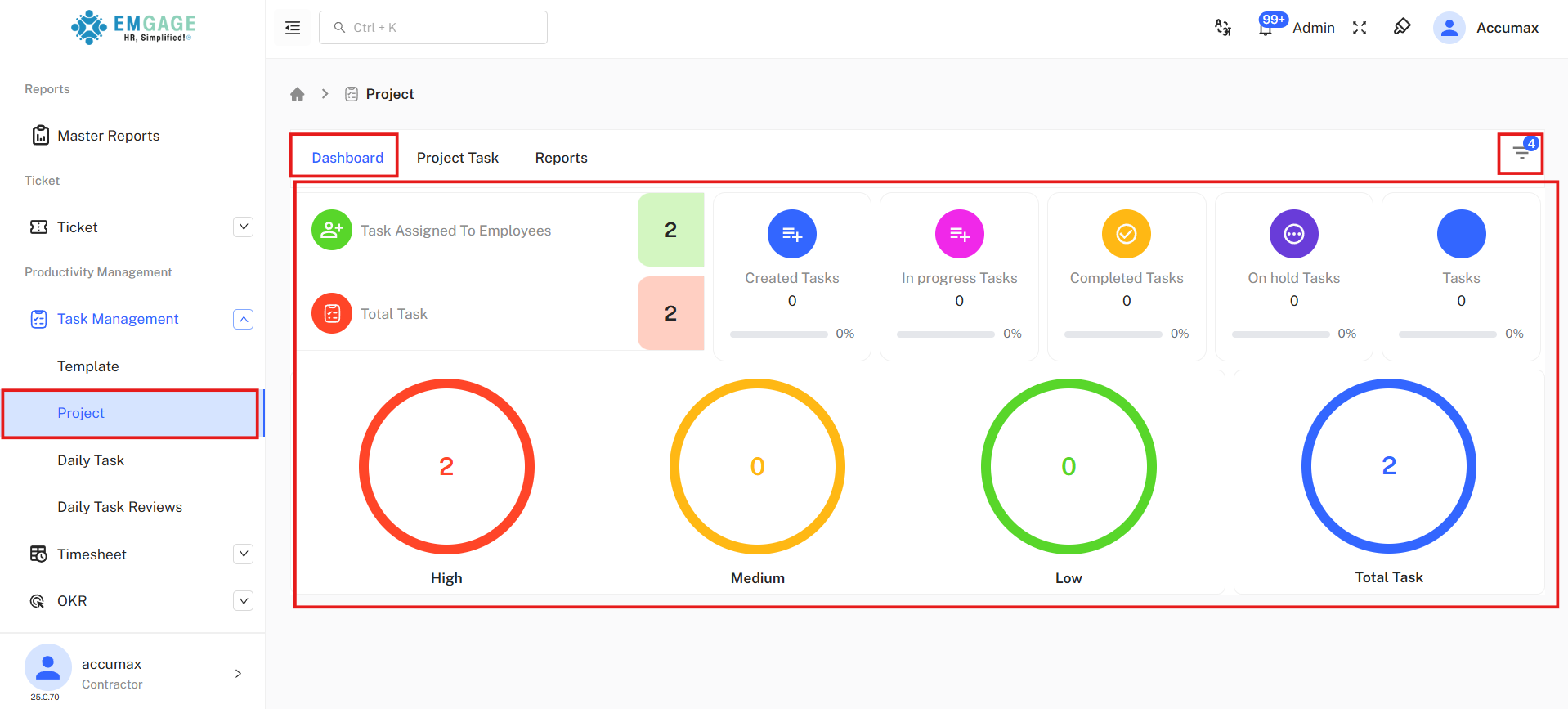
Dashboard includes:
- 🟢Task Assigned To Employees:
- Indicates total tasks assigned to team members
- 🔴Total Task:
- shows total number of task in project
- 🔵Created Tasks:
- Shows newly created tasks
- 🩷In Progress Tasks:
- Shows tasks currently being worked on
- 🟠Completed Tasks:
-
- Shows total Completed task
-
- 🟣On Hold Tasks:
- Shows paused tasks
Priority Distribution Section
Visual representation of tasks by priority level using circular progress indicators:
- 🔴High Priority:
- Indicates urgent tasks requiring immediate attention
- 🟠Medium Priority:
- Indicates moderately important tasks
- 🟢Low Priority:
- Indicates less urgent tasks
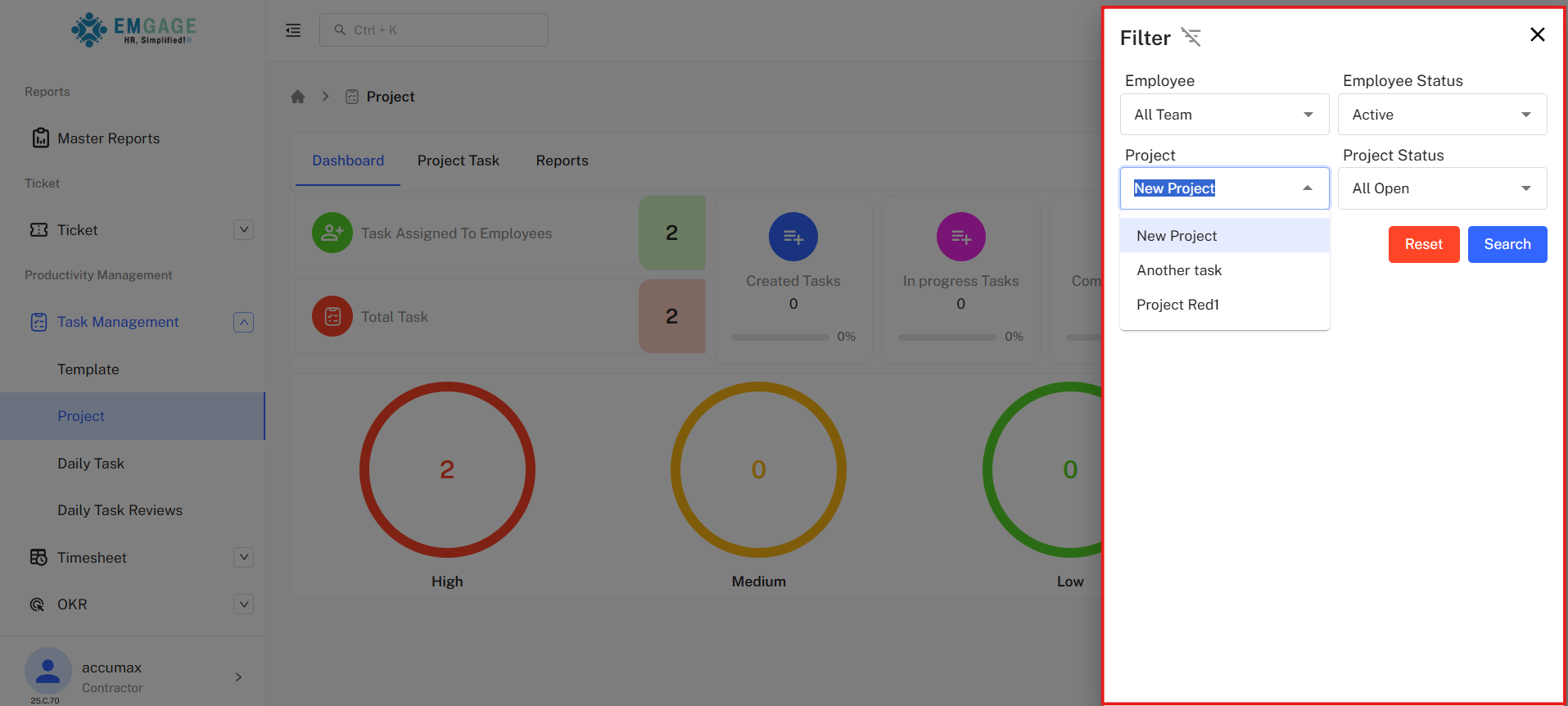
Filter Button
-
All Filter Fields:
- Employee: Dropdown (All Team by default)
- Employee Status: Dropdown (Active, Inactive, FNF)
- Project: Multi-select dropdown with visible options
- Project Status: Dropdown (All Open, all, In Progress, created, completed, On Hold, Closed)
-
Filter Actions:
- Reset button to clear selections
- Search button (blue) to apply filters
2. Project Task
Overview
The Project Task tab is the main workspace for creating projects and managing tasks.
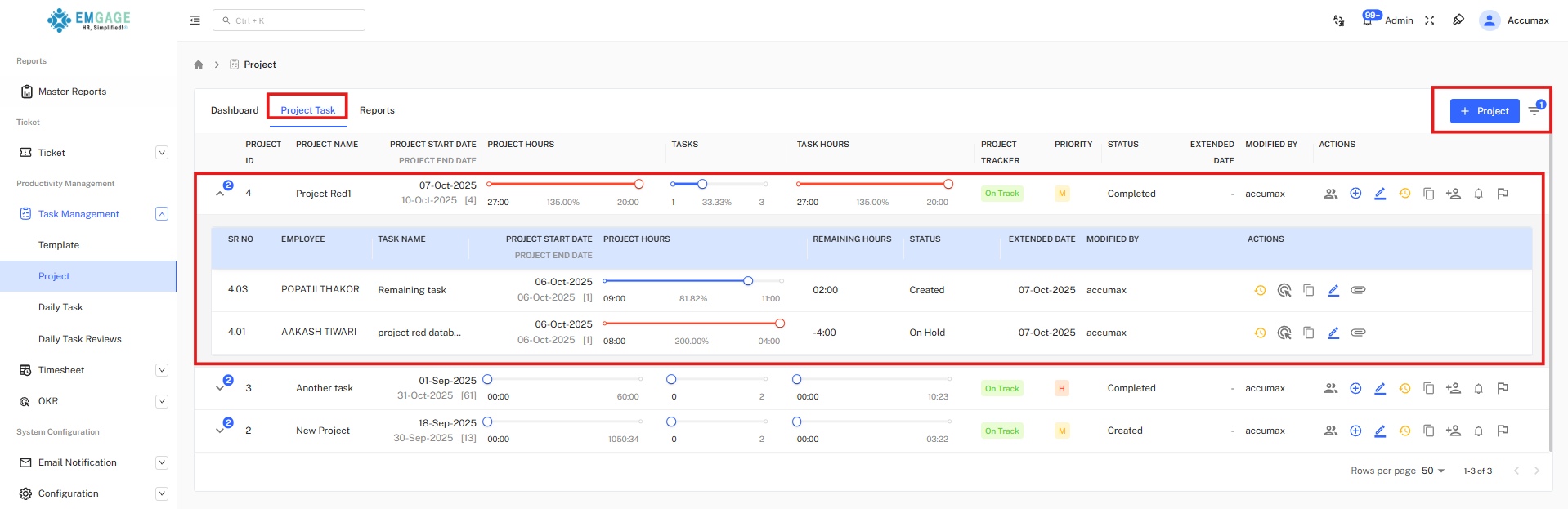
Creating a New Project
Click the + Project button to open the project creation form.(top-right corner)
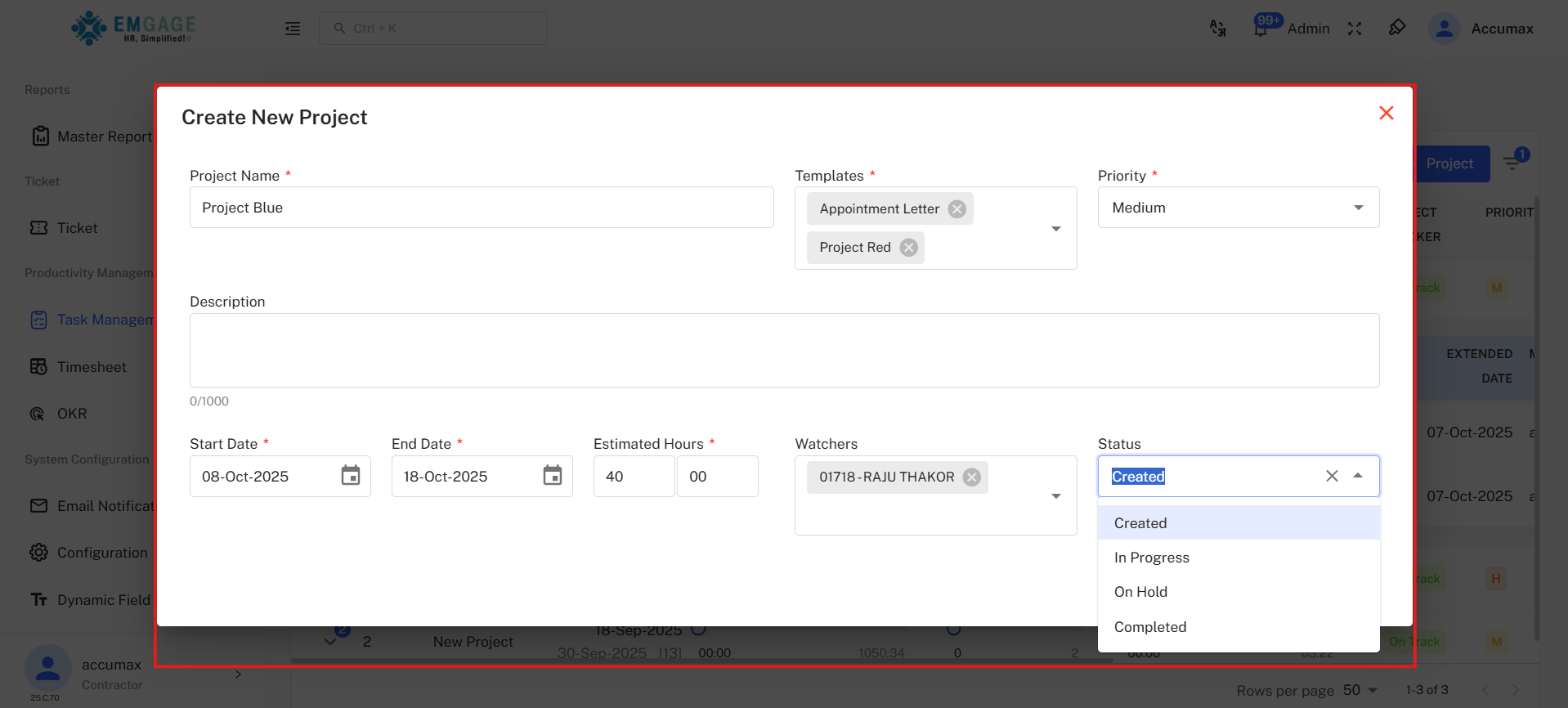
Form Fields:
- Project Name* (Required):
- Text input field
- Templates* (Required):
- Multi-select dropdown field
- Templates will only be displayed if they have been created in the
Task Management > Templatemodule.
- Priority* (Required):
- Single select dropdown
- Options: High, Medium, Low
- Description:
- Large Multi-line input text area field
- Start Date* (Required):
- Date picker field
- Format: DD-MMM-YYYY
- End Date* (Required):
- Date picker field
- Format: DD-MMM-YYYY
- Must be after Start Date
- Estimated Hours* (Required):
- Format: HH:MM (ex: 20:00)
- Separate input boxes for hours and minutes
- Watchers:(Optional)
- Select team members to monitor project
- Status (Required fiel):
- Single select dropdown with search
- Dropdown arrow opens options:
- Created
- In Progress
- On Hold
- Completed
| Action Buttons | Description |
|---|---|
| 👥 Team Member | View the list of employees assigned to the selected project. |
| ➕ Add Task | Add a new task to the project. Fill in task details such as name, employee, template, and timeline. |
| ✏️ Edit Project Details | Edit existing project information such as project name, description, or assigned employees. |
| 🕓 History | View the activity log or task history related to the project. |
| 📋 Copy | Duplicate an existing project setup, including its basic configuration and settings. |
| 👤 Add/Remove Assignee | Manage team members assigned to the project by adding or removing employees. |
| ⏰ Project Reminder | Set or view project reminders for due dates and important milestones. |
| 🏁 Project Milestone | Define and track key milestones for the project’s progress. |
Add Task in Project:
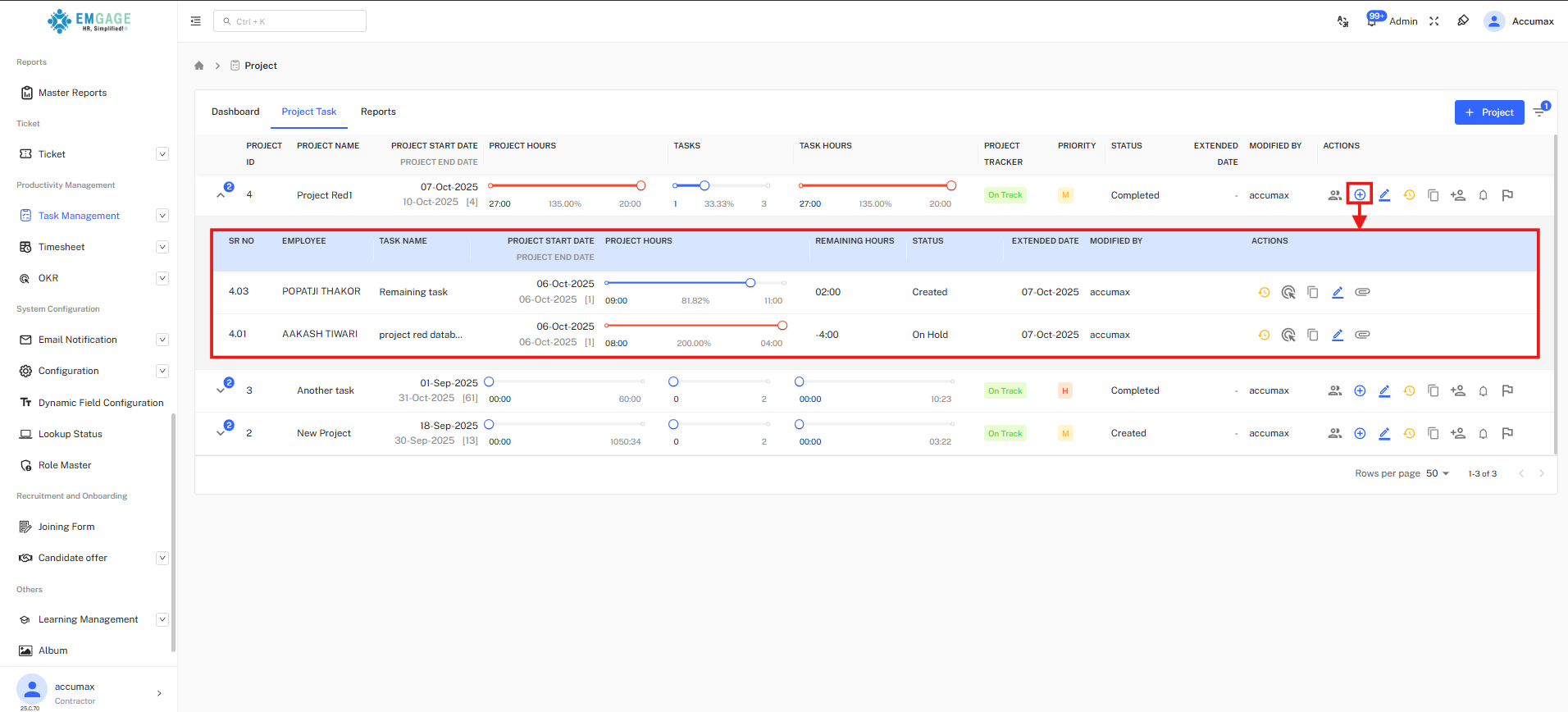
-
In the Project list, locate the project to which you want to add a task.
-
Under the Actions column, click the “Add Task” icon (➕).
Fill in the required details:
-
Task Name: Enter the name of the task.
-
Employee: Select the employee responsible for the task.
-
Template: Choose a task template. ::: info
-
Templates will only appear if they have been created in the
Task Management > Templatemodule and assigned to the selected employee. -
When a template is assigned to an employee and later edited, any existing tasks created using that template will retain the original (pre-edited) version of the template.
-
If the same (now updated) template is assigned to a new employee, the new employee’s tasks will reflect the latest updated template format . :::
-
Description: Add additional information about the task, if required.
-
Attachment: You can upload supporting documents by clicking “Click to Upload” or dragging and dropping files into the box.
-
Start Date: Select the start date of the task.
-
End Date: Select the end date of the task (End date can not be before start date).
-
Submit: Once all details are entered, click Submit to save the task.
-
Reset: To clear all fields, click the Reset button.
- When creating a task for the first time, all fields will appear blank, similar to when the Add Task button is clicked.
- When editing an existing task, clicking the Reset button will revert all fields to their original values as they were when the task was first created.
- The Additional Details fields will be displayed based on the configuration (Activate and Required options) defined while creating the template in the
Task Management > Templatemodule.
Expanded Task Details:
You can view the assigned tasks for a project by clicking the dropdown (˄ / ˅) button located at the start of the project row:
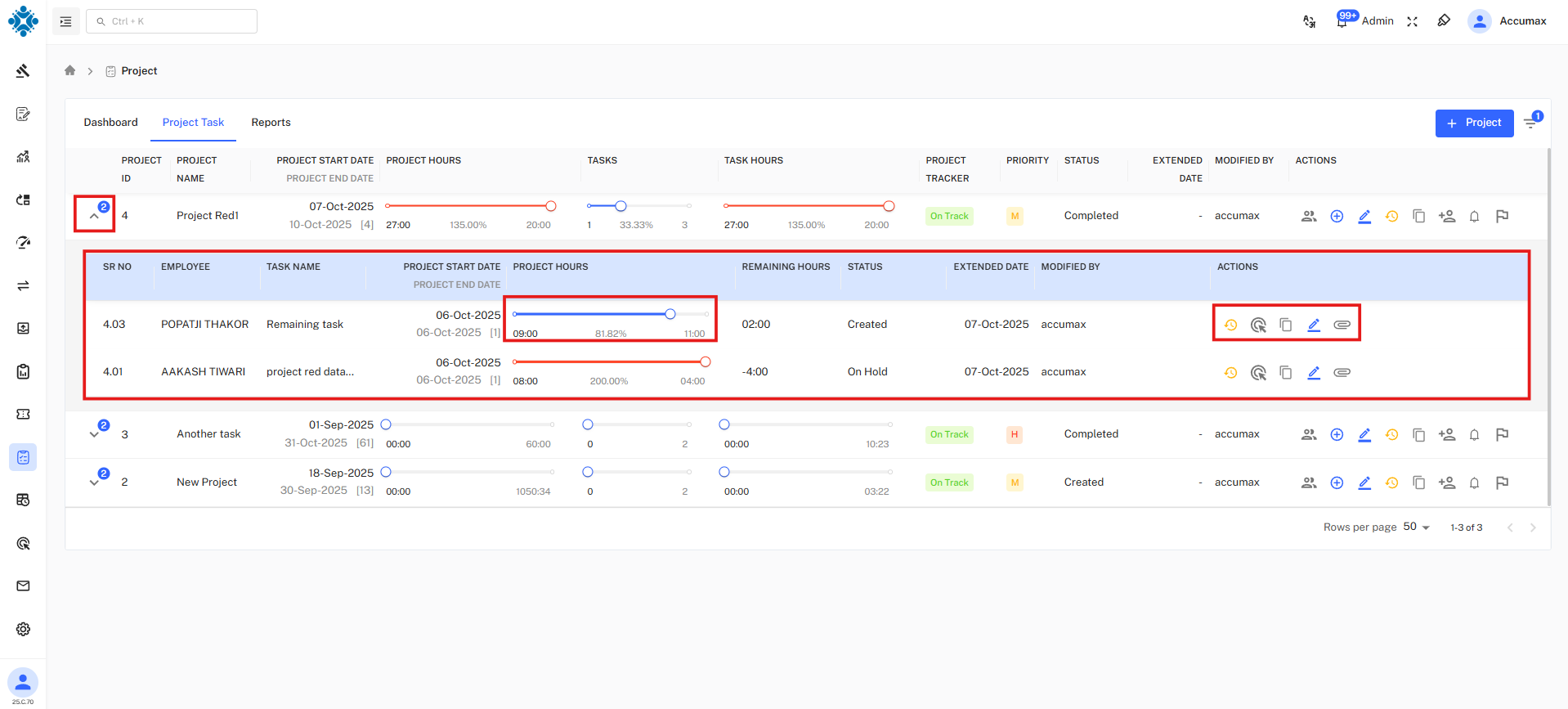
Action:
| Action | Description |
|---|---|
| 🔄 Update Task | Update task details such as time spent (hours), status, and assigned dates. |
| 🕓 History | View the activity history and status changes of the selected task. |
| 📋 Copy | Duplicate the task with the same configuration for reuse. |
| ✏️ Edit | Modify task details such as title, description, assigned employee, or dates. |
| 📎 Attachment | Upload files and documents attached to the task. |
- The project’s total hours are dynamically updated based on task-level time entries.
- When you update the “Spent Hours” for any task, the Project Hours column will automatically refresh to reflect the new total.
- The Project task Hours value will display in 🔵 blue if the total spent hours are within the allocated limit.
- If the total exceeds the assigned project task hours, the Project Hours value will display in 🔴 red, indicating an overrun.
- This visual color change helps quickly identify whether a project is on track or exceeding the planned hours.
3. Reports
Overview
- The Reports tab provides a comprehensive overview of project tasks, displayed either employee-wise or team-wise.
- You can view reports in Board View or List View formats, allowing for flexible task tracking and performance monitoring.
1. Board View Display
Provides a visual, card-based overview of project tasks, organized by employee or team, for easy tracking of progress and status.
- Board View Top section contains filter fields:
- Employee: Dropdown to select employee
- Employee Status: Dropdown arrow to show other status options
- Start Date: Date picker (Calendar icon to select date)
- End Date: Date picker (Calendar icon to select date)
- Search: to apply filters
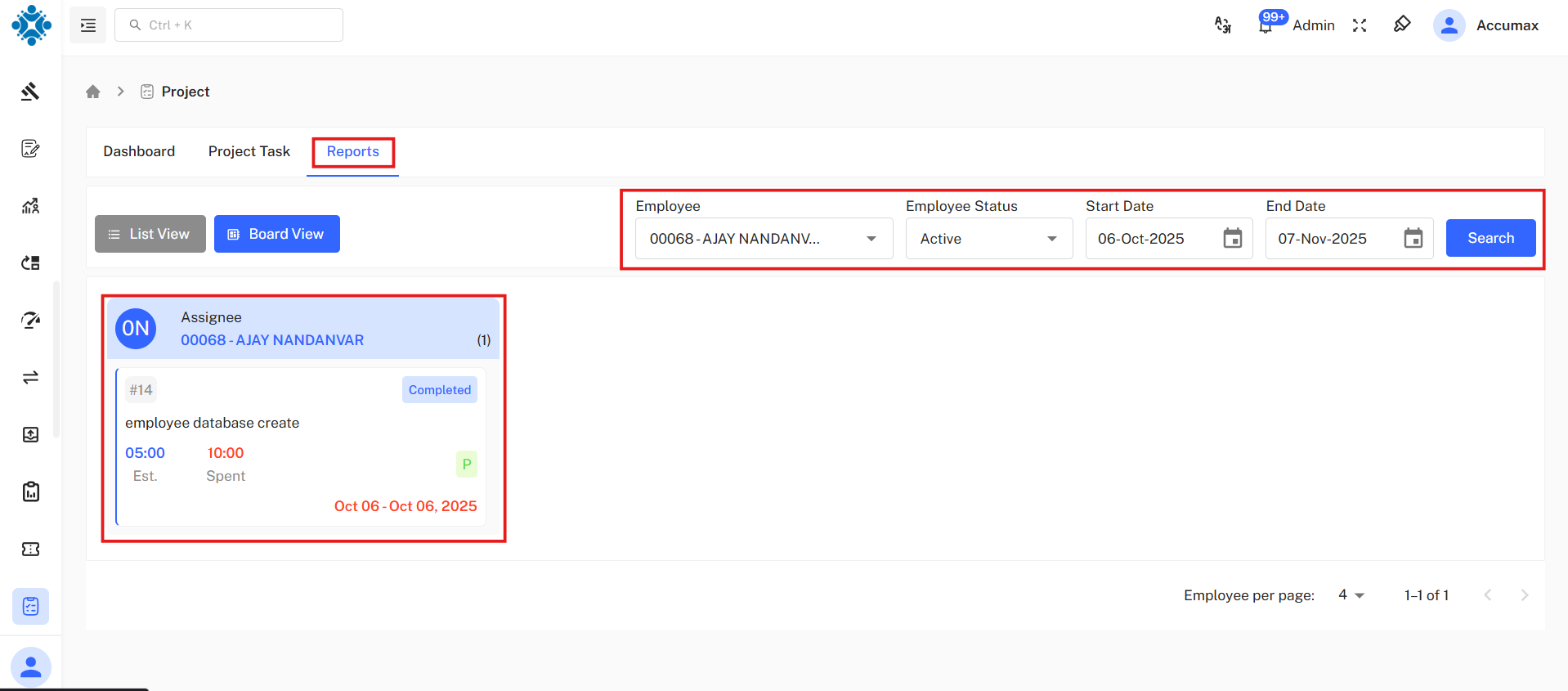
- Employee Card:Shows individual employee with their assigned tasks in card format.
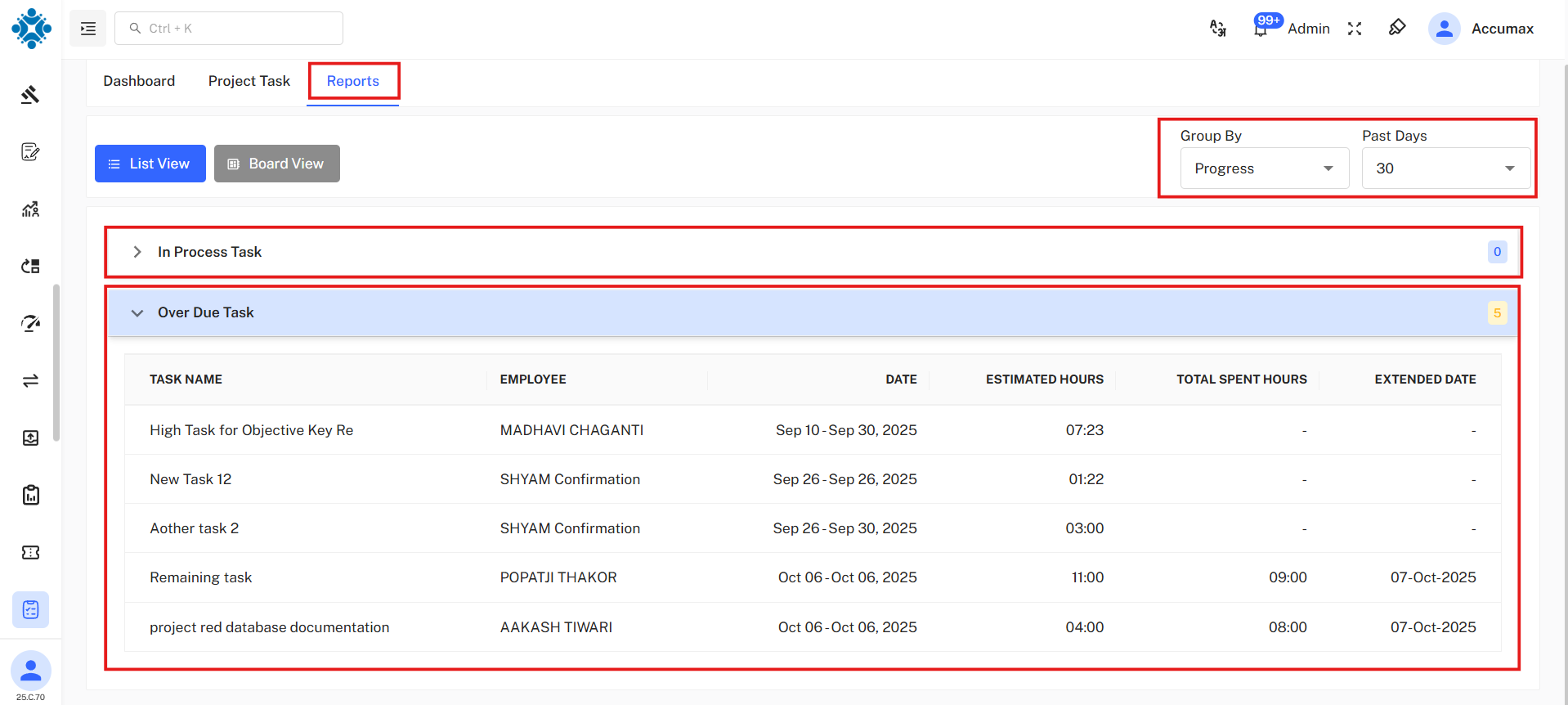
2. List View Display
Provides a detailed, tabular overview of project tasks by employee or team, allowing quick access to task specifics and deadlines.
-
In Progress Task
-
Over Due Task
-
List view Top section contains filter fields:
- Group By: Dropdown menu to select an individual employee, a group of employees, or all employees.
- Past Day: Dropdown menu to select a specific past day or timeline.
Best Practices
💡 Project Management Tips
Effective Project Organization:
- Clear Naming: Use descriptive project names for easy identification
- Template Selection: Choose appropriate templates based on project type
- Realistic Estimates: Set achievable estimated hours based on team capacity
- Regular Updates: Update task status regularly to maintain accurate tracking
- Priority Assignment: Assign priorities to focus team effort appropriately
- Progress Monitoring: Review dashboard regularly to identify bottlenecks
- Task Breakdown: Break large projects into manageable tasks
- Team Communication: Use watchers to keep stakeholders informed
- Deadline Management: Set realistic end dates with buffer time
- Status Accuracy: Ensure task statuses reflect actual progress
Troubleshooting
Common Issues
Progress Bar Exceeds 100%:
- Occurs when actual hours exceed estimated hours
- Review time estimates and adjust for future planning
- Consider extending project deadline if needed
Tasks Not Appearing:
- Verify tasks are created and assigned to project
- Check filter settings in Reports tab
- Ensure employee is assigned to tasks
- Refresh page to reload data
Cannot Create Project:
- Ensure all required fields (*) are filled
- Verify Start Date is before End Date
- Check template selection is valid
- Confirm user has project creation permissions
Report Not Showing Data:
- Verify date range includes project dates
- Check employee assignment to project tasks
- Ensure employee status filter matches
- Try clearing filters and searching again