Ticket Category Configuration
Last Updated: October 22, 2025 Document Version: 1.0 Prepared for: Emgage HRMS Implementation Team
This module is the administrative backend for the Help Desk system. It allows administrators to define and manage the different categories of tickets that employees can create, including their associated departments, assignees (SPOCs), and time-based rules for reminders, SLAs, and escalations.
Module Overview
Major features for ticket category management:
- Category List: A central grid displaying all configured ticket categories and their rules at a glance.
- Add & Edit Forms: A comprehensive modal form to either create a new category from scratch or edit an existing one.
- Time-Based Rules: Define specific time limits in hours for
Reminder Hours,SLA Hours, andEscalation Hours. - User Assignment: Assign default
SPOC Names(Single Points of Contact) who will be responsible for new tickets in that category. - Escalation Path: Define
Escalation Userswho will be notified if a ticket breaches theEscalation Hours. - Status Control: Easily activate or deactivate categories, making them visible or hidden for employees creating new tickets.
Ticket Category List
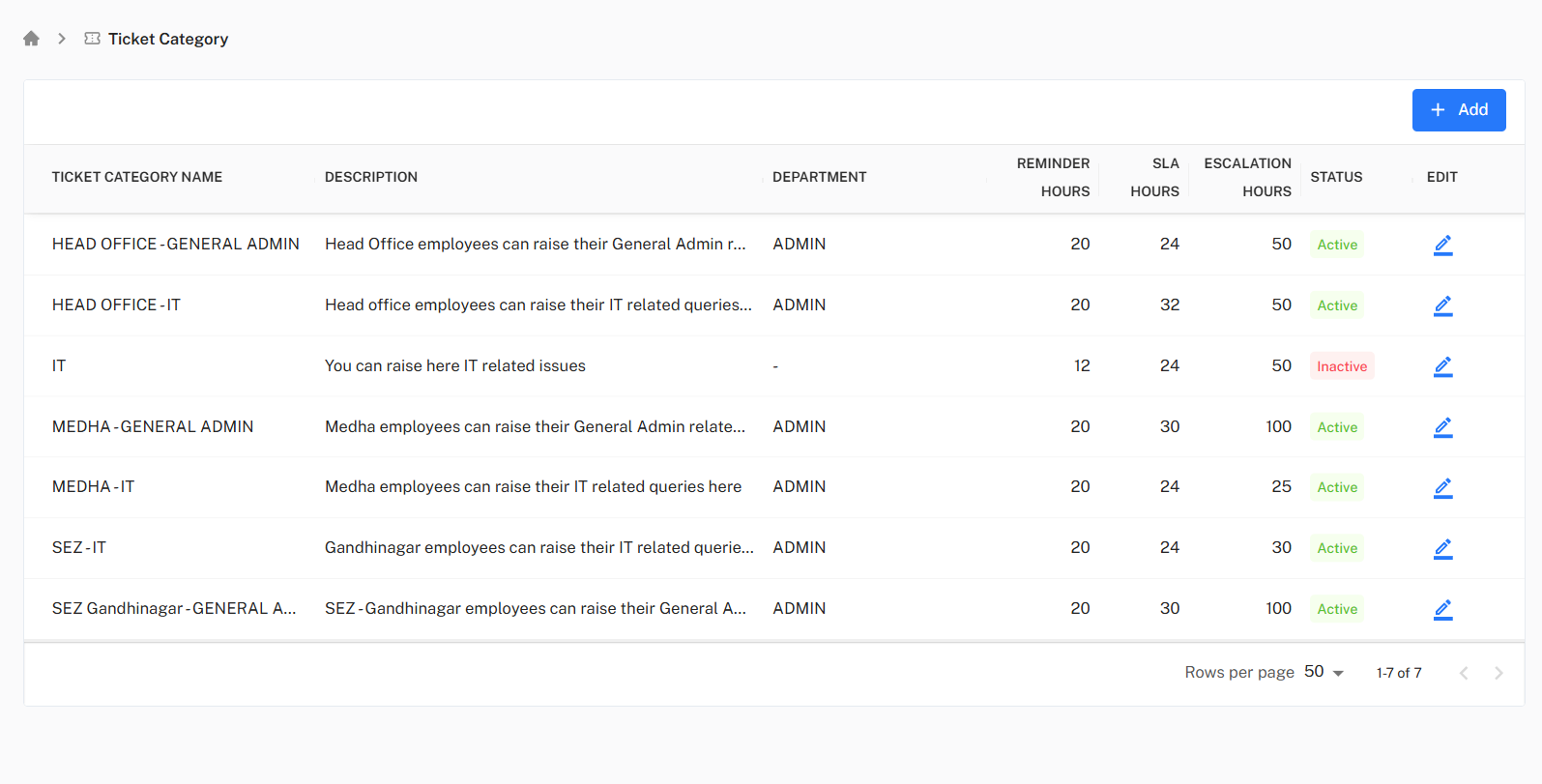
The main screen displays a list of all existing ticket categories with their key configuration details.
- Key Columns: The grid shows the
Ticket Category Name,Description,Department,Reminder Hours,SLA Hours,Escalation Hours, andStatus(Active/Inactive). - Actions:
+ Add: Opens a blank form to create a new category.Edit: (Pencil icon) Opens a pre-filled form to modify an existing category.
Adding or Editing a Category
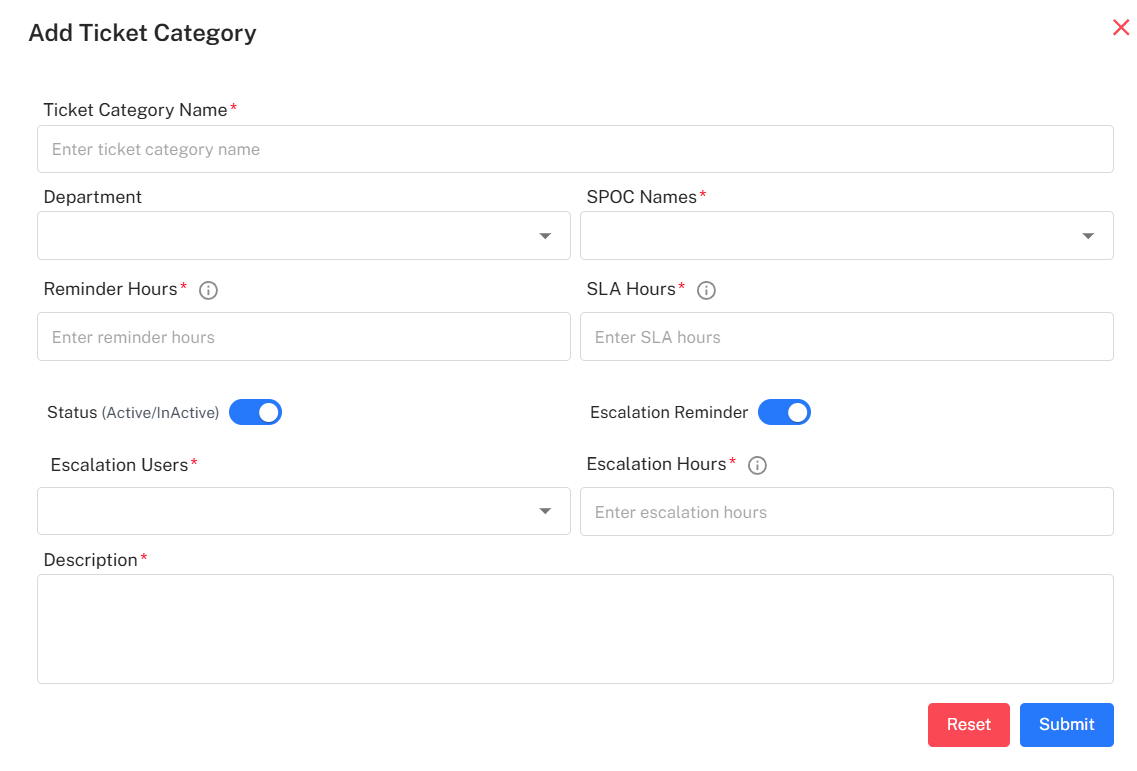
Clicking the + Add button or the Edit icon for any row opens the "Add Ticket Category" modal. This form allows for detailed configuration of the category's behavior and routing.
- Ticket category Name: The user-facing name for the category (e.g., "HEAD OFFICE - IT").
- Department: The department this category is linked to (e.g., "ADMIN").
- SPOC Names: (Single Point of Contact) A multi-select dropdown to assign one or more default users who will be responsible for tickets in this category.
- Reminder Hours: The number of hours after which a reminder notification is sent.
- SLA Hours: (Service Level Agreement) The total number of hours allotted for resolving a ticket in this category.
- Status (Active/InActive): A toggle to make the category available or unavailable to users.
- Escalation Reminder: A toggle to enable or disable escalation notifications.
- Escalation Users: A multi-select dropdown to assign one or more managers or senior staff who will be notified if the
Escalation Hoursare breached. - Escalation Hours: The number of hours after which the ticket will be escalated to the
Escalation Users. - Description: A detailed description of the types of issues that should be filed under this category.
Step-by-Step Workflow (Editing a Category)
- Select Category: From the main "Ticket Category" list, identify the category to update (e.g., "HEAD OFFICE - GENERAL ADMIN") and click the
Editicon. - View Details: The "Add Ticket Category" modal opens, pre-filled with all existing data for that category.
- Modify Fields: Make the necessary changes. For example, add or remove users from the
SPOC NamesorEscalation Usersfields. - Submit Changes: Click the
Submitbutton. - Confirm Update: The modal closes, a success notification appears, and the main list reflects the updated information.