Ticket Status Configuration
Last Updated: October 22, 2025 Document Version: 1.0 Prepared for: Emgage HRMS Implementation Team
This module allows administrators to define the lifecycle statuses that a help desk ticket can move through (e.g., New, In progress, On hold, Closed). You can create new statuses or edit existing ones, controlling properties like name, reporting color, and whether they trigger escalation reminders.
Module Overview
Major features for ticket status management:
- Status List: A central grid displaying all available ticket statuses and their current configuration.
- Add & Edit Forms: A comprehensive modal form to either create a new status from scratch or edit an existing one.
- Reporting Color: Assign a specific color to each status for use in reports and dashboards.
- Escalation Control: Enable or disable escalation reminders on a per-status basis. This allows you to "pause" the escalation timer for statuses like "On hold" or "Closed".
- Active/Inactive Status: Activate or deactivate statuses to control which ones are available for use in the ticketing workflow.
Ticket Status List
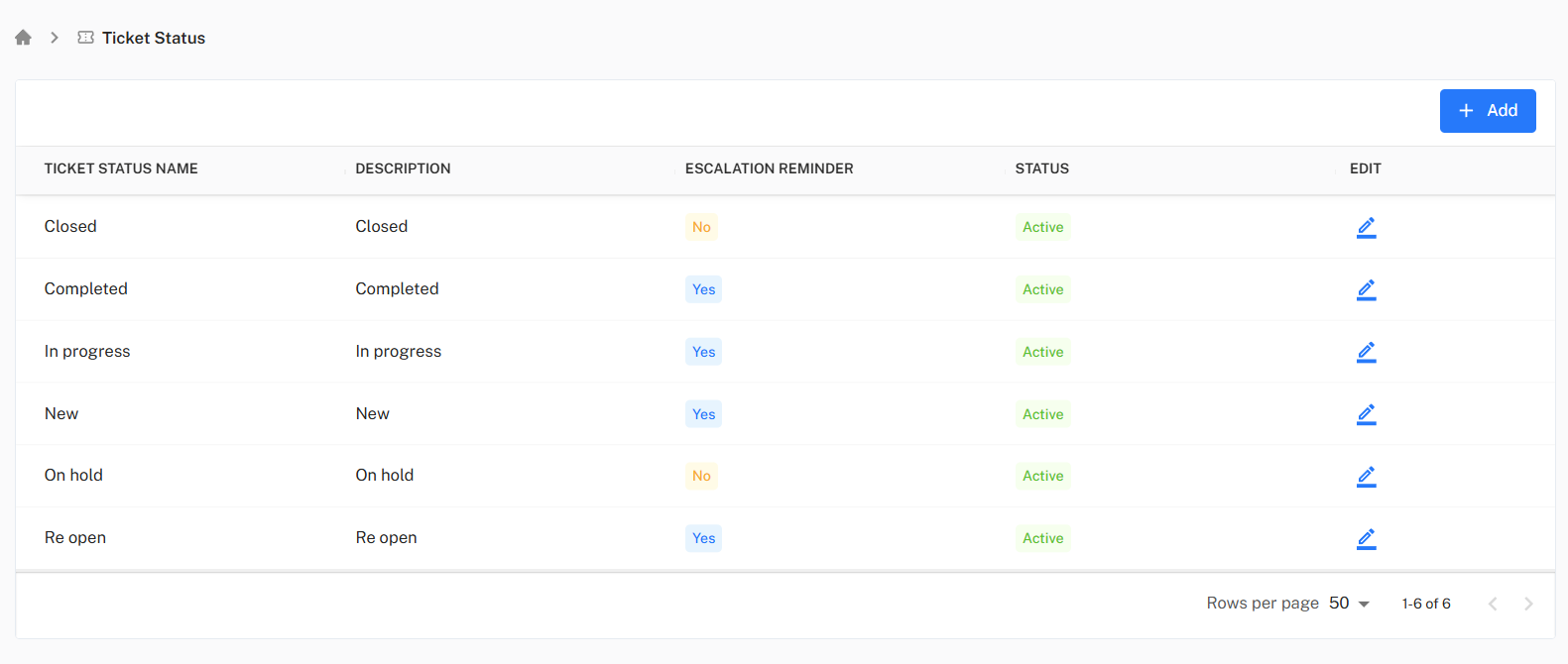
The main screen displays a list of all existing ticket statuses with their key configuration details.
- Key Columns: The grid shows the
Status Name,Description,Escalation Reminder(Yes/No), andStatus(Active/Inactive). - Actions:
+ Add: Opens a blank form to create a new status.Edit: (Pencil icon) Opens a pre-filled form to modify an existing status.
Adding or Editing a Ticket Status
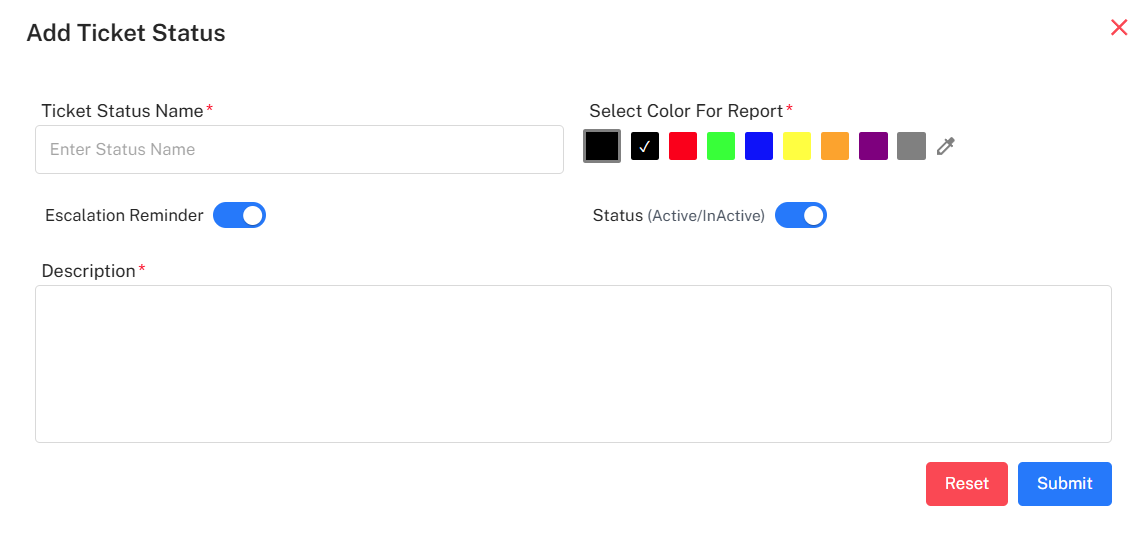
Clicking the + Add button (to open a blank form) or the Edit icon (to open a pre-filled form) opens the "Add/Edit Ticket Status" modal. This form allows for detailed configuration of the status's behavior.
- Ticket Status Name: The user-facing name for the status (e.g., "In progress").
- Select Color For Report: A color palette to choose a color that will represent this status in charts and reports.
- Escalation Reminder: (Toggle) This switch determines if the escalation timer (defined in the Ticket Category) is active for tickets set to this status. For example, 'In progress' would have this 'On', while 'On hold' or 'Closed' would have it 'Off' to prevent unnecessary escalations.
- Status (Active/InActive): (Toggle) A switch to make the status available or unavailable for selection on tickets.
- Description: A brief description of what this status represents.
Step-by-Step Workflows
Adding a New Status
- Open Form: From the main "Ticket Status" list, click the
+ Addbutton. - Fill Details: Fill in all the fields in the blank "Add Ticket Status" form.
- Submit: Click the
Submitbutton. The new status will now appear in the list.
Editing an Existing Status
- Select Status: From the main "Ticket Status" list, identify the status to update (e.g., "Closed") and click the
Editicon. - View Details: The "Edit Ticket Status" modal opens, pre-filled with all existing data for that status.
- Modify Fields: Make the necessary changes. For example, toggle the
Escalation Reminder, select a newColor For Report, or update theDescription. - Submit Changes: Click the
Submitbutton to save the new configuration. - Confirm Update: The modal closes, a success notification appears, and the main list reflects the updated information.