Single Transfer
Last Updated: October 3, 2025 Document Version: 1.0 Prepared for: Emgage HRMS Implementation Team
The Single Transfer module enables HR personnel and managers to transfer individual employees between different branches. This system provides comprehensive tools for creating transfer requests, managing approvals, and tracking transfer history.
System Overview
The transfer process consists of four main components:
- Transfer Dashboard - Main interface for viewing and managing all transfer requests
- Transfer Requisition - Form-based system for creating new transfer requests
- Profile Approval - Administrative approval workflow for transfer decisions
- Excel Operations - Bulk import and export functionality for multiple transfers
Quick Start Guide
a. Access the transfer dashboard to view existing requests b. Create new transfer requisitions using the requisition form c. Submit requests for administrative approval d. Use Excel import/export for bulk operations when needed
Transfer Dashboard
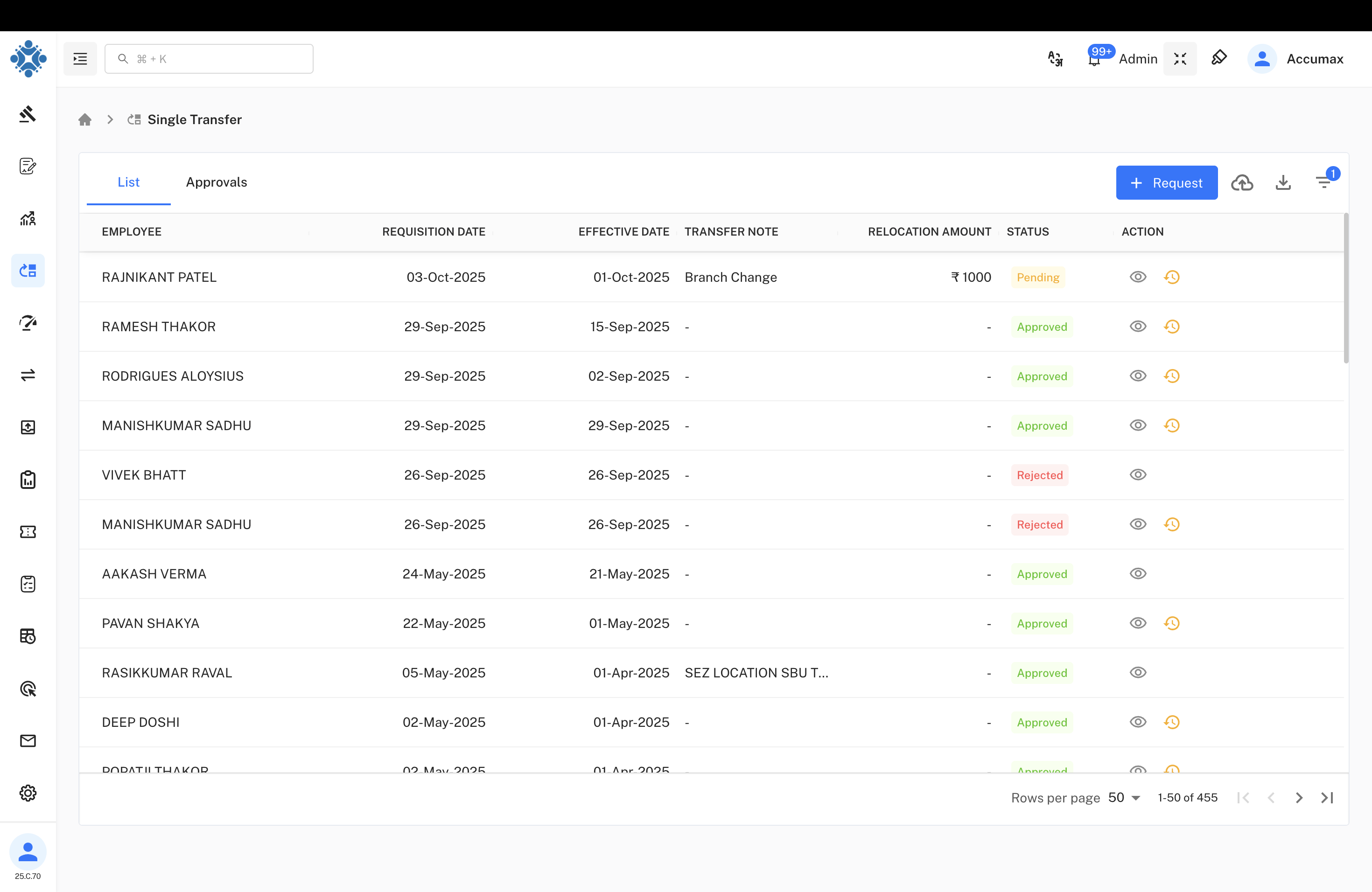
The dashboard serves as the central hub for all transfer operations. It displays a comprehensive list of transfer requests with current status and provides access to key functions.
Core Functions:
- View all transfer requests with real-time status updates
- Create new transfer requisitions
- Import/export transfer data via Excel
- Apply filters to search specific requests
- Access detailed transfer history for each employee
Additional Features:
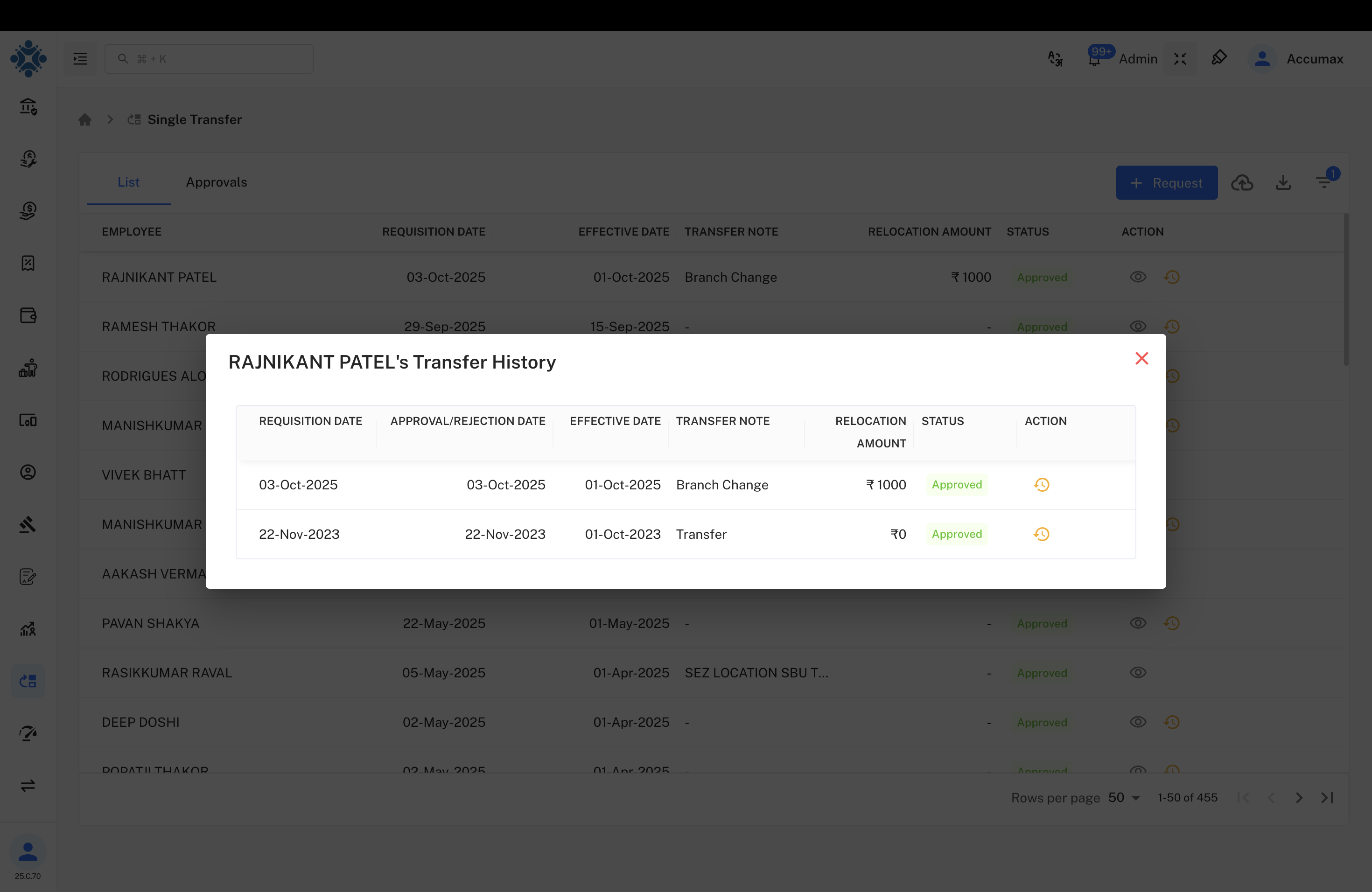
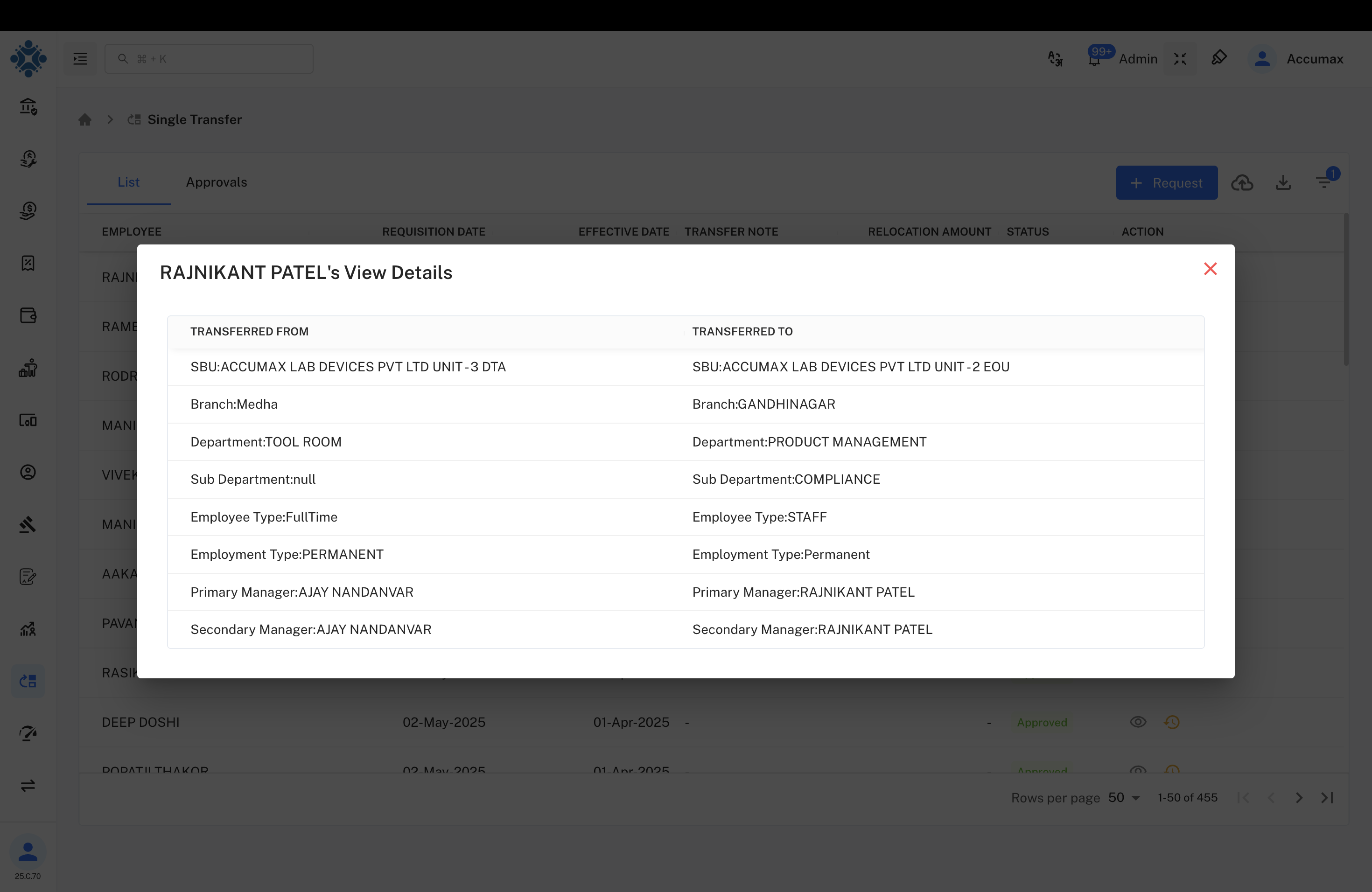
a. Transfer History - Click any employee name to view complete transfer history including previous dates, approvals, and relocation details b. Request Details - Use the view icon to access comprehensive transfer information showing source and destination details
Transfer Requisition
The requisition form captures all necessary information for processing employee transfers between branches.
Required Information:
- Employee selection from system database
- Current and destination branch details
- Transfer justification and effective date
- Transfer type (permanent or temporary)
- Manager approval requirements
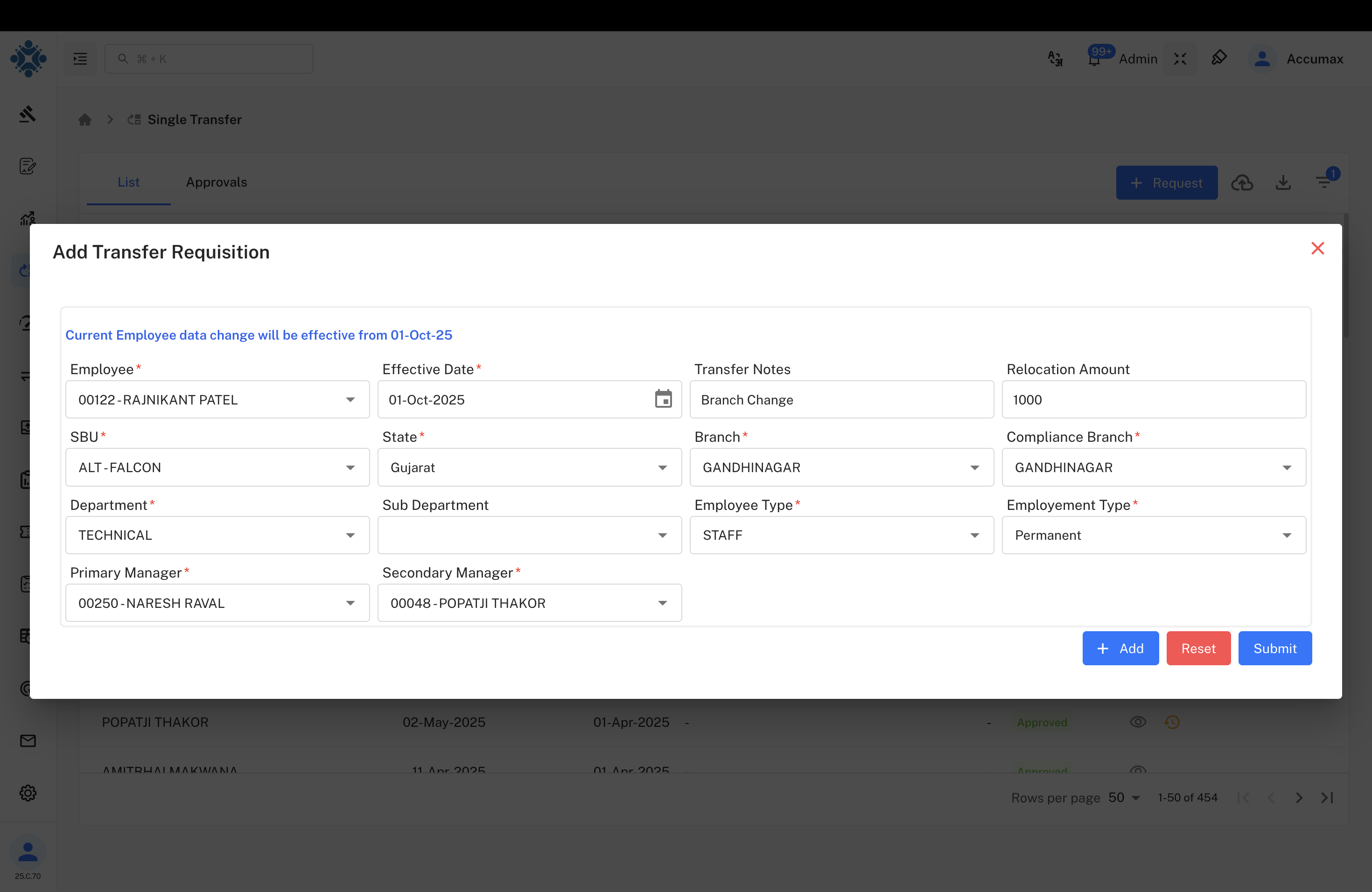
Form Fields:
| Field | Description | Status |
|---|---|---|
| Employee Name | System dropdown selection | Required |
| Current Branch | Source branch location | Required |
| Destination Branch | Target branch location | Required |
| Transfer Reason | Business justification | Required |
| Effective Date | Transfer start date | Required |
| Transfer Type | Permanent/Temporary | Required |
| Manager Approval | Authorization requirement | Required |
| Notes | Additional comments | Optional |
Multi-Employee Support:
- Add multiple employees to single requisition
- Individual transfer details per employee
- Bulk processing capabilities
- Form reset and validation functions
Profile Approval
Administrative personnel review and approve transfer requests through the approval interface. This system ensures proper authorization and documentation for all employee transfers.
Approval Process:
- Transfer requests appear in approval queue
- Complete employee and transfer details are reviewed
- Business justification is evaluated
- Approval decision is made with supporting comments
- Decision is submitted to complete the workflow
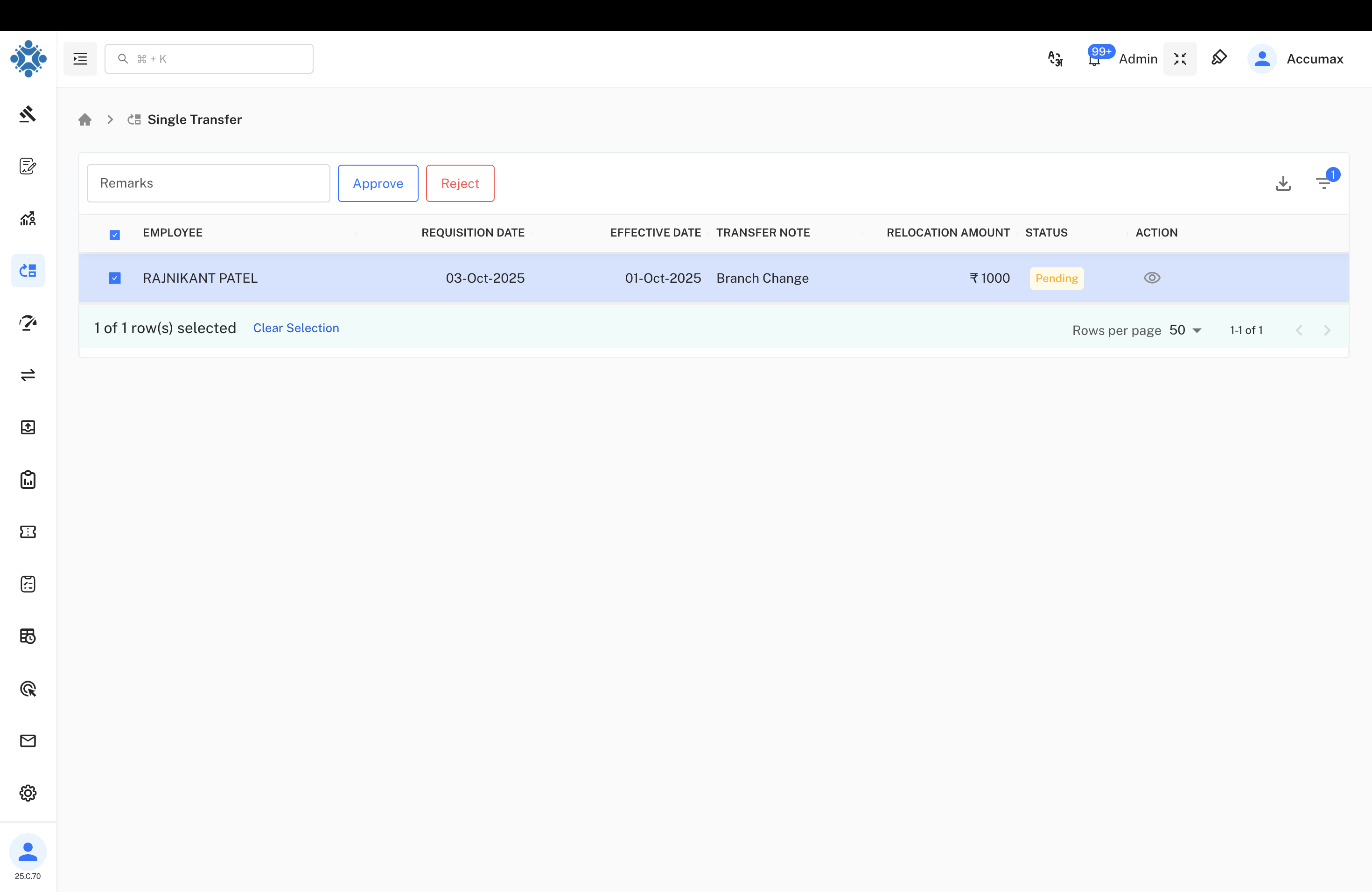
Approval Options:
a. Approve - Grant transfer authorization b. Reject - Deny request with mandatory reasoning
Decision Criteria:
- Business necessity and operational requirements
- Destination branch capacity
- Employee performance and eligibility
- Transfer timing and cost implications
Excel Operations
Bulk transfer functionality supports efficient processing of multiple employee transfers through Excel import and export capabilities.
Import Process:
- Download official Excel template
- Complete employee and transfer data
- Upload file through import function
- System validates data integrity
- Confirm and process bulk import
Export Functions:
a. Complete transfer data in Excel format b. PDF summary reports c. CSV data for external systems d. Filtered record exports
Validation Requirements:
- Valid employee IDs in system
- Active branch codes
- Future transfer dates
- Adequate destination capacity
- Complete required fields
Implementation Guidelines
For HR Personnel:
- Verify employee and branch data accuracy before submission
- Process transfer requests within established timeframes
- Maintain comprehensive documentation for all activities
- Communicate status updates to relevant stakeholders
- Update system records promptly after transfer completion
For Administrative Approvers:
- Review requests promptly to avoid processing delays
- Evaluate business justification thoroughly
- Provide clear, detailed approval comments
- Consider operational impact before authorization
- Document approval rationale for audit purposes
For Excel Import Operations:
- Use only official Excel templates
- Validate all data before file upload
- Process manageable batch sizes
- Review validation errors before resubmission
- Maintain backup copies of original data
Common Issues and Solutions
Transfer Requisition Problems:
- Issue: Form submission failure
- Solution: Verify all required fields are completed and employee exists in system
Excel Import Failures:
- Issue: Data validation errors during upload
- Solution: Review error messages and correct data format according to template specifications
System Access Issues:
- Issue: Approval interface not loading
- Solution: Verify user permissions and refresh browser session
Data Integrity Problems:
- Issue: Employee not found in dropdown
- Solution: Confirm employee status is active and system access is current