Full and Final Settlement (FnF)
FnF Processing Steps
Step 1: View Employees Eligible for FnF
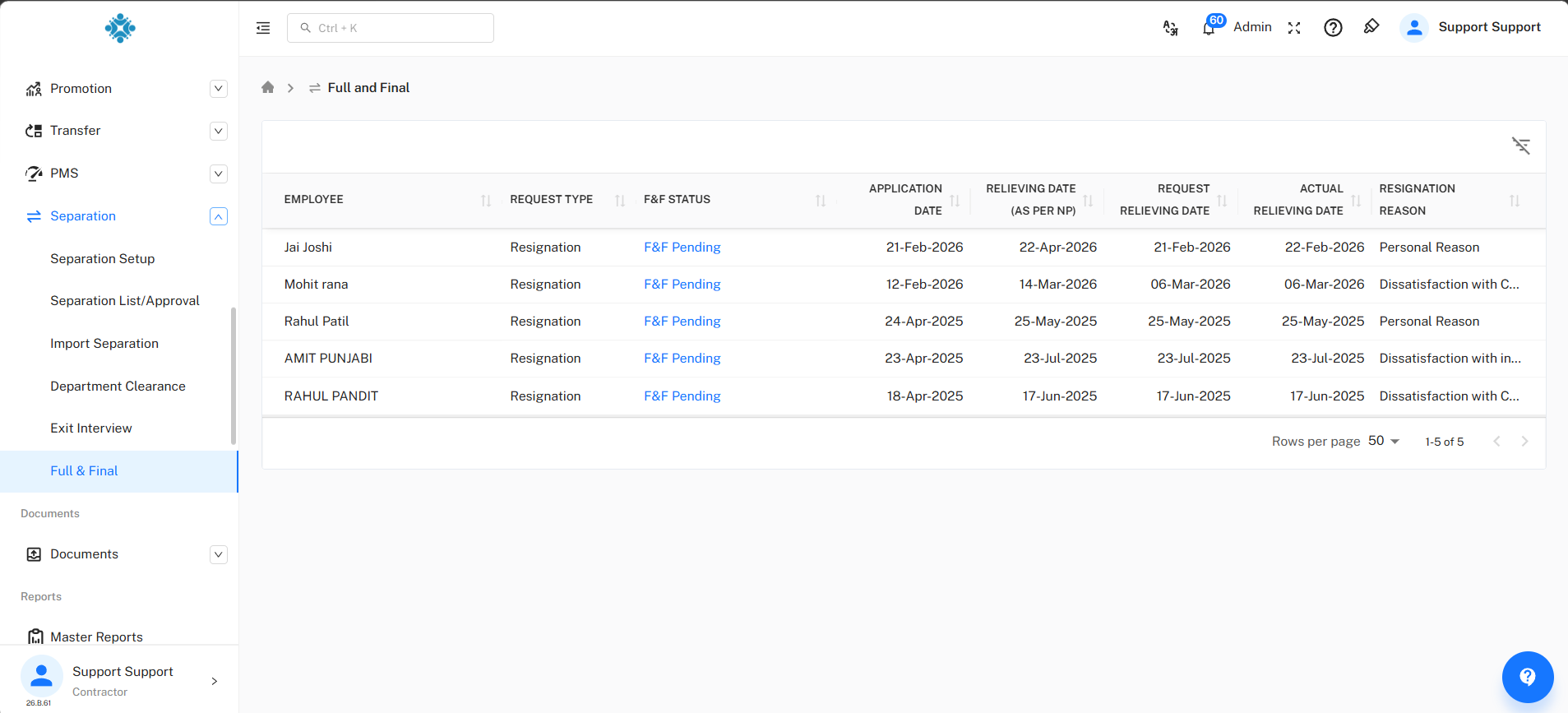
Navigate to the Full and Final (FnF) page to view all employees whose settlement is pending or already processed.
The employee list displays:
- Employee Name
- Request Type (Resignation/Termination)
- FnF Status
- Application Date
- Relieving Date (As Per Notice Period)
- Actual Relieving Date
- Resignation Reason
To start the settlement process, click on FnF Pending against the employee.
Step 2: Configure FnF Details
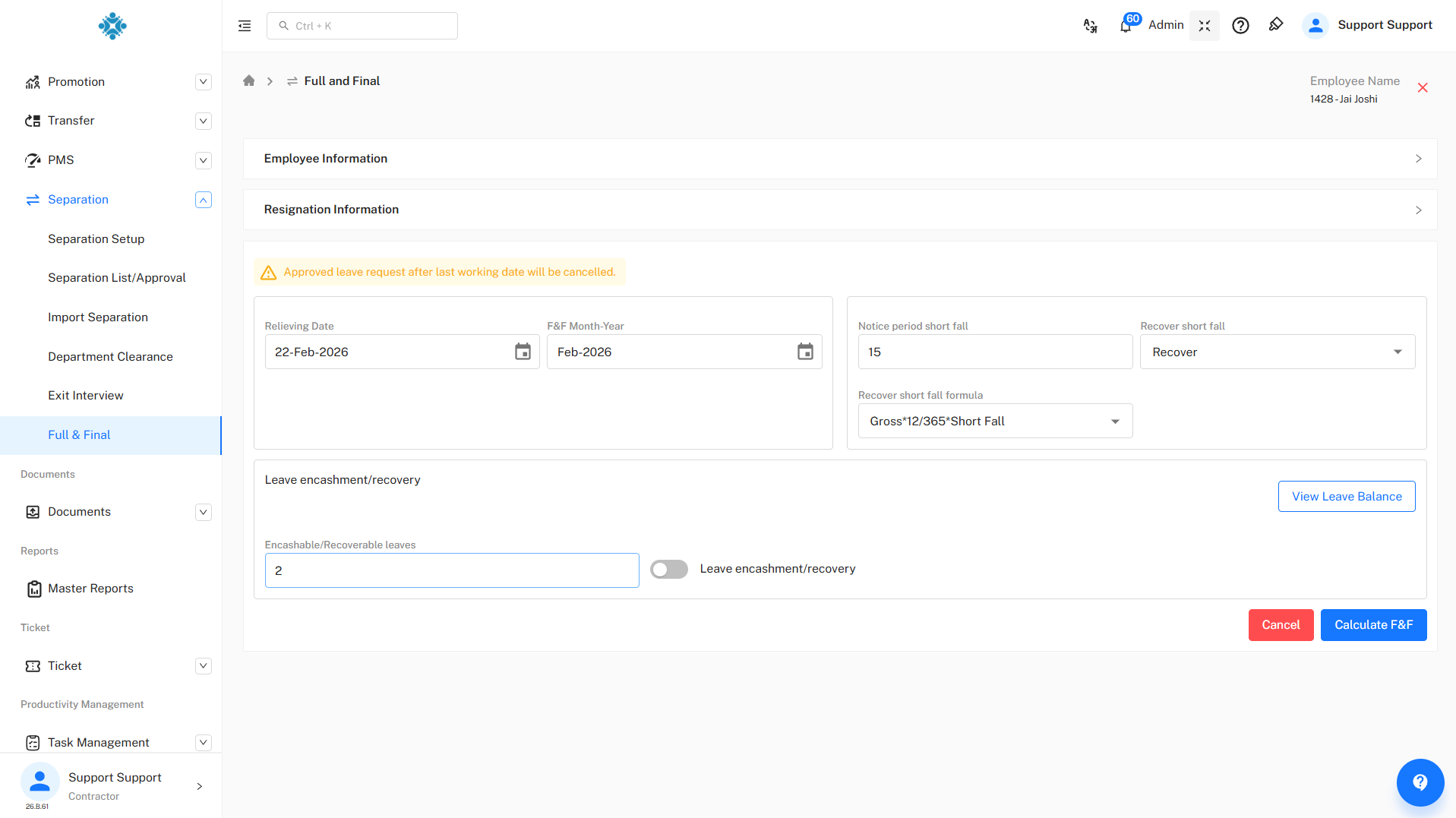
After selecting an employee, the FnF processing screen will open.
From this page, you can:
- View Employee Information.
- View Resignation Information.
- Review or update the Relieving Date.
- Select the FnF Month and Year.
- Review the Notice Period Shortfall.
- Configure recovery options for the notice period shortfall:
- Recover Full Amount
- Waive Off Recovery
- Partial Waive Off
- Process Leave Encashment for unused leave balances.
- Recover excess leave taken by the employee.
- Review leave balances using the View Leave Balance option.
Note: Before calculating the Full and Final (FnF) settlement, payroll must be processed and frozen for the required FnF month of the respective employee. The FnF calculation can only be performed after the required payroll periods have been frozen.
Once all required details are entered, click Calculate FNF.
Step 3: Review FnF Calculation
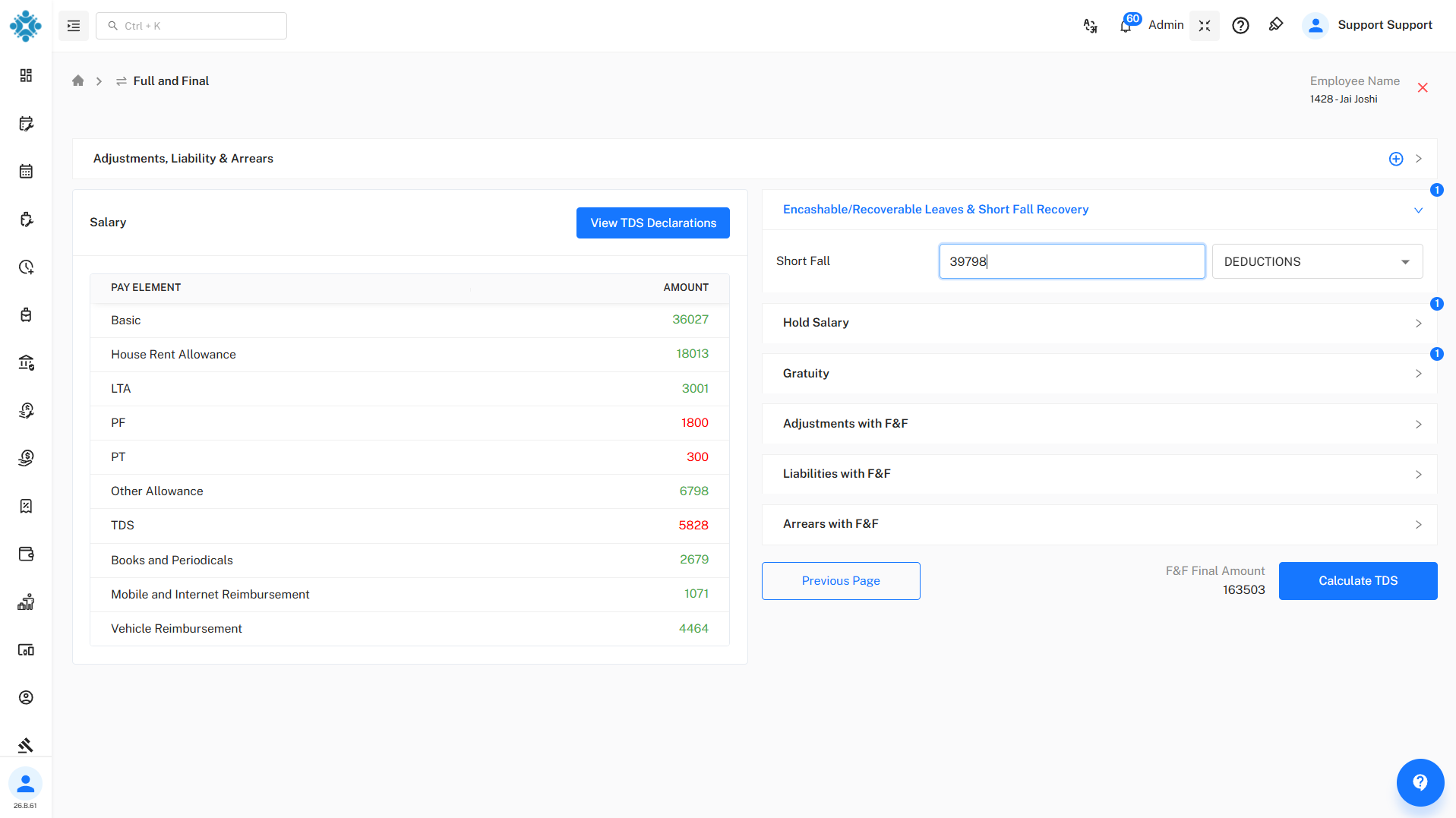
After clicking Calculate FNF, the system calculates the employee's settlement amount and displays a detailed salary breakup. The calculation screen includes:
Salary Details :
- Salary component-wise earnings and deductions.
- Complete salary breakup used for settlement calculation.
Leave Encashment & Shortfall Recovery :
- Displays leave encashment amount for unused leave balances.
- Displays leave recovery for excess leave utilized.
- Shows notice period shortfall recovery, if applicable.
Hold Salary :
- Displays any salary amount currently on hold and eligible for release during settlement.
Adjustments with FnF :
- Add any additional payments or adjustments to be included in the final settlement.
Liabilities with FnF :
- Recover outstanding employee liabilities such as:
- Asset recoveries
- Salary advances
- Loan recoveries
- Other pending recoveries
Arrears with FnF :
- Include pending salary arrears or additional payable amounts.
You may review all calculated values and make necessary adjustments before proceeding.
Step 4: Calculate TDS
After reviewing all earnings, deductions, liabilities, adjustments, and arrears, click Calculate TDS. The system will:
- Consider the employee's TDS declarations.
- Calculate applicable tax deductions.
- Generate the final payable settlement amount.
Step 5: Submit FnF Settlement
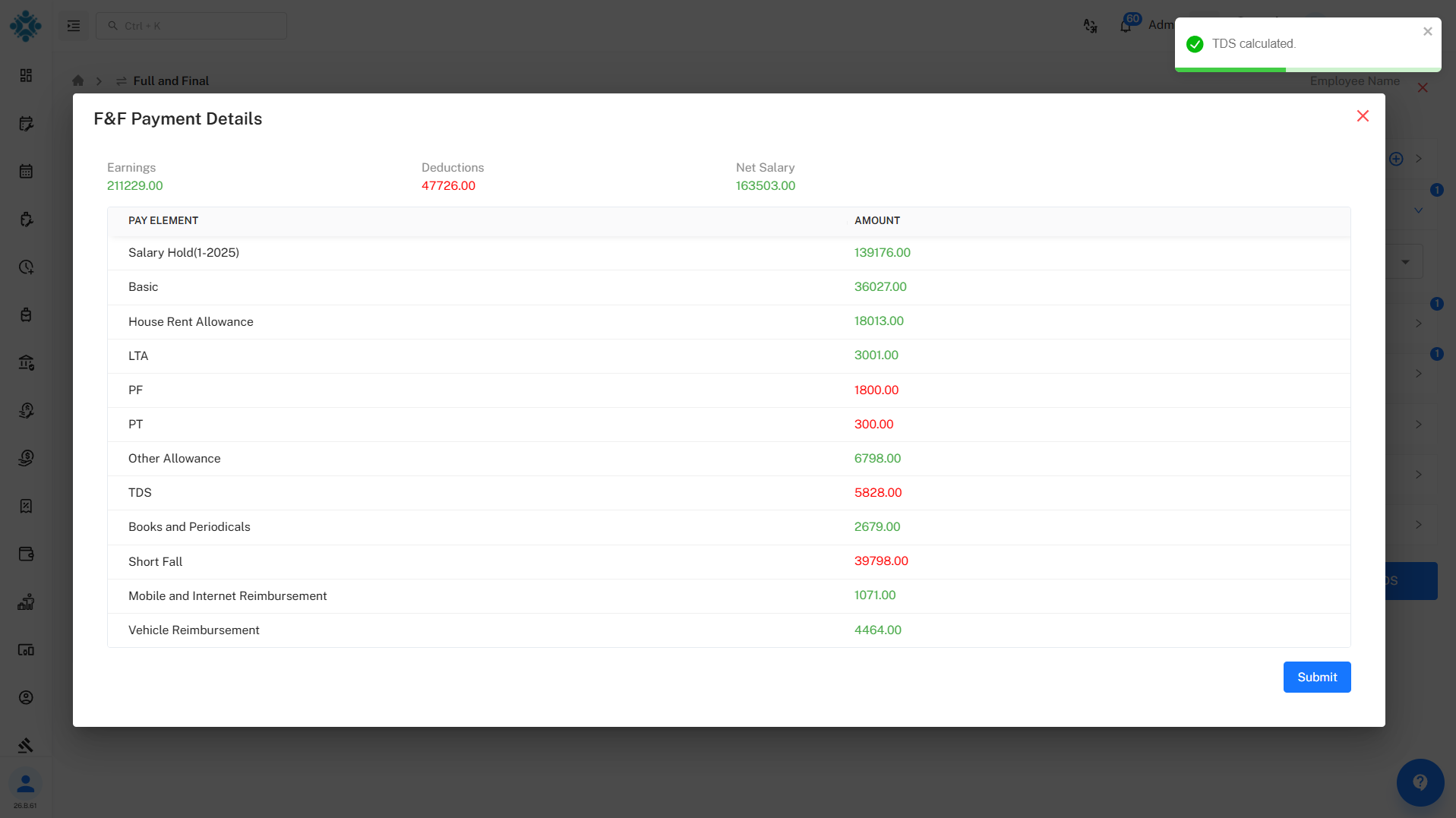
Review the final settlement summary, including:
- Total Earnings
- Total Deductions
- Net Salary
- Final Payable Amount
- Salary Component Breakup
Once verified, click Submit to complete the Full and Final settlement process.
This indicates that the Full and Final settlement has been processed successfully.
Step 6: Final Settlement & Payment Processing
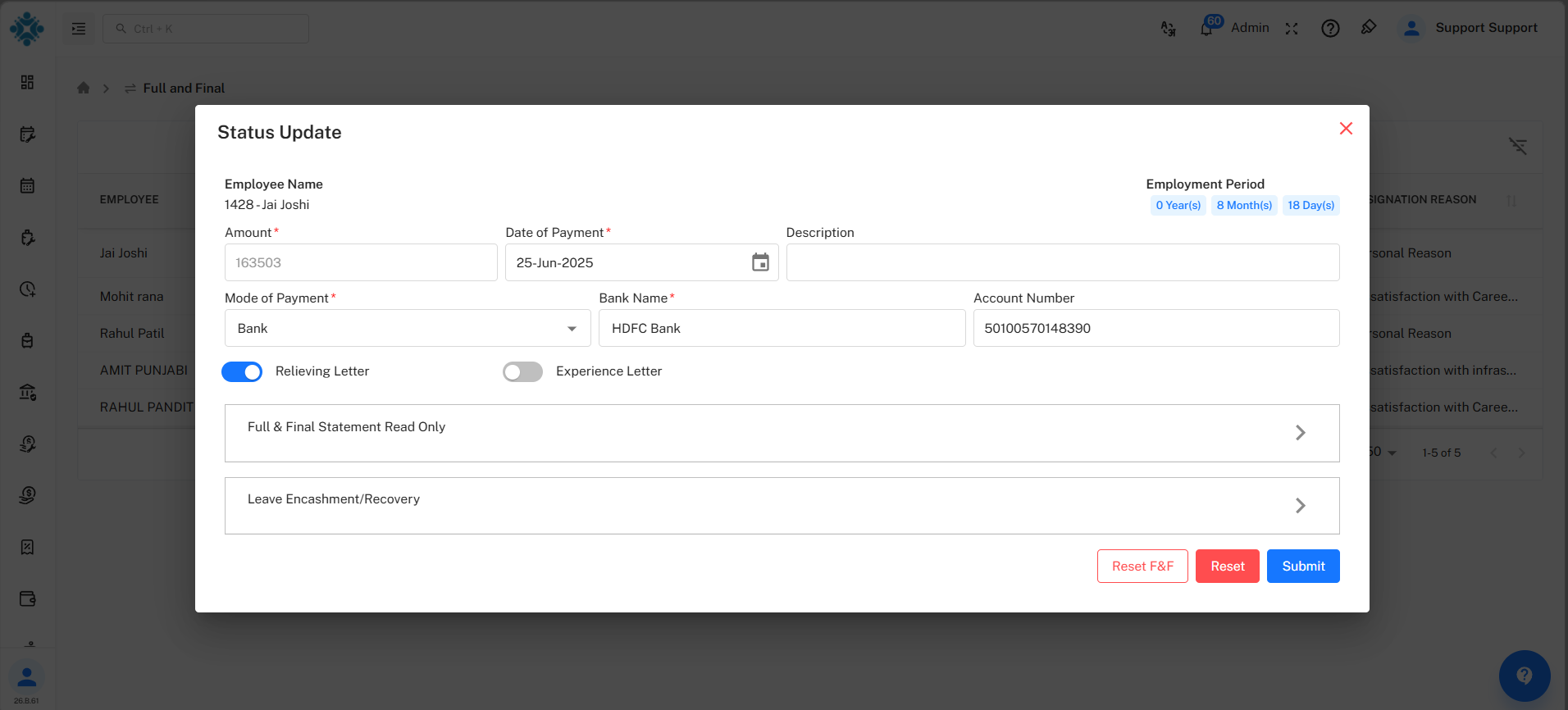
Once the employee's status changes to FnF Process, click on FnF Process to review and complete the final settlement.
From this page, you can:
- View the final FnF settlement amount.
- Select the Payment Date for the settlement.
- Choose the Mode of Payment (Bank Transfer, Cheque, Cash, etc.).
- Review the complete FnF Statement before processing the payment.
- Verify all earnings, deductions, liabilities, arrears, and tax calculations included in the settlement.
After reviewing the settlement details, click Submit to finalize the Full and Final settlement.
If any changes are required, you can click the Reset FNF button to revert the settlement and make the necessary modifications before processing it again.
This ensures that the final settlement is accurately reviewed and approved before payment is released to the employee.
FnF Status Update
After the settlement is successfully calculated and submitted:
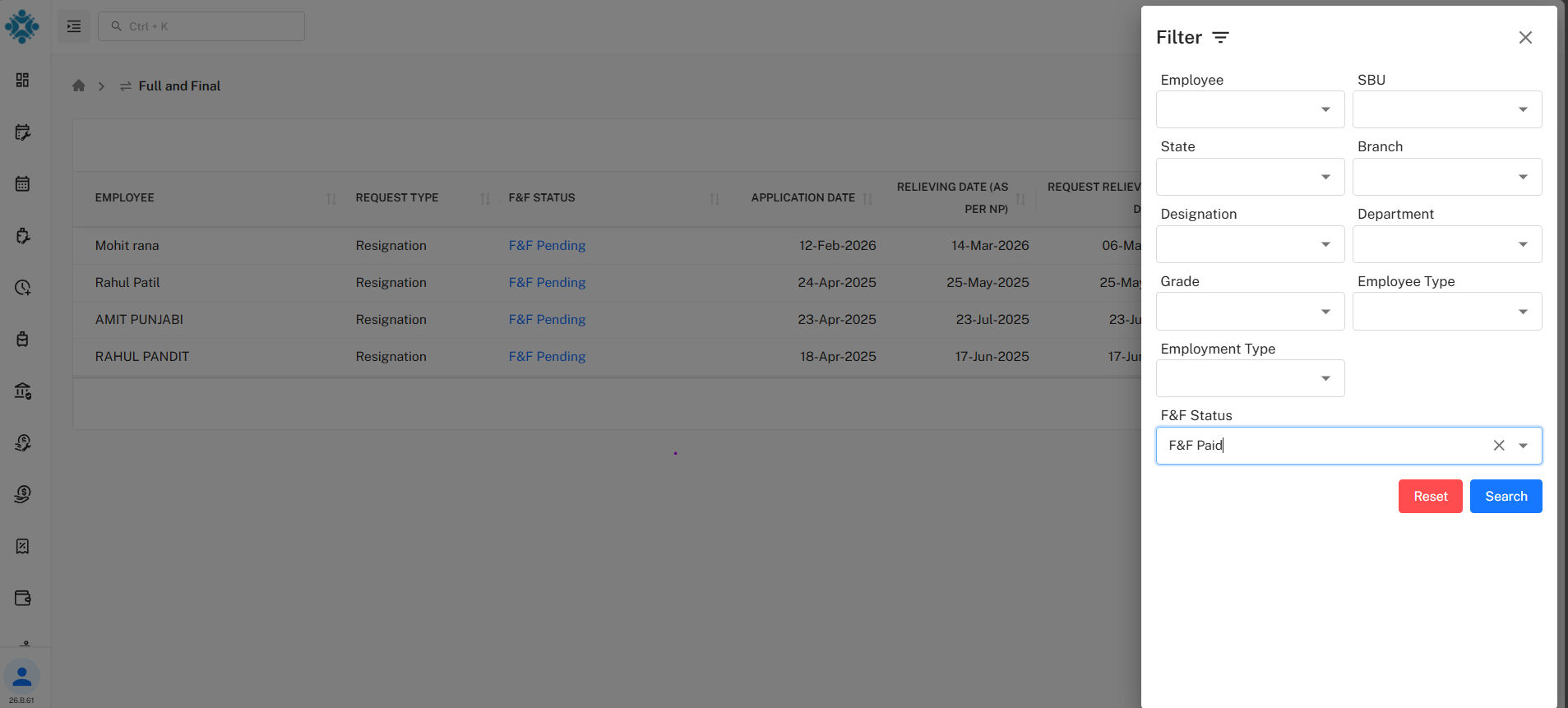
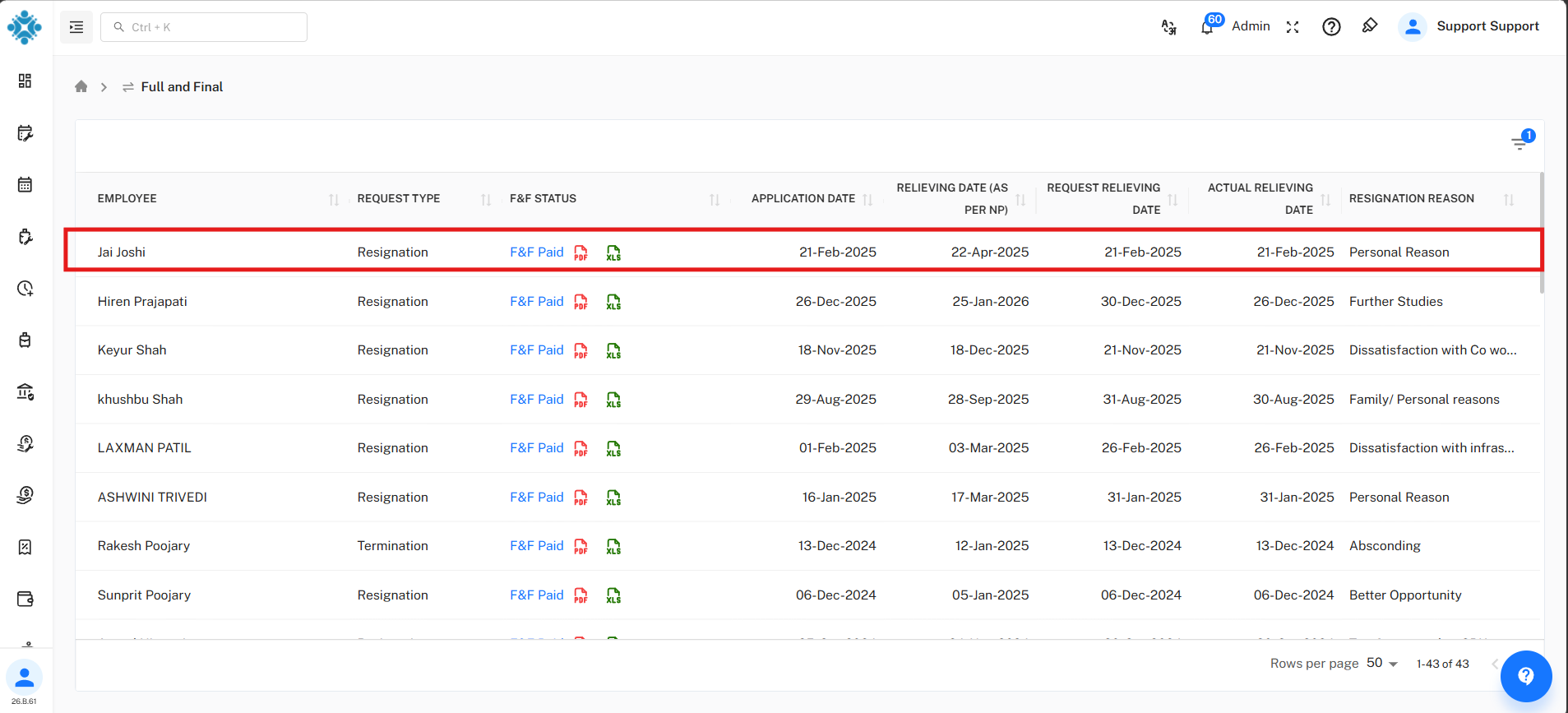
- The employee's status changes from FnF Pending to FnF Paid.
- PDF and Excel reports become available for download from the FnF list page.
- The settlement record is maintained for future reference and audit purposes.